
Windows Configuration Designer UI Not Loading Correctly During PPKG Creation
Troubleshooting when Windows Configuration Designer shows an incomplete interface and the main configuration pane does not load while creating a provisioning package (.ppkg).
Description
While creating a provisioning package (.ppkg) in Windows Configuration Designer (WCD), the interface may appear incomplete or incorrectly rendered. Only the navigation options may be visible, while the main configuration pane does not load correctly.
This issue can prevent access to Account Management and the Microsoft Entra ID bulk enrollment options required to create a valid provisioning package for Opsole Migrate.
Quick Reference
| Item | Details |
|---|---|
| Stage | Prerequisites — provisioning package creation with Windows Configuration Designer |
| Progress | Not applicable (occurs before migration) |
| Device impact | No device migration changes have been made |
| Safe to retry | Yes, after correcting the registry policy value |
| Responsibility | Customer IT administrator |
What You Will See
Windows Configuration Designer may display an interface similar to the example below:
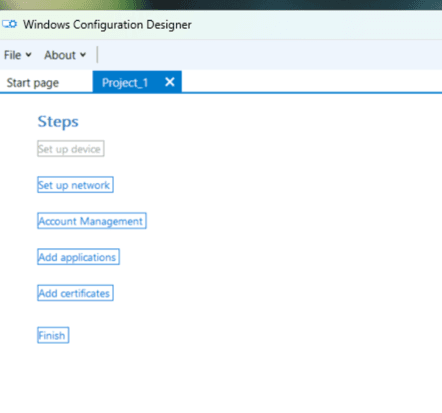
Example: Windows Configuration Designer displaying only the navigation steps.
Typical symptoms include:
- Only options such as Set up device, Set up network, Account Management, Add applications, Add certificates, and Finish are displayed
- The main configuration pane is missing or does not render correctly
- Microsoft Entra ID or Bulk Enrollment options required for PPKG creation may not be accessible
Root Cause
This behavior can occur when the Windows policy Security Zones: Use only machine settings is enabled.
The policy is represented by the following registry value:
HKEY_LOCAL_MACHINE\SOFTWARE\Policies\Microsoft\Windows\CurrentVersion\Internet Settings| Item | Value |
|---|---|
| Value name | Security_HKLM_only |
| Problem value | 1 |
Diagnosis
- Close Windows Configuration Designer if it is open.
- Open Registry Editor (
regedit) or an elevated Command Prompt. - Check whether the following value exists and is set to
1:
reg query "HKLM\SOFTWARE\Policies\Microsoft\Windows\CurrentVersion\Internet Settings" /v Security_HKLM_only| Result | Meaning |
|---|---|
Security_HKLM_only = 0x1 | Policy is enabled and likely causing the WCD UI issue |
Security_HKLM_only = 0x0 or value not found | Cause may be different; contact support if symptoms persist |
Resolution
Perform the following steps using an account with local administrator permissions. If the setting is enforced through Active Directory Group Policy or Microsoft Intune, it may be restored automatically after a policy refresh.
Resolution 1 — Manual Registry Change
-
Close Windows Configuration Designer
Completely close Windows Configuration Designer before modifying the registry. -
Open Registry Editor
Press Win + R, typeregedit, and select OK. Approve the User Account Control prompt if displayed. -
Navigate to the registry location
Browse to:HKEY_LOCAL_MACHINE\SOFTWARE\Policies\Microsoft\Windows\CurrentVersion\Internet Settings -
Locate the registry value
In the right pane, locateSecurity_HKLM_only. -
Change the value
Double-clickSecurity_HKLM_onlyand change Value data from1to0. Leave the base as Hexadecimal or Decimal; the value0is the same in either base. -
Reopen Windows Configuration Designer
Close Registry Editor and launch Windows Configuration Designer again.
Resolution 2 — Command Prompt
Alternatively, change the registry value from an elevated Command Prompt. This applies the same change without opening Registry Editor.
-
Open Command Prompt as Administrator
Search for Command Prompt, right-click it, and select Run as administrator. -
Change the registry value
Run:
reg add "HKLM\SOFTWARE\Policies\Microsoft\Windows\CurrentVersion\Internet Settings" /v Security_HKLM_only /t REG_DWORD /d 0 /f- Verify the registry value
Run:
reg query "HKLM\SOFTWARE\Policies\Microsoft\Windows\CurrentVersion\Internet Settings" /v Security_HKLM_onlyThe expected output should show Security_HKLM_only as REG_DWORD 0x0.
- Reopen Windows Configuration Designer
Close Command Prompt and reopen Windows Configuration Designer.
Verification
Confirm that the registry value is now configured as follows:
Security_HKLM_only REG_DWORD 0x0After reopening Windows Configuration Designer, confirm that:
- The full configuration interface is displayed
- The Account Management page opens correctly
- The required Microsoft Entra ID / Bulk Enrollment options are accessible
Then continue creating the provisioning package as described in Provisioning Package.
When to Contact Support
Contact support@opsole.com if:
- The registry value is already
0(or not present) but the WCD interface still does not load correctly - Group Policy or Intune restores
Security_HKLM_onlyto1after each refresh and you need guidance on an approved workstation configuration for PPKG creation - The Account Management / Bulk Enrollment workflow still fails after the UI loads correctly
Related Guidance
- Provisioning Package
- Microsoft documentation: Create a provisioning package
How is this guide?