
Pre-Migration Validation Failed
Guidance for identifying profile readiness conditions that may block migration before profile migration starts.
Description
Opsole Migrate validates whether Windows user profiles are in a safe state before performing profile migration operations. During migration, the platform checks whether any user profiles are loaded, locked, or currently in use to help prevent profile corruption or incomplete profile migration.
If a profile is detected as loaded or in use, migration will not continue until the condition is resolved on the endpoint.
Since profile state is controlled by Windows, background services, endpoint security controls, installed applications, and customer endpoint configuration, conditions affecting profile readiness must be resolved within the customer environment before migration can continue.
At this stage:
- Device has left Active Directory
- Device is confirmed Entra ID joined
- Previous device management state has been removed
- Profile migration has not yet started
In most cases, this condition occurs because a user profile is still loaded or in use after reboot. To protect profile integrity, Opsole Migrate blocks the migration until all profiles are fully released.
This is an endpoint-level condition typically caused by background services, scheduled tasks, or applications running under the user profile context.
Quick Reference
| Item | Details |
|---|---|
| Stage | Pre-Migration profile validation |
| Progress | Around 80% |
| Device impact | Migration cannot proceed |
| Safe to retry | No |
| Responsibility | Customer IT administrator |
What You Will See
Lock Screen Message
Migration Failed. Please check logs
Please log in with Local Admin Account
Portal Log
Migration processing failed in module PreMigrationValidation
Common Causes Affecting Profile Readiness
The migration cannot proceed because one or more user profiles are still loaded or not in a valid state for migration.
Opsole Migrate performs a safety validation before profile migration to ensure that no active or in-use profiles are modified. If a profile is detected as loaded, the migration is intentionally blocked to prevent potential data corruption or inconsistency.
This condition is typically caused by:
- Background services running under the user account
- Scheduled tasks configured to run as the user (especially at startup)
- Applications or agents maintaining persistent sessions
- Security, backup, or monitoring tools accessing user profile data
This condition is detected as part of a safety validation by Opsole Migrate. Opsole Migrate verifies whether profiles are in a safe state for migration and does not control or initiate profile loading or unloading.
Profile-loaded or profile-in-use conditions must be investigated and resolved on the endpoint before migration can continue.
Important Note
Thorough pre-migration testing is strongly recommended on representative devices. This helps identify any background processes, services, or applications that automatically start using the user account.
Diagnosis
- Review the Opsole Migrate diagnostic results in the portal migration logs. When this issue is detected, Opsole Migrate performs a diagnostic check to help identify processes, services, scheduled tasks, or endpoint tools that may be keeping the user profile or profile-related files in use. Use these log entries to determine what is locking the profile before taking corrective action.
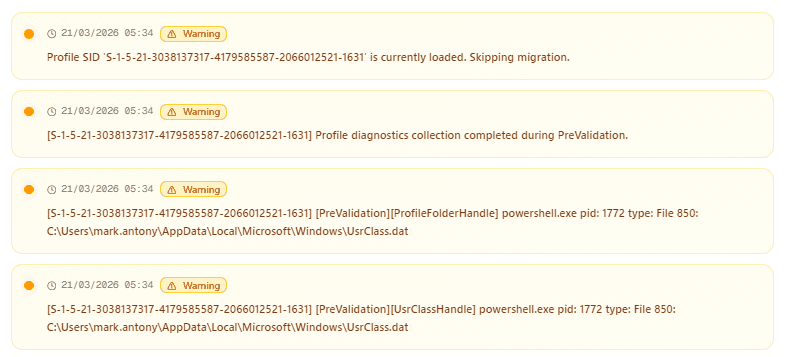
- Log in to the device using the local administrator account and run the following checks in PowerShell (Administrator):
Run the following in PowerShell (Admin mode):
Get-CimInstance -ClassName Win32_UserProfile | Where-Object { $_.Loaded -eq $True -and $_.Special -eq $False } | Select-Object LocalPath, Loaded, LastUseTimeWhat you'll see:
LocalPath                        Loaded  LastUseTime
---------                        ------  -----------
C:\Users\domainuser              True    2/21/2026 10:45:00 AM
C:\Users\svc_appservice          True    2/21/2026 9:00:00 AM
Any profile listed here other than the local Administrator is currently loaded in memory will block your migration.
Identify which profile is loaded, investigate the root cause of why that profile is loading, fix the issue, and then continue with the migration.
| Result | Meaning |
|---|---|
| Profiles show Loaded = True | Active profile still in use, Further investigation required (logs / services / tasks) |
| Portal diagnostic shows active processes | Identify application/service locking the profile |
Resolution
This condition must be resolved on the endpoint by ensuring that no user profiles are loaded or in use before resuming the migration.
Step 1 — Identify the cause
Based on the diagnosis, determine what is loading the profile:
- Windows services running under the user account
- Scheduled tasks configured to run as the user
- Background applications or agents (backup, security, monitoring tools)
- Any process maintaining a session under the user context
Step 2 — Resolve the issue
Take appropriate action to prevent the profile from loading:
- Stop or reconfigure services running under the user account
- Disable or update scheduled tasks
- Temporarily disable or adjust third-party tools if required
- Ensure no user session is active
If profiles continue to load automatically, further investigation is required at the endpoint level before retrying the migration.
Recovery Steps
Do not retry migration repeatedly. Profile-loaded or profile-in-use conditions must be resolved by the endpoint IT administrator before attempting recovery or restarting the migration.
Ensure all user profiles are fully unloaded
- Log in using a local administrator account
- Navigate to:
C:\ProgramData\OpsoleMigrate\runtime - Run:
Patch.exe - Close the application after completion
- Reboot the device
After reboot, the migration will resume from the point of failure.
When to Contact Support
Contact support@opsole.com if:
- No user profiles are loaded, but migration does not resume after completing the recovery steps
- Patch.exe has been executed successfully, but the migration does not continue after reboot
- The issue persists even after confirming that no services, tasks, or applications are loading the profile
Related Logs
- Event Viewer → Application and Services Logs → OpsoleMigrate
- Backup:
C:\ProgramData\OpsoleMigrate\Backup\
How is this guide?