
Migration Recovery Guide
Recovery procedures for IT administrators when Opsole Migrate fails during Pre-Migrate or Inter-Migrate phases. Use the correct recovery option for the failure phase—do not reimage the device.
Audience: IT Administrator
If your migration has failed, do not reimage or reset the device.
Opsole Migrate includes a built-in recovery mechanism. Most failures — including failures that occur mid-migration after the device has left the domain — are recoverable without reimaging or contacting support. Use the correct recovery option for the phase at which the migration failed.
Recovery applies in two phases:
| Phase | When | Recovery option |
|---|---|---|
| Pre-Migrate | Migration started but the device has not yet joined Entra ID | Re-run the Opsole Migrate application |
| Inter-Migrate | Migration Window Stuck at "Migration in Process" After Pre-Migrate Phase Reboot | Run patch.exe |
| Inter-Migrate | Migration restarted after Entra ID join was attempted or completed | Run patch.exe |
For error-specific diagnosis and root-cause fixes, see the Knowledge Base.
Before You Begin
- Do not reimage or reset the device unless Opsole Support directs you to do so.
- Identify the failure phase using the portal log module name (see Step 1 below).
- Resolve the root cause using the linked KB article before retrying recovery.
Step 1 — Identify Your Failure Phase
Open the Opsole Migrate Portal and locate the device log. Find the module name shown in the failure entry. Use the tables below to determine which phase the failure belongs to.
Pre-Migrate Phase — Re-run the Opsole Migrate Application
If the log shows any of the following module names, the failure occurred in the Pre-Migrate phase:
| Module name in log | What it means | KB article |
|---|---|---|
Getconfigapi | Could not retrieve migration configuration | KB-022201 |
StoredeviceDetails | Could not store device information | KB-022207 |
UserProfileCollection | Could not collect user profile information | KB-022208 |
EntraFetchUserDetails | Could not map user profiles to Entra ID identities | KB-022209 |
dsregcmd | Could not disconnect device from Entra ID | KB-022210 |
Remove-Computer | Could not remove device from domain (online method) | KB-022211 |
Remove-ComputerForce | Could not remove device from domain (offline method) | KB-022211 |
EntrapackageInfo | Could not retrieve provisioning package information | KB-022212 |
Entrapkgdownload | Could not download provisioning package | KB-022212 |
Recovery steps
-
Fix the root cause first.
- Open the KB article linked in the Opsole Admin Portal for the specific error (or use the table above).
- Resolve the issue before retrying.
- Re-running the application without fixing the root cause will result in the same failure.
-
Re-run the Opsole Migrate application.
- Launch Opsole Migrate on the device.
- The application performs the required checks again.
- It continues or restarts the recovery flow based on the current device state.
-
Monitor the Opsole Admin Portal.
- Confirm that migration progresses past the stage where it previously failed.
Important notes
- At this stage, Entra ID join has not yet been attempted.
- Re-running the Opsole Migrate application is the correct recovery method.
- If the issue repeats after following the KB article, contact support@opsole.com.
Inter-Migrate Phase — Run patch.exe
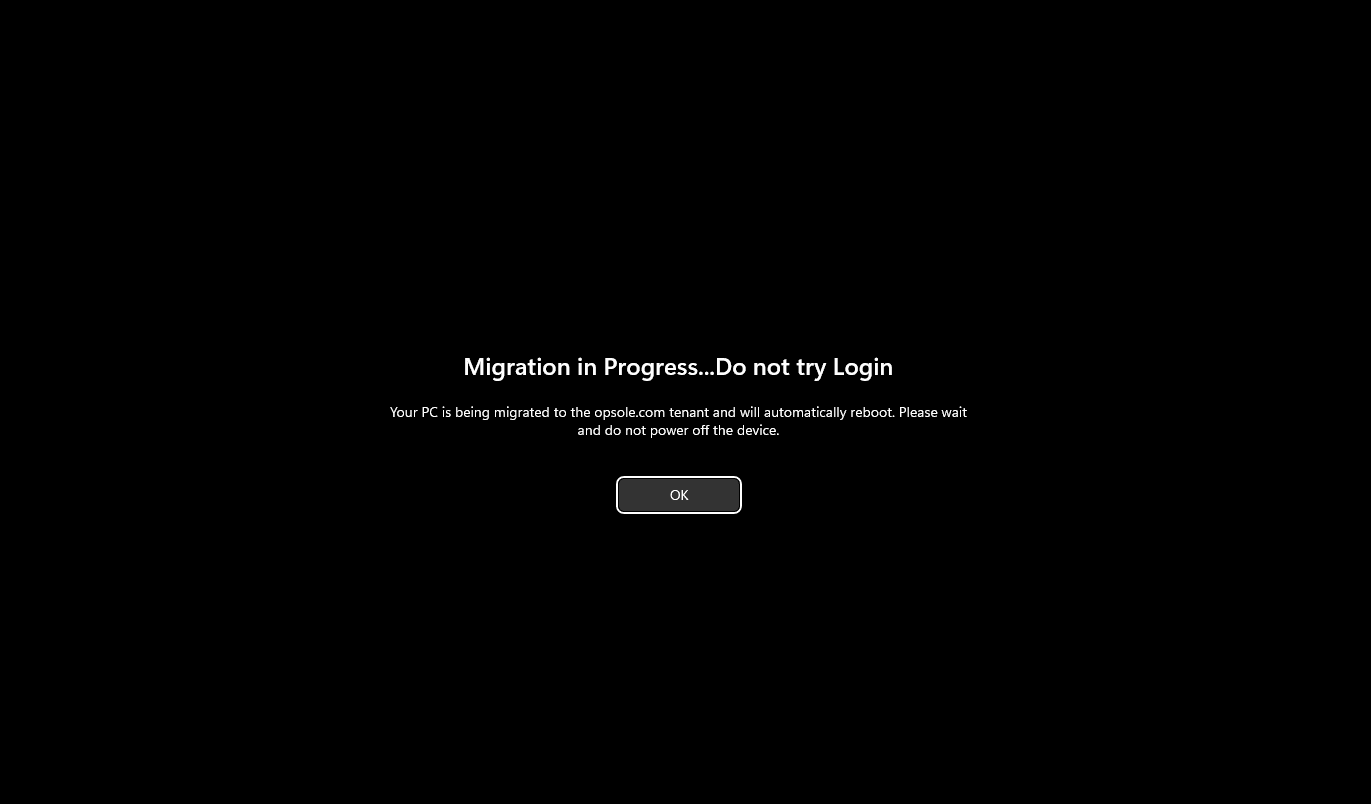
Issue 1: Migration Window Stuck at "Migration in Process" After Premigrate Phase Reboot
Root Cause
Intermigrate Phase of the migration did not start because the Task Scheduler failed to launch the InterMigrate activity. This typically occurs when the scheduled task or the executable required for Intermigrate Process is missing or blocked.
Common Causes
- EDR blocked the creation or execution of the scheduled task
- EDR deleted the scheduled task after creation
- EDR quarantined or removed the InterMigrate executable
When Intermigrate Phase does not run, the device remains stuck on the “Migration in Process” screen after reboot. Follow the following Recovery steps
Issue 2: Entrajoin and Profile Failure
If the log shows any of the following module names, the failure occurred in the Inter-Migrate phase:
| Module name in log | What it means | KB article |
|---|---|---|
Entrajoin | Entra ID join failed | KB-022214 |
| Profile Loading Failed | User profile loading failed after Entra join | KB-022216 |
| Profile Transition Failed | User profile transition failed (contact Opsole Support first) | KB-022217 |
Recovery steps — Run patch.exe
At this stage, Entra ID join has been attempted or completed. The device is in a transition state.
- Do not reimage the device.
- Do not re-run the Opsole Migrate application.
patch.exe location:
C:\ProgramData\OpsoleMigrate\runtime\patch.exeIt resumes migration from a saved checkpoint and repairs the steps that failed without restarting the entire process.
Condition 1 — Entra Join Failed (Entrajoin)
The provisioning package was applied but the device did not successfully complete Entra ID join.
Steps:
- Fix the root cause using KB-022214.
- Remove any existing Entra provisioning package file from the device.
- Manually join the device to Entra ID using the correct provisioning package.
- Confirm the device is Entra joined (
dsregcmd /status). - Run patch.exe from
C:\ProgramData\OpsoleMigrate\runtime\ - Reboot the device — migration continues automatically.
Condition 2 — Profile Loading Failed
The device has joined Entra ID but the user profile is still loaded or in use. Opsole Migrate blocks migration until all profiles are fully released.
Steps:
- Fix the root cause — refer to KB-022216 or the KB article linked in the portal for your error.
- Ensure all user profiles are fully unloaded.
- Run patch.exe from
C:\ProgramData\OpsoleMigrate\runtime\ - Reboot the device — migration continues automatically.
Condition 3 — Profile Transition Failed
The device has joined Entra ID and profiles were loaded, but the profile transition from the old domain account to the new Entra ID account failed.
This condition requires Opsole Support to review the device state and provide guided recovery.
Steps:
- Contact support@opsole.com with the device name and the full portal log.
- Support will diagnose the issue and provide the necessary guidance before you run patch.exe.
When to Contact Opsole Support
Contact support@opsole.com in the following situations:
- Profile Transition Failed — correction is required before patch.exe can be run
- patch.exe fails after following the steps above
- The device is inaccessible or unresponsive after a failure
When contacting support, include:
- Device name
- Full portal log for the device
- The KB article you followed and the steps already attempted
For error-specific troubleshooting, open the KB article linked in the Opsole Admin Portal for your device's failure, or browse the Knowledge Base.
How is this guide?
Migration Process
Step-by-step walkthrough of installing Opsole Migrate on the device, launching the tool, and completing the migration. Applies to AD-to-Entra, Hybrid-to-Entra, and Tenant-to-Tenant scenarios.
Overview
Troubleshooting reference for errors and issues encountered during device migration.