
Entra Join Validation Failed
Guidance for identifying conditions affecting Microsoft Entra ID join and enrollment after provisioning during the PreMigrate phase.
Description
Overview
After the initial system reboot, the migration continues and validates whether the device has successfully joined Microsoft Entra ID.
This issue occurs when the Microsoft Entra join process does not complete within the expected time window, even though the provisioning package was applied successfully earlier in the migration.
Environmental conditions affecting Microsoft Entra join or Windows enrollmen must be resolved within the customer environment before migration can continue.
At this stage:
- Device has already left Active Directory
- Provisioning package was applied
- Entra join was attempted but not confirmed
- Device is in a transitional state (not domain joined and not fully Entra joined)
Diagnostic logs are available at:
C:\ProgramData\OpsoleMigrate\Diagnostics\
Opsole Migrate uses the Microsoft bulk enrollment provisioning package (.ppkg) to perform the Microsoft Entra ID join process. The join operation is executed through the Windows provisioning engine and Microsoft Entra ID services. Environmental conditions affecting Microsoft Entra join or enrollment must be resolved within the customer environment before migration can continue.
Quick Reference
| Item | Details |
|---|---|
| Stage | InterMigrate Entra join validation |
| Progress | Around 70% to 80% |
| Device impact | Device is in transitional state |
| Safe to retry | No |
| Responsibility | Customer IT administrator |
What You Will See
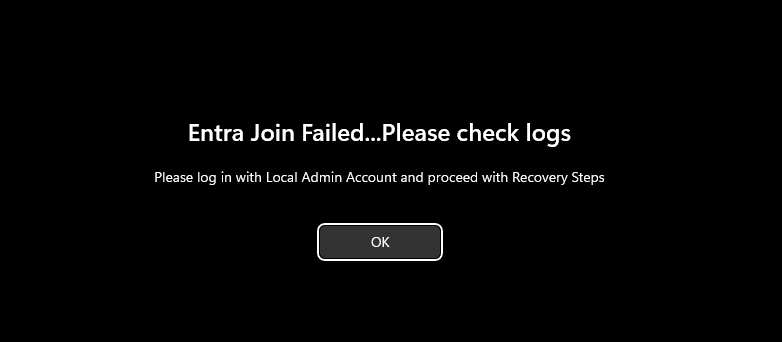
Lock Screen Message
Entra Join Failed...Please check logs
Please log in with Local Admin Account and proceed with Recovery Steps
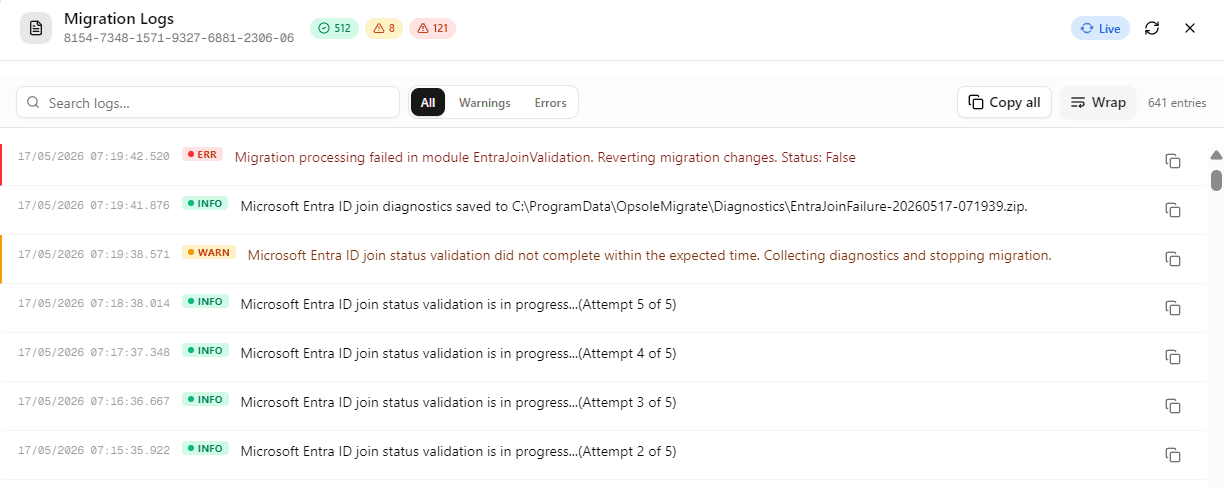
Portal Log
Migration processing failed in module EntraJoinValidation
Common Causes Affecting Microsoft Entra Join
The following environmental or tenant-side conditions may prevent the Microsoft Entra ID join and enrollment process from completing successfully during migration:
- No internet connectivity at time of join
- DNS resolution issues (e.g.,
login.microsoftonline.comtimeout/latency greater than ~2 seconds causing join failure) - Required Microsoft endpoints not reachable or blocked by firewall
- Proxy / SSL inspection interfering with authentication traffic
- Provisioning package (
.ppkg) invalid, expired, or corrupted - Package user impacted by Conditional Access (MFA, device compliance, location restrictions)
- Device already registered / stale Entra ID join state (
dsregcmdconflict) - Device join restricted by Entra ID policies (device limit, join restrictions)
- Azure AD device quota exceeded for the user
- Intune / MDM enrollment restrictions blocking join
- Device Registration Service or required Windows services not running
- Unsupported or outdated OS build
- Device time/date not in sync (clock skew → token/auth failure)
Diagnosis
The following diagnostic steps are recommended to help identify conditions affecting the Microsoft Entra ID join and enrollment process.
If the issue cannot be identified through the diagnostics below, troubleshooting should continue using Microsoft Entra ID device registration and Windows provisioning guidance,refer to the Microsoft documentation., or the customer IT team should engage Microsoft Support for further investigation.
Step 1 — Check Microsoft Entra join state
dsregcmd /statusVerify the following value under Device State:
AzureAdJoined : YES— device is joinedAzureAdJoined : NO— device has not successfully joined Microsoft Entra ID
Step 2 — Verify internet connectivity
Test-NetConnection login.microsoftonline.com -Port 443Confirm:
- TCP connection succeeds
- Port 443 is reachable
- No firewall or proxy interruption exists
If the connection fails, the device cannot reach Microsoft Entra services required for enrollment.
Step 3 — Verify DNS resolution and latency
nslookup login.microsoftonline.comConfirm:
- DNS resolution succeeds immediately
- No timeout or delay occurs
- DNS response is stable and consistent
High DNS latency or intermittent resolution failures can interrupt the Entra join process.
Step 4 — Review Opsole portal logs
Open the Opsole migration logs and review the Microsoft Entra join result.
Look for entries similar to:
Category: DeviceAADJoin
LastResult: Error 0xXXXXXXXX
If an error code is present:
- Identify the exact error code
- Search the Microsoft Entra error code reference
Step 5 — Review Windows event logs
Open Event Viewer and review the following logs.
User Device Registration
Navigate to:
- Applications and Services Logs → Microsoft → Windows → User Device Registration
Review events related to:
- Device registration
- Token acquisition
- Authentication failures
- Join status
Provisioning
Navigate to:
- Applications and Services Logs → Microsoft → Windows → Provisioning-Diagnostics-Provider → Admin
Review:
- Provisioning package processing
- Enrollment failures
- Provisioning engine errors
- Package validation failures
References:
Step 6 — Review Microsoft Entra sign-in logs
Perform the following checks in the Microsoft Entra admin center.
Provisioning package user sign-ins
Navigate to:
- Microsoft Entra admin center → Entra ID → Users → provisioning package user
Review:
- Sign-in logs
- Non-interactive sign-ins
- Failure reasons
- AADSTS error codes
Device Registration Service events
Navigate to:
- Entra ID → Sign-in logs
Apply filters:
- Application = Device Registration Service
Review:
- Conditional Access results
- Authentication failures
- Policy enforcement blocks
Device registration status
Navigate to:
- Entra ID → Devices
Confirm:
- Device exists (or identify duplicate/stale objects)
- No duplicate device object exists
- No stale registration remains
Result mapping
| Result | Cause |
|---|---|
AzureAdJoined = YES | Join completed late — continue Recovery Steps below to resume |
AzureAdJoined = NO + internet test fails | No internet connectivity during join |
| DNS resolution fails or takes more than ~2 seconds | DNS latency / resolution issue affecting Entra join |
| Required Microsoft endpoint test fails | Microsoft device registration/authentication endpoint blocked |
| Device time/date is incorrect or not synced | Clock skew causing authentication/token failure |
| Errors referencing tenant, policy, MFA, or AADSTS | Conditional Access, MFA, or tenant configuration issue |
| Package user sign-in logs show failure | Package user authentication or policy issue |
| Non-interactive sign-in logs show Conditional Access failure | Conditional Access blocked device registration |
Device already exists in Entra ID or dsregcmd shows stale state | Existing/stale Entra registration conflict |
| Provisioning package status shows failed/invalid package | Invalid, expired, corrupted, or partially applied package |
| Intune enrollment restriction found | MDM enrollment policy blocking registration |
Resolution
Identify and resolve the root cause of the Microsoft Entra ID join failure before continuing the migration.
No internet connectivity or Microsoft endpoint access failure
Ensure the device has stable internet access and can reach all required Microsoft endpoints over HTTPS (443).
After connectivity is restored, retry the join process.
DNS resolution or latency issue
Ensure DNS resolves login.microsoftonline.com quickly and consistently (typically within ~2 seconds).
Update DNS servers or network configuration if required, then retry the join process.
Invalid provisioning package
- Create a new provisioning package. Provisioning Package Guide
- Manually join the device to Microsoft Entra ID using the new package.
- Continue with the Migration Recovery Guide steps.
- Upload the updated package to the Opsole portal for future migrations.
Conditional Access or authentication blocking
Identify blocking Conditional Access policies such as:
- MFA enforcement
- Device compliance requirements
- Location restrictions
- Authentication strength policies
Exclude the provisioning package user or temporarily relax the policy to allow device registration.
Existing or stale Microsoft Entra device registration
If the device already exists in Microsoft Entra ID:
- Remove stale or duplicate device objects
- Clear previous registration state
- Retry the Microsoft Entra join process
The Microsoft Entra ID join process is executed by the Windows provisioning engine using the Microsoft provisioning package (.ppkg). Opsole Migrate initiates and coordinates this process as part of the migration workflow.
If the root cause cannot be identified through the above diagnostics, troubleshooting should continue using Microsoft Entra ID device registration and Windows provisioning guidance, or the customer IT team should raise a support case with Microsoft.
Recovery Steps
Do not restart the migration from the beginning.
-
Log in using the local administrator account
-
Remove any existing provisioning package if present
-
Fix the identified root cause
-
Install the correct provisioning package manually
-
Verify the device is successfully joined to Microsoft Entra ID:
dsregcmd /statusConfirm
AzureAdJoined : YES -
Confirm the device appears in the Microsoft Entra admin center
-
Navigate to
C:\ProgramData\OpsoleMigrate\runtime -
Run
Patch.exe -
Reboot the device
Migration resumes automatically after reboot and continues from the last completed stage.
For phase-based recovery overview, see the Migration Recovery Guide.
When to Contact Support
Contact support@opsole.com if:
AzureAdJoined = YES, but the migration does not resume after the recovery step- The device is successfully Entra joined, but remains stuck and does not proceed to the next migration phase
Related Logs
- Event Viewer → Application and Services Logs → OpsoleMigrate
- Diagnostics:
C:\ProgramData\OpsoleMigrate\Diagnostics\
How is this guide?