
Provisioning Package
Create, secure, and validate the Microsoft bulk enrollment provisioning package using Windows Configuration Designer (WCD) for AD-to-Entra, Hybrid-to-Entra, and Tenant-to-Tenant migration scenarios.
Opsole Migrate utilizes the Microsoft Bulk Enrollment Package mechanism for the Microsoft Entra ID join process during migration. The provisioning package is created using the Microsoft Windows Configuration Designer (WCD) application and is applied during migration to join devices to the Microsoft Entra tenant and enroll them into Microsoft Intune management.
The procedure below follows Microsoft’s bulk enrollment guidance. For additional information and troubleshooting related to Windows bulk enrollment, refer to the Microsoft documentation.
Since Opsole Migrate relies on Microsoft Windows provisioning and enrollment components, changes introduced by Microsoft to Windows, Microsoft Entra ID, Microsoft Intune, provisioning mechanisms, policies, or platform behavior — including updates, patches, feature changes, or service modifications — may affect provisioning package behavior or migration execution. Such conditions may require validation, adjustment, or remediation within the customer environment before migration can continue.
| Migration scenario | Tenant used to create PPKG |
|---|---|
| AD-to-Entra or Hybrid-to-Entra | Tenant the device will join after migration |
| Tenant-to-Tenant | Destination target tenant |
Treat the provisioning package (.ppkg) as a sensitive credential. It contains a bulk enrollment token that can join devices to the configured Microsoft Entra tenant. Store it only in approved secure storage, restrict access to migration administrators, and do not email it, share it through chat, or commit it to source control.
Provisioning Package Preparation with Windows Configuration Designer
To facilitate device registration and migration, create a provisioning package by using Windows Configuration Designer (WCD).
Step 1 - Download Windows Configuration Designer
Download and install Windows Configuration Designer from the Microsoft Store.
The Microsoft Store must be accessible on the PC used to create the provisioning package. This is usually a one-time setup completed on an IT administrator workstation.
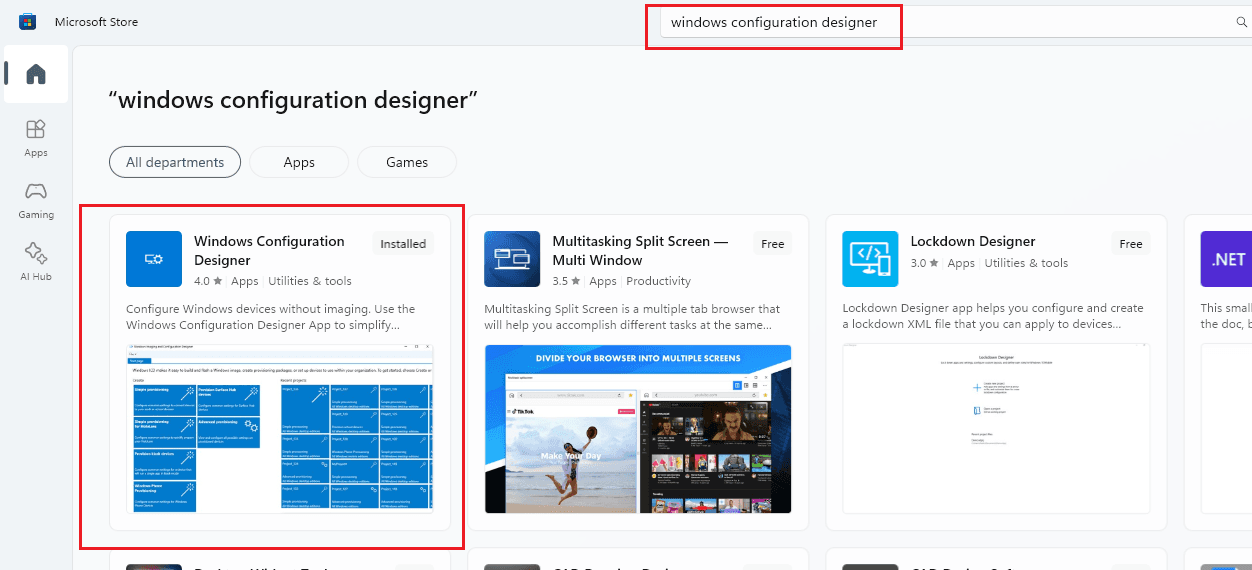
Step 2 - Launch Windows Configuration Designer
Open the Start menu and launch Windows Configuration Designer.
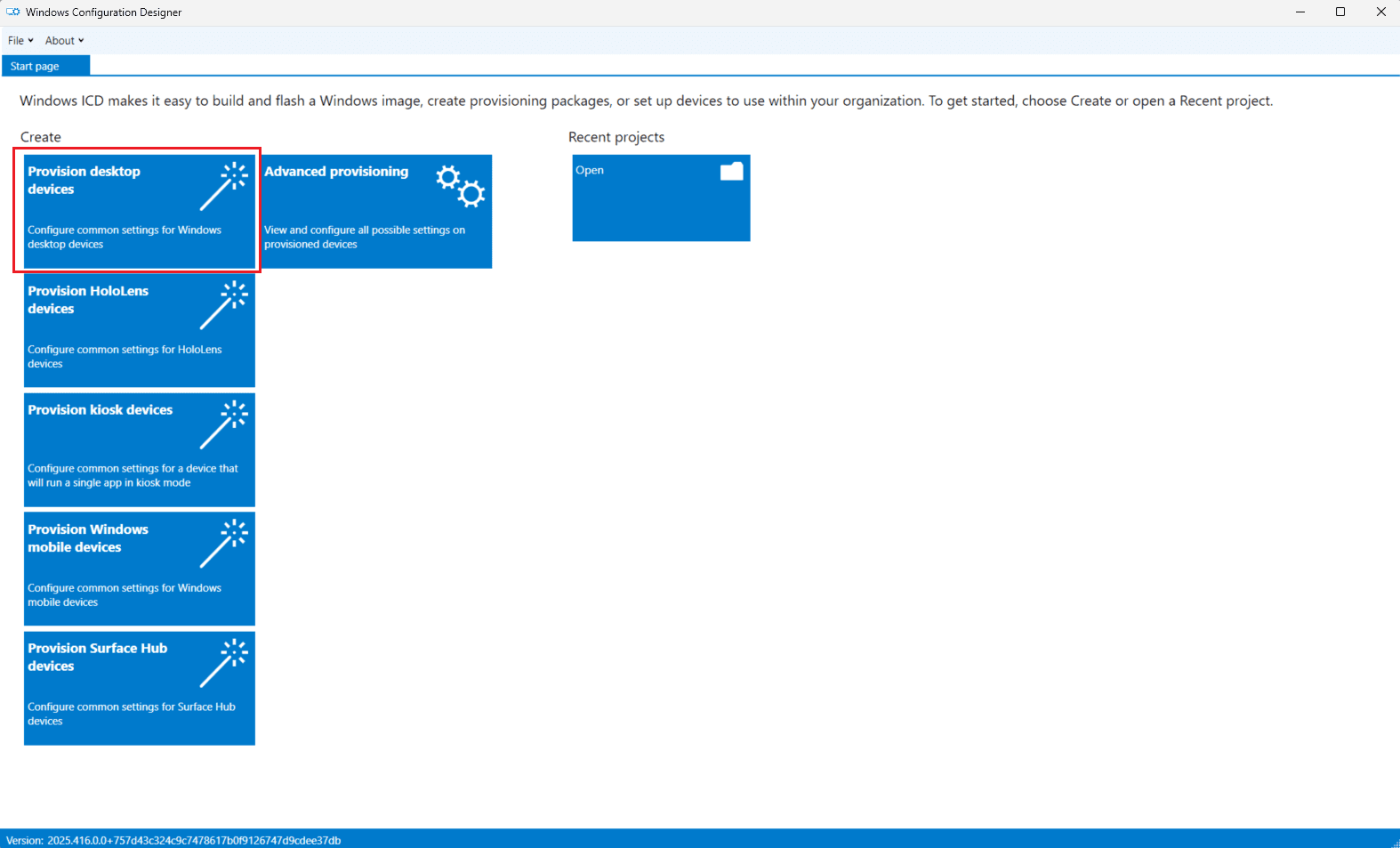
Step 3 - Create a New Project
- In the WCD home screen, select Provision desktop devices under the Create menu.
- In the New project dialog:
- Enter a name for your provisioning package.
- Select the project path.
- Click Finish.
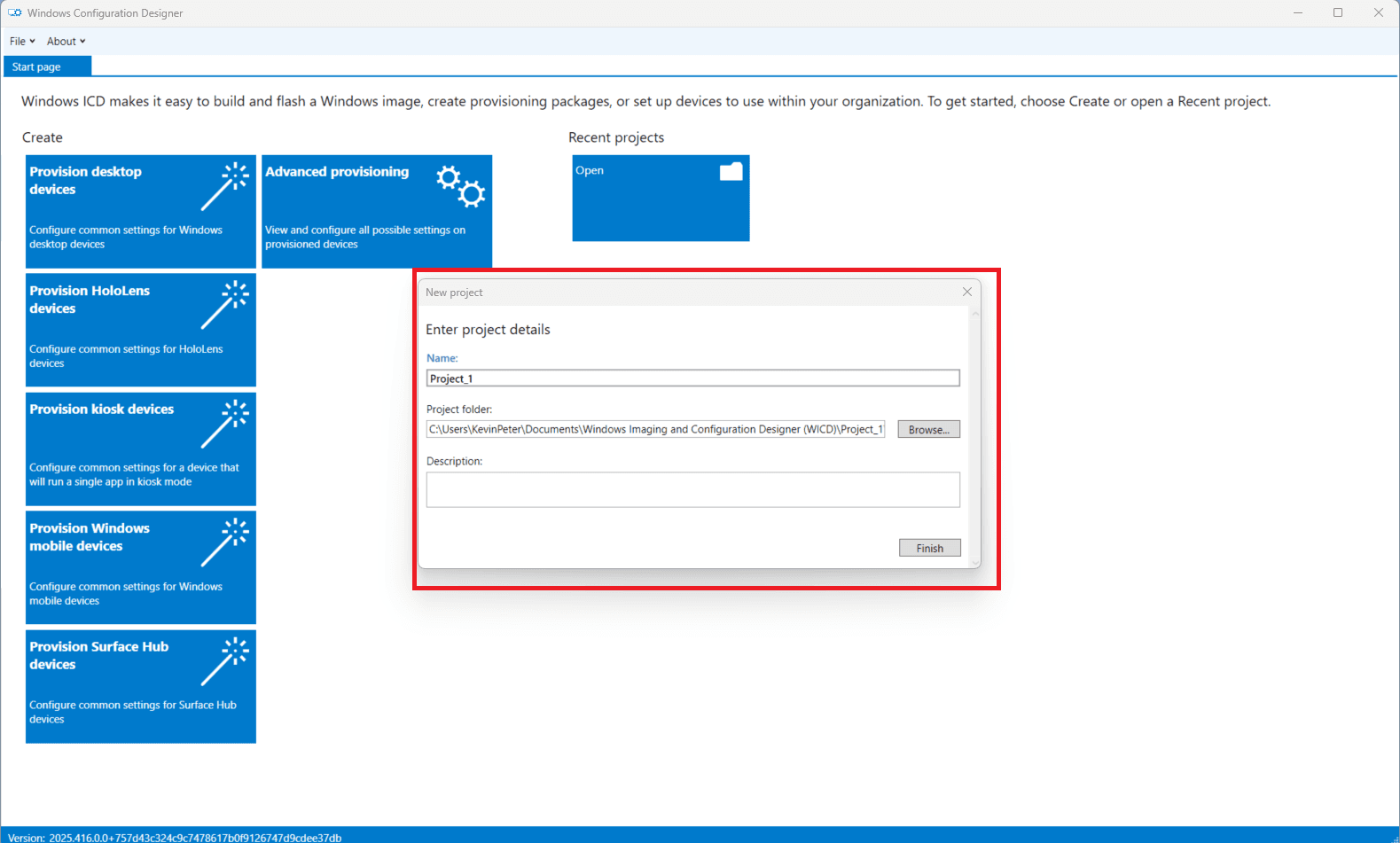
Step 4 - Configure Device Settings
- Under Set up device, define a naming template for your PCs, for example
IT-{SERIAL}. - Click Next.
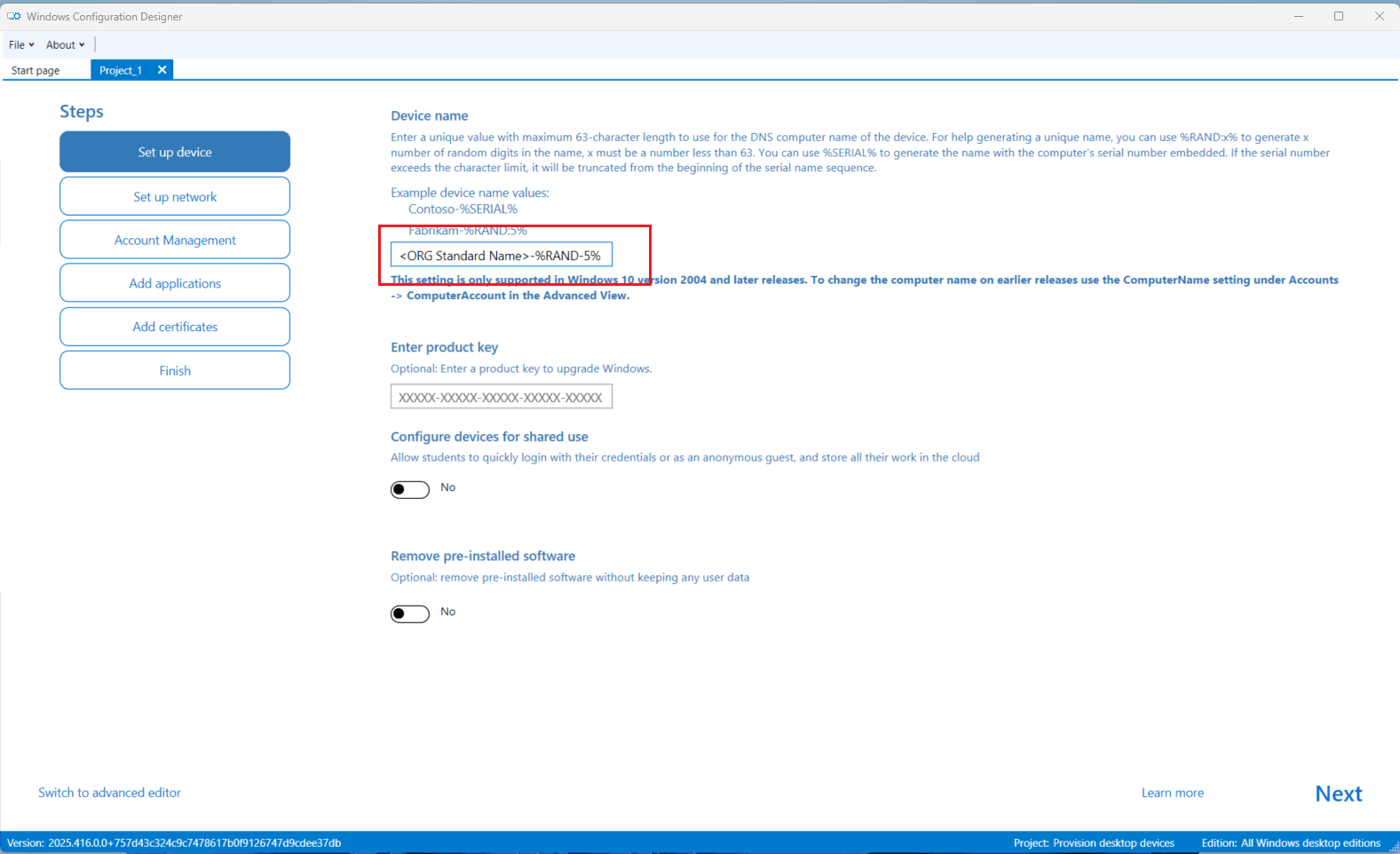
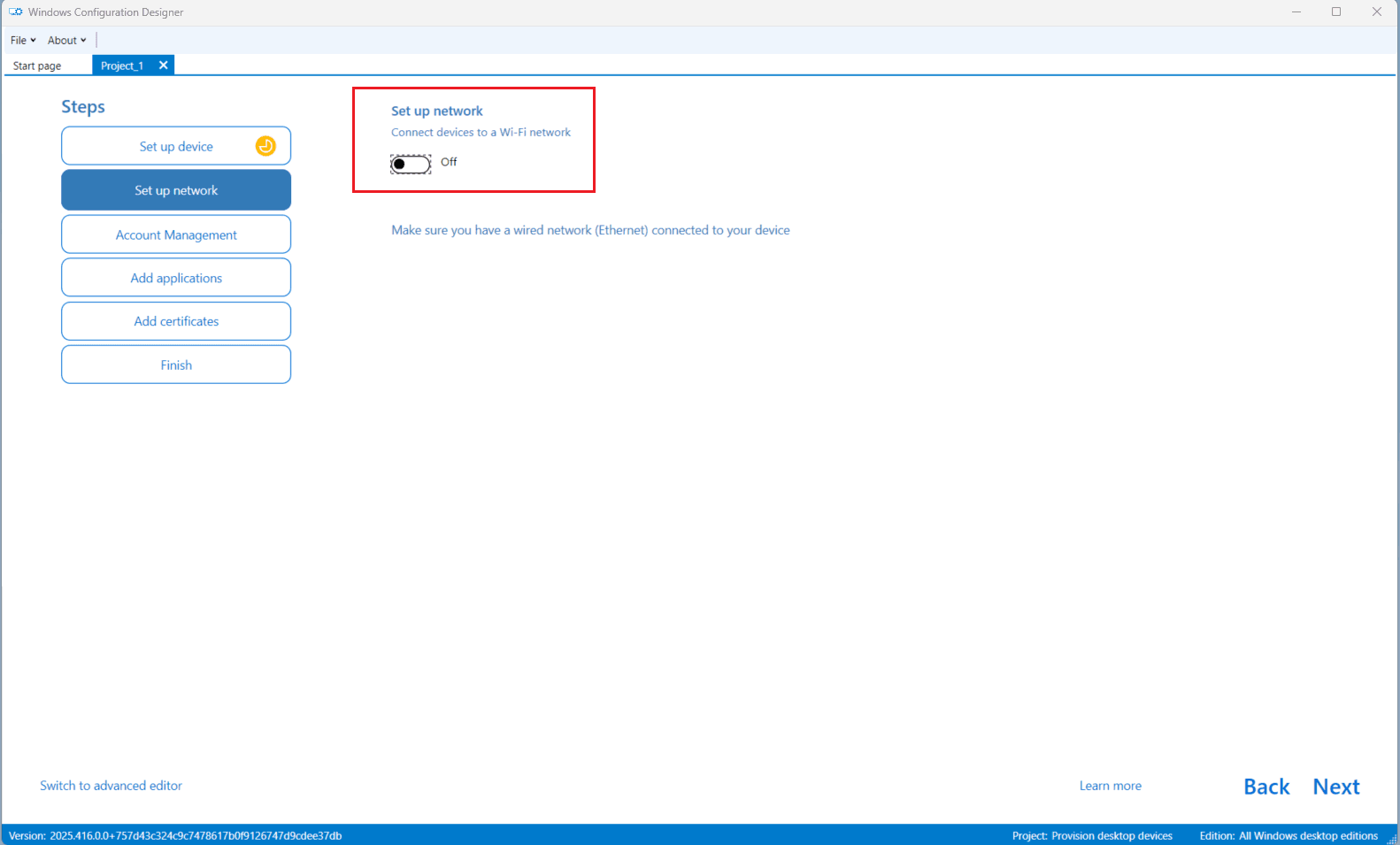
- In Set up network, toggle Connect device to a Wi-Fi network to Off.
- Click Next.
Step 5 - Enroll with Bulk Microsoft Entra Token
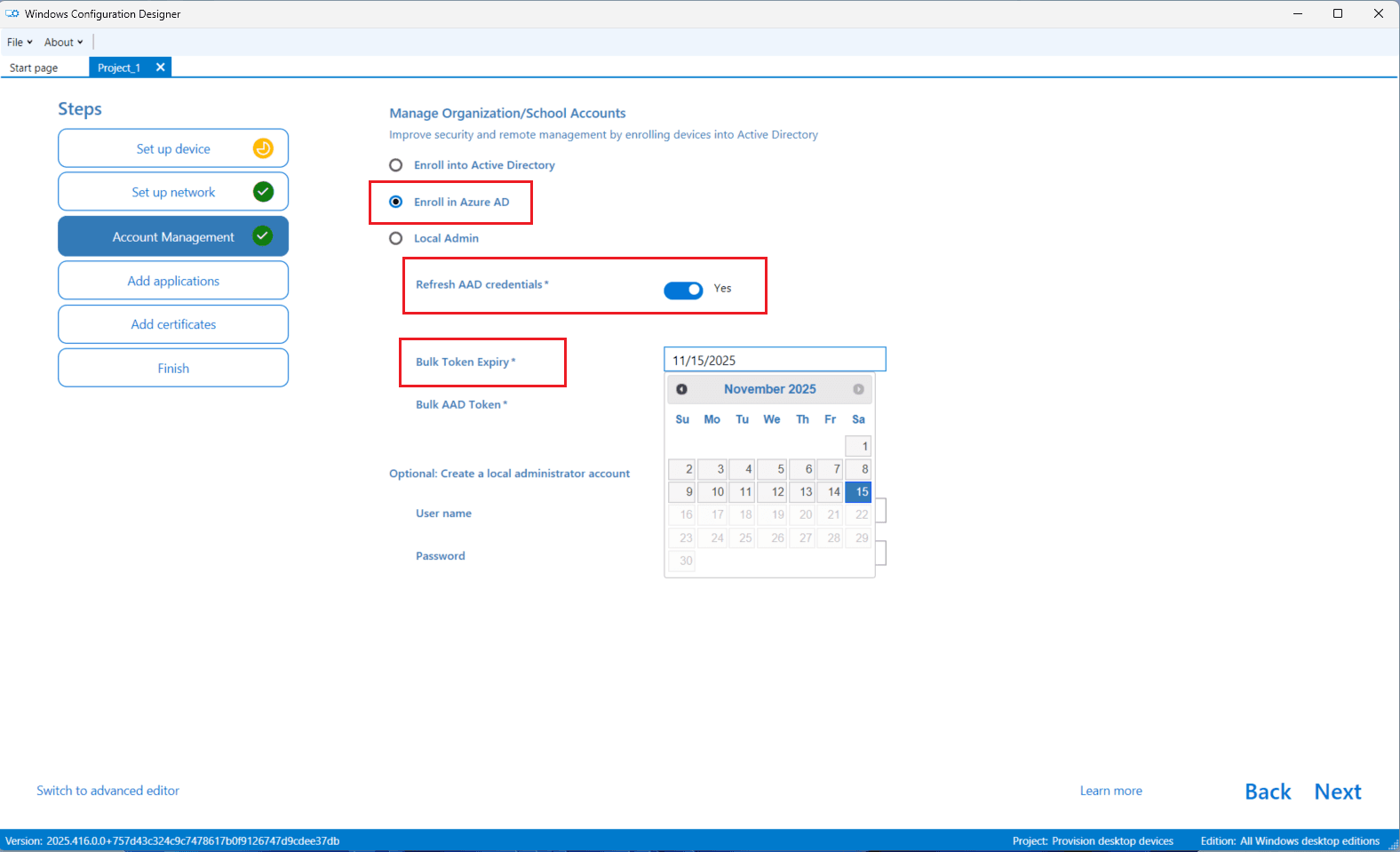
- Under Account Management, do the following:
- Choose Enroll in Azure AD under Manage organization/school accounts.
- Toggle Refresh AAD credentials to Yes.
Windows Configuration Designer may still display legacy labels such as Azure AD or AAD. These labels refer to Microsoft Entra ID.
Use the appropriate Microsoft Entra account based on your migration scenario:
- AD-to-Entra or Hybrid-to-Entra migration: Sign in with an account from the tenant the device will join after migration.
- Tenant-to-Tenant migration: Sign in with an account from the destination target tenant.
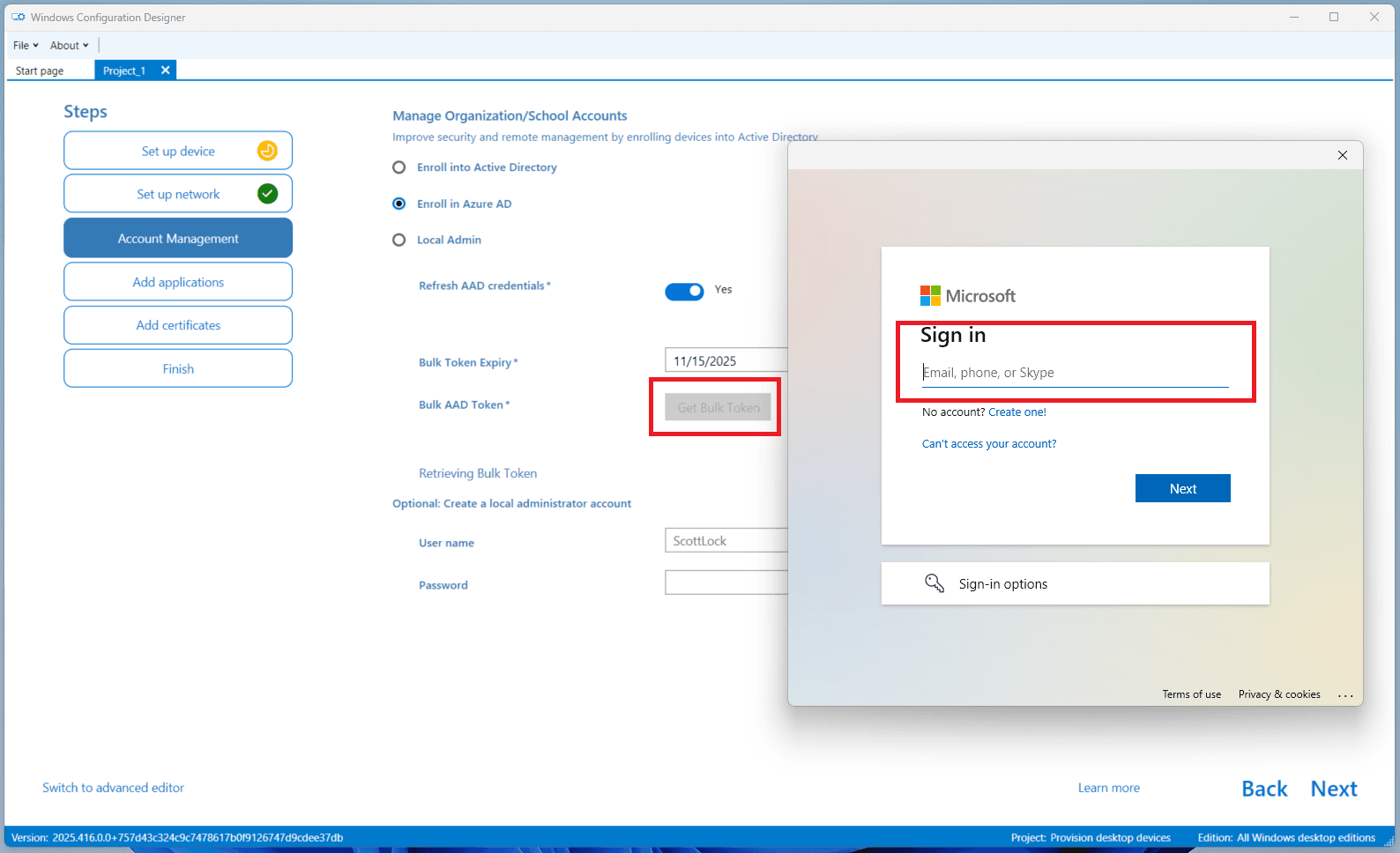
- Click Get Bulk Token and sign in with an account permitted to create a bulk enrollment token and grant the required consent. Global Administrator is commonly used for this step.
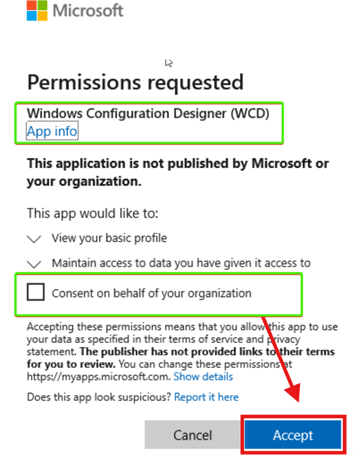
- If this is your first time using WCD:
- You will see a permissions consent screen.
- Click Consent on behalf of your organization.
- Click Accept.
- Confirm that the bulk token was fetched successfully.
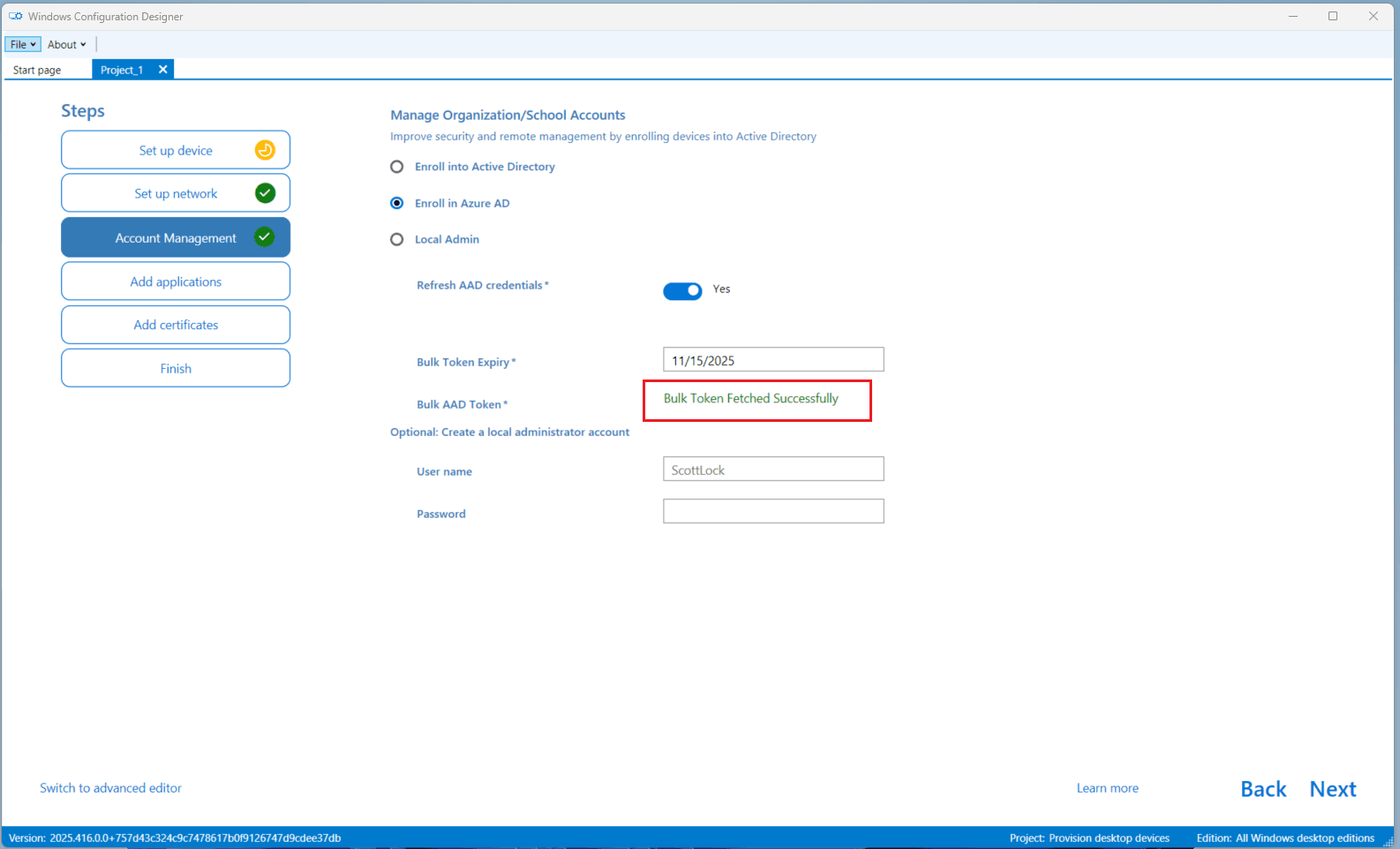
Bulk enrollment tokens support a maximum validity of 180 days. The actual expiry depends on the date selected during token creation. Plan migration waves so all devices using this package complete migration before the token expires.
Bulk enrollment creates an Entra user named package_[guid]. Because bulk enrollment does not support interactive MFA during device provisioning, ensure Conditional Access policies do not block the package_[guid] account. If the Intune MDM User Scope is configured for Some, the account used to obtain the bulk provisioning token must be a direct member of the scoped group.
Step 6 - Complete the Package
- Skip the Add applications and Add certificates screens by clicking Next.
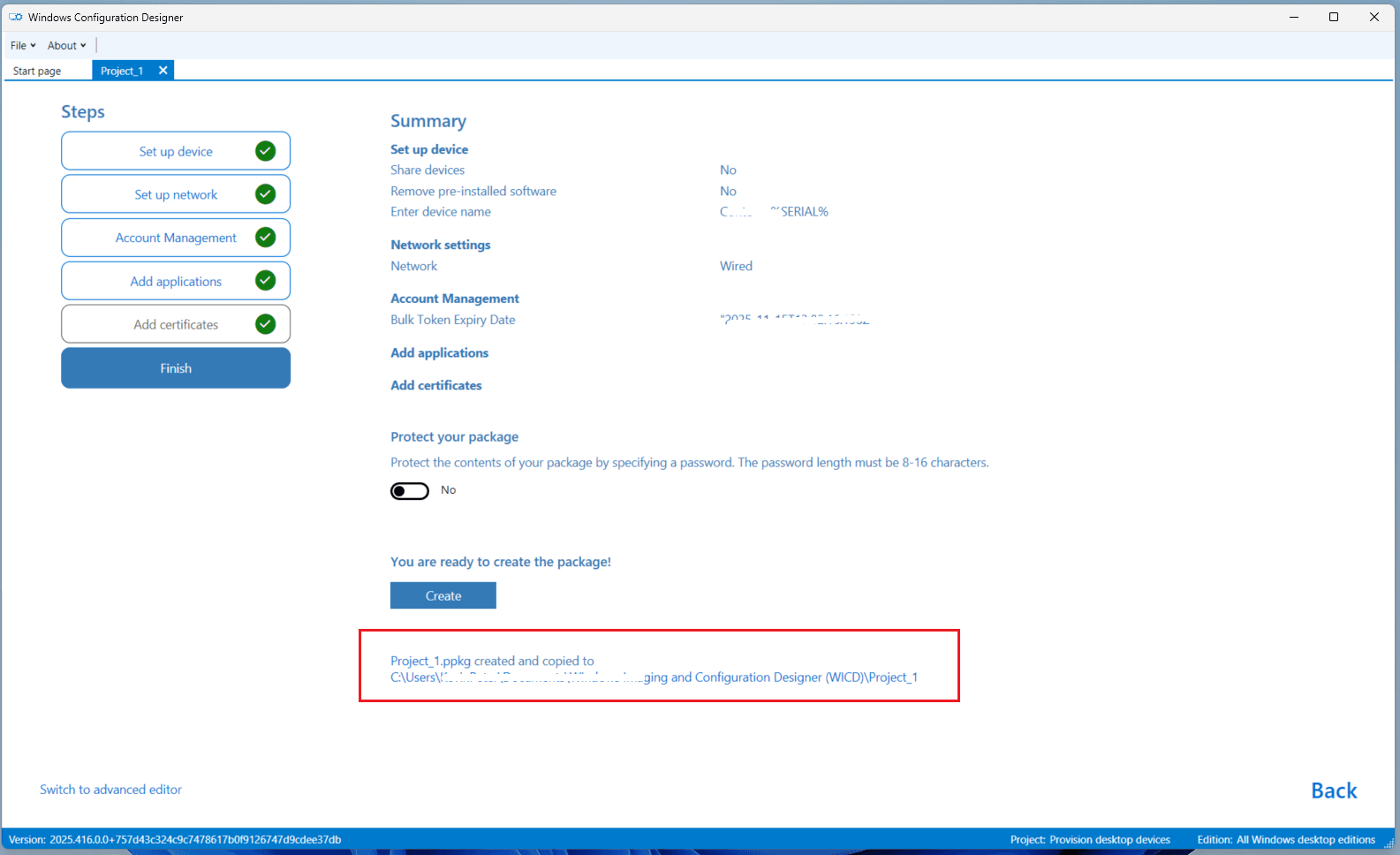
- On the Summary screen, verify all configuration details.
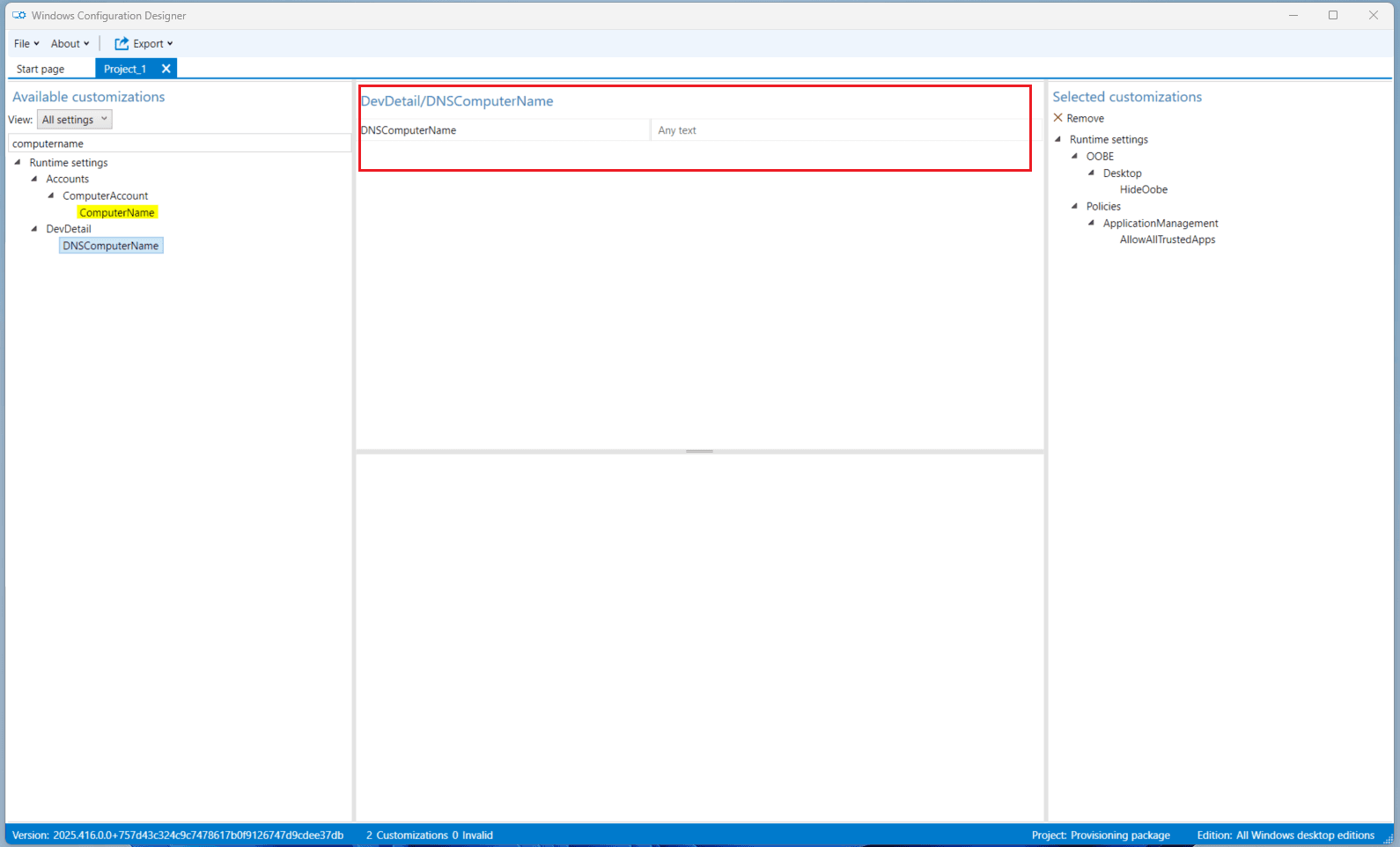
If you need to retain the existing computer name after migration, remove the DNSComputerName setting before exporting the final package.
- Click Create.
- After creation, WCD displays the file path to the generated
.ppkgfile.
Step 7 - Optional: Remove Computer Name from Package
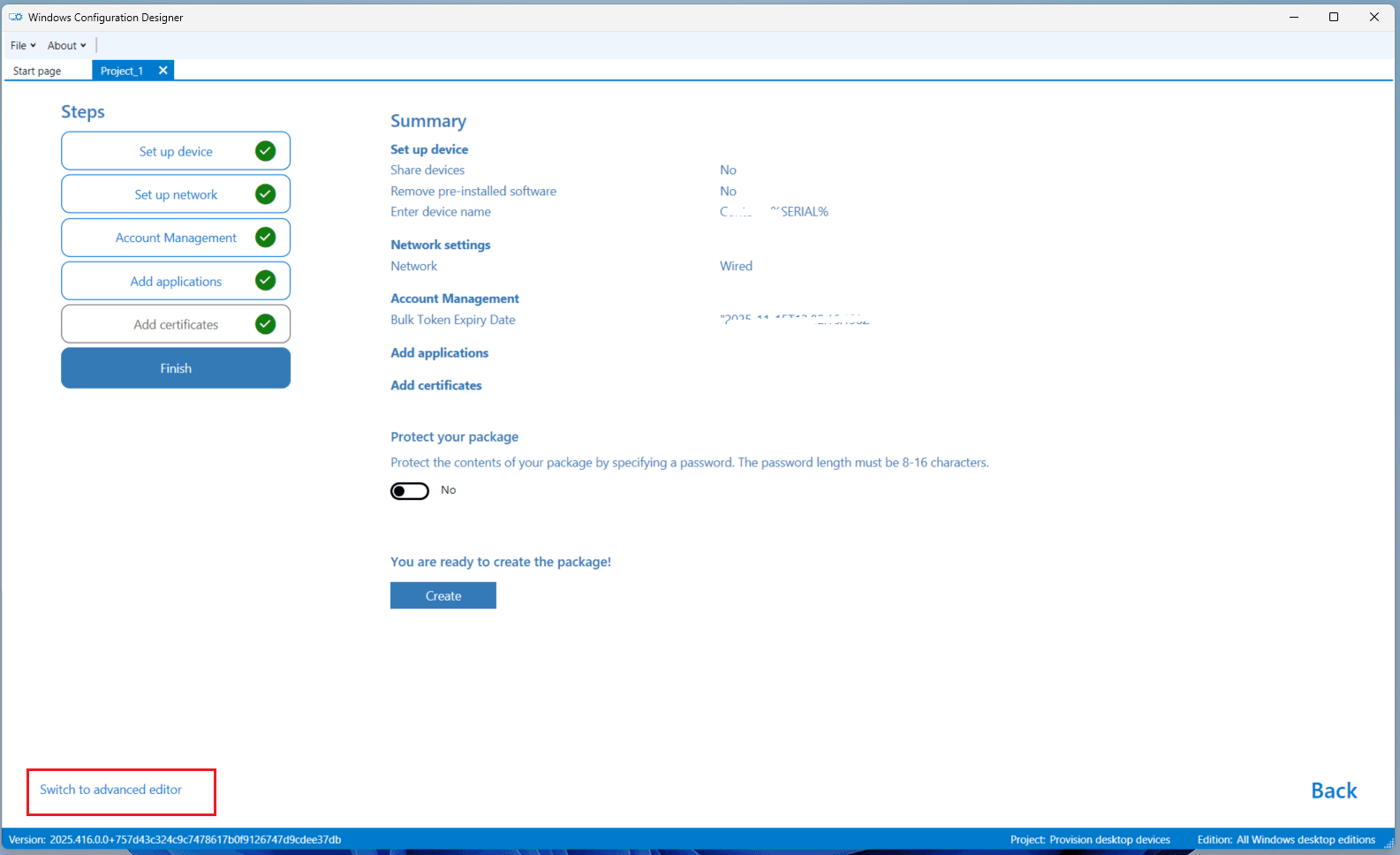
If you need to retain the existing computer name after migration:
- In WCD, click Switch to advanced editor.
- Search for the Computer name object.
- On the right-hand side panel, under
Runtime settings > Identification, select DNSComputerName. - Click Remove.
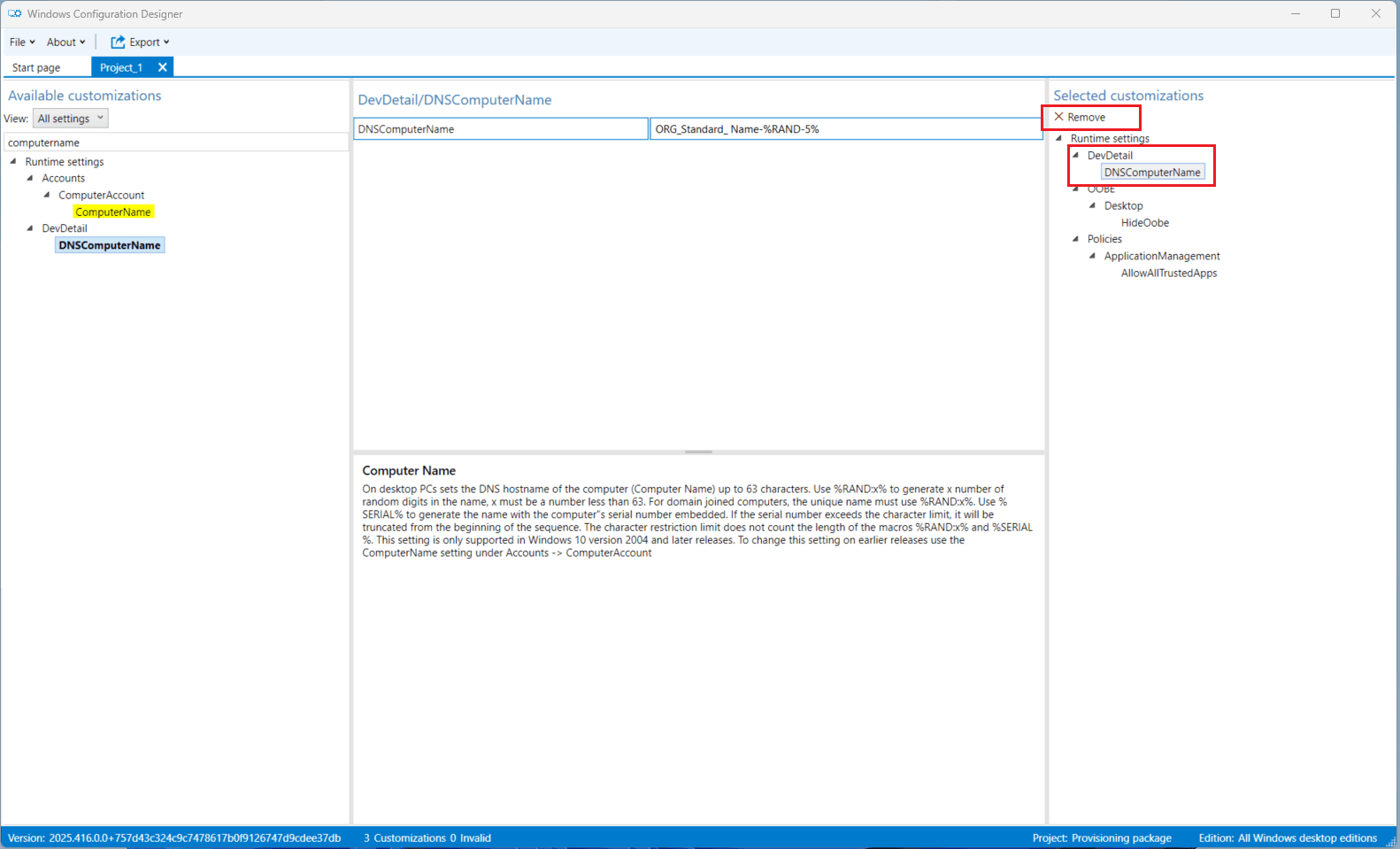
- The computer name setting is now excluded from the package.
Step 8 - Export the Final Provisioning Package
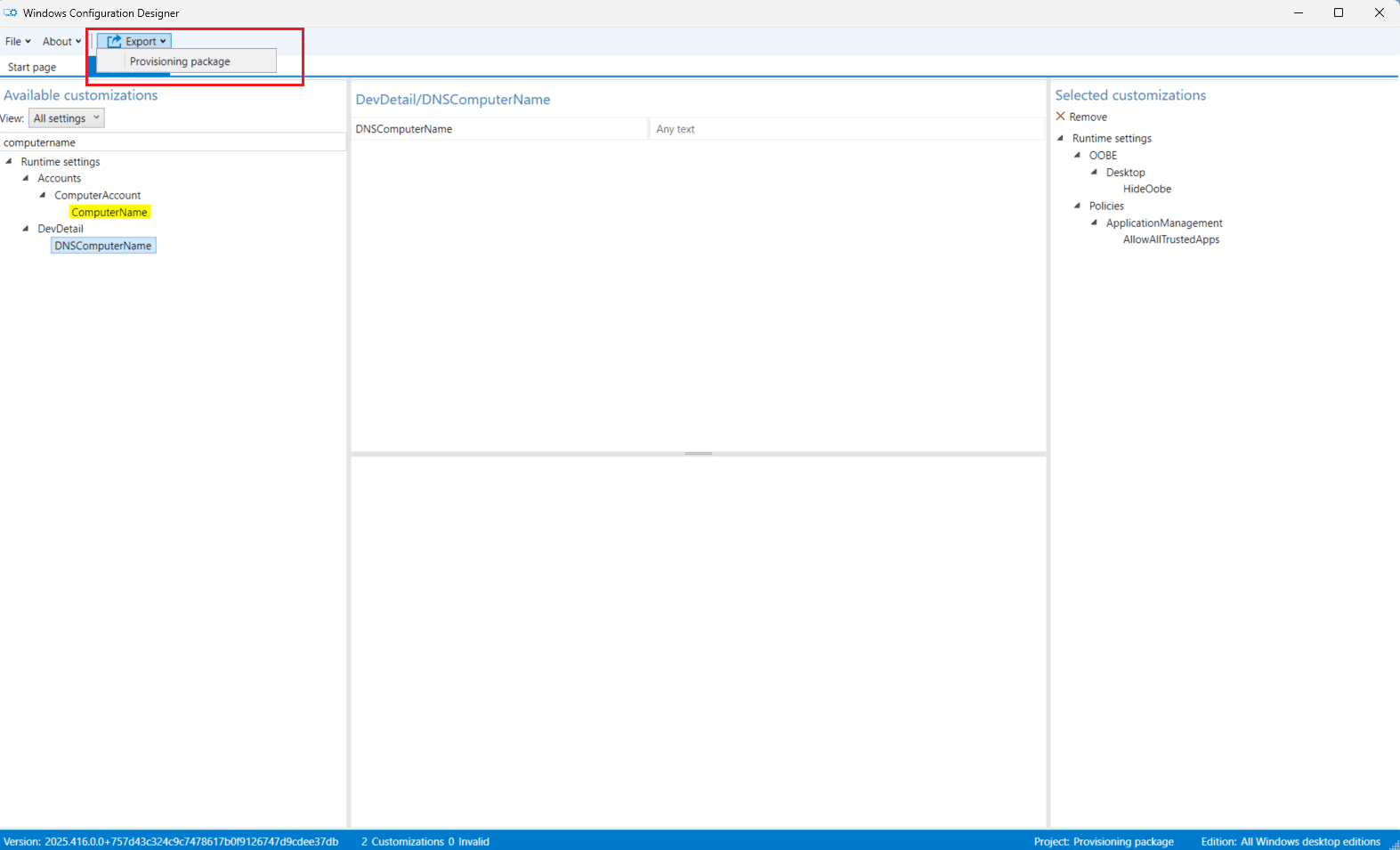
- Click Export > Provisioning package.
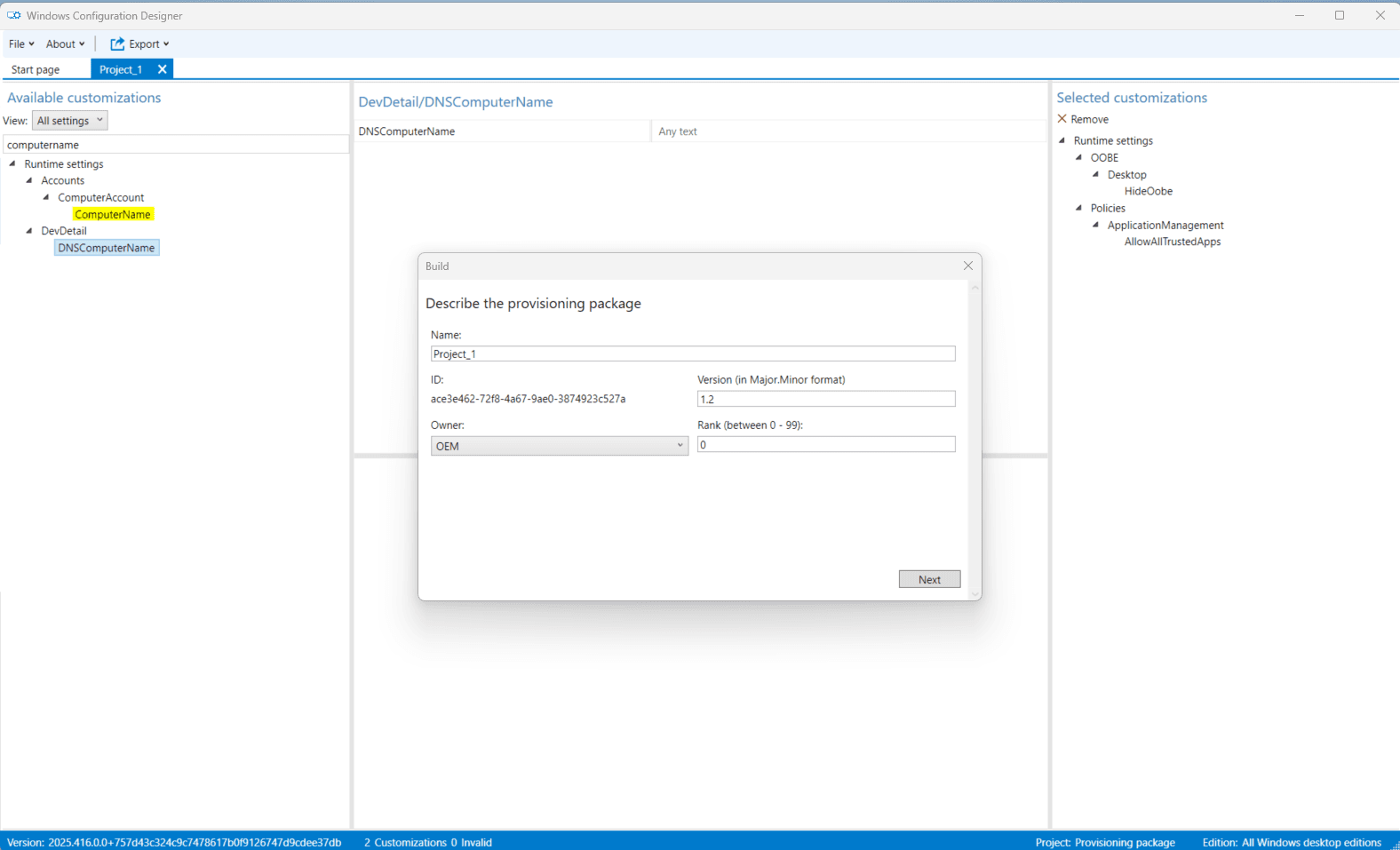
- Enter a file name, then click Next.
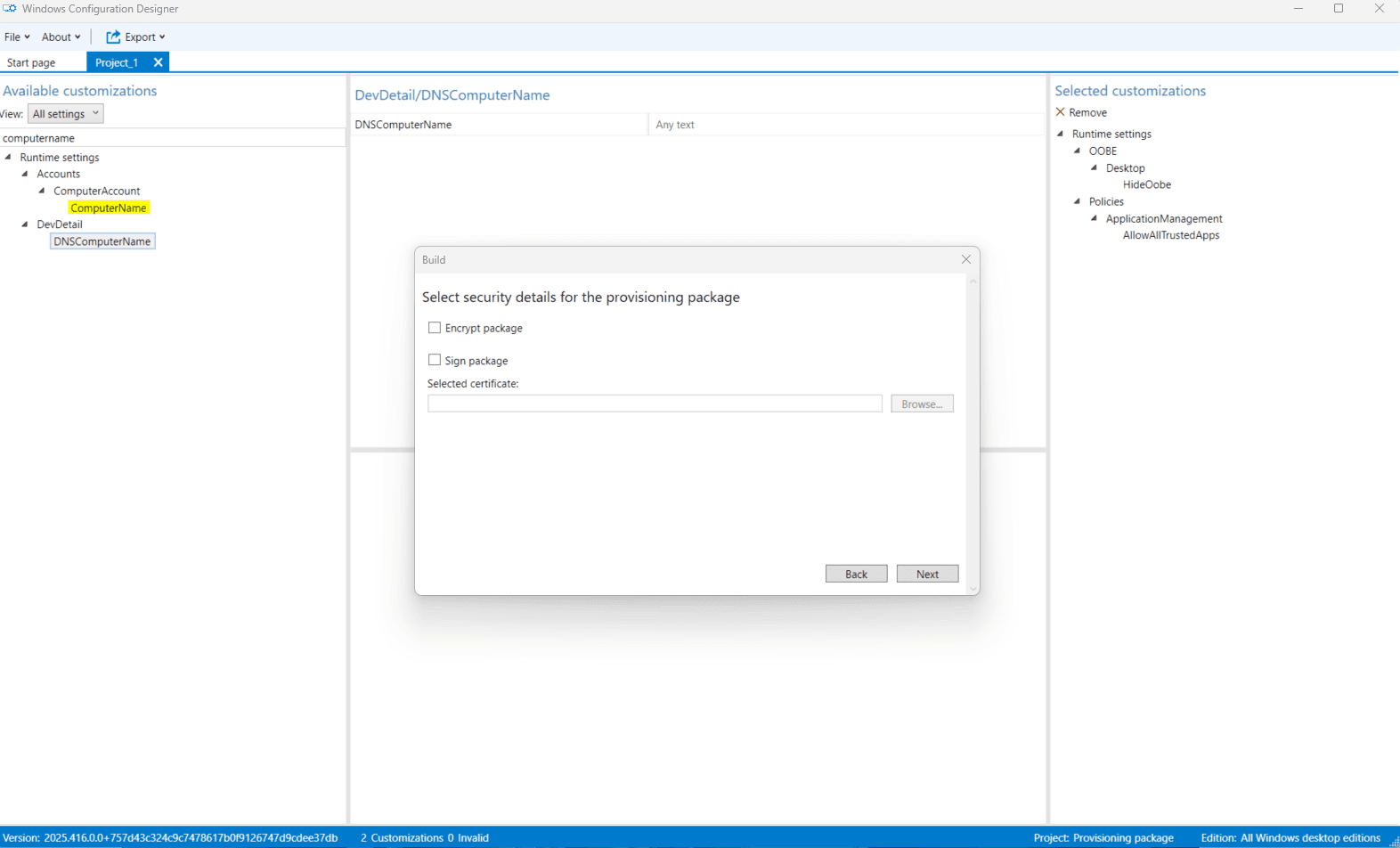
- Leave security settings as default, then click Next.
- Choose the destination folder, then click Next.
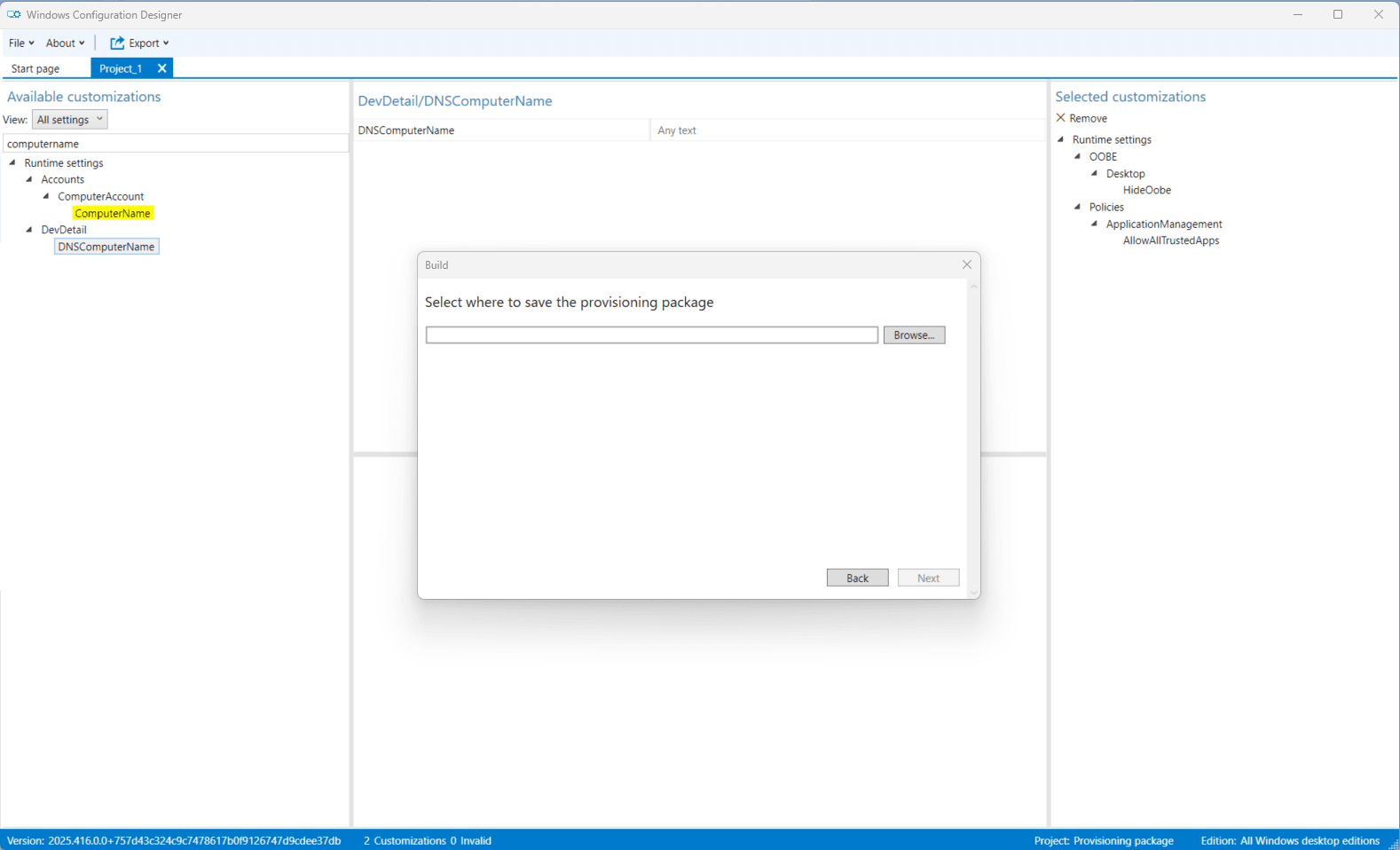
- Click Build.
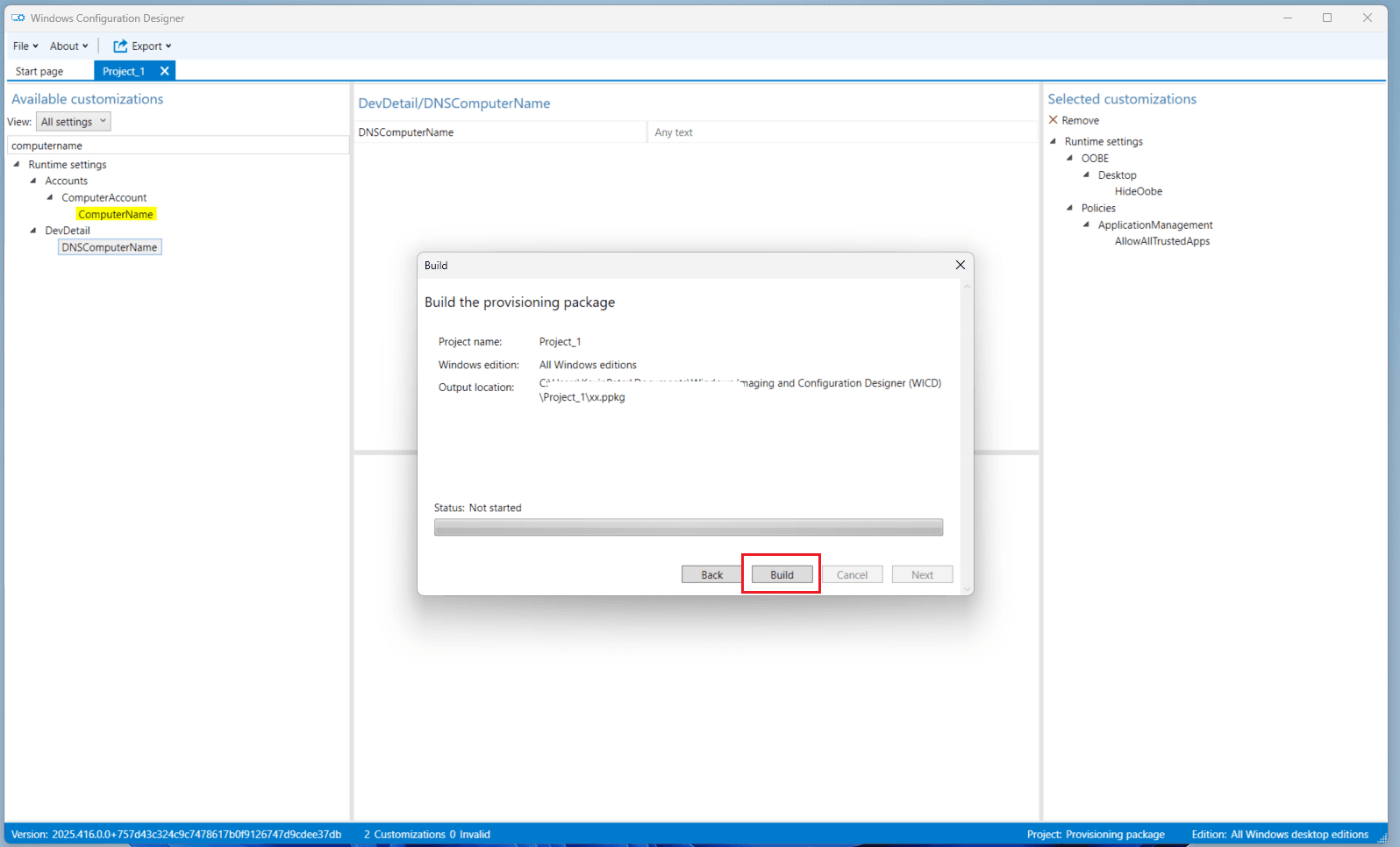
- Confirm that the provisioning package was saved successfully and note the file location.
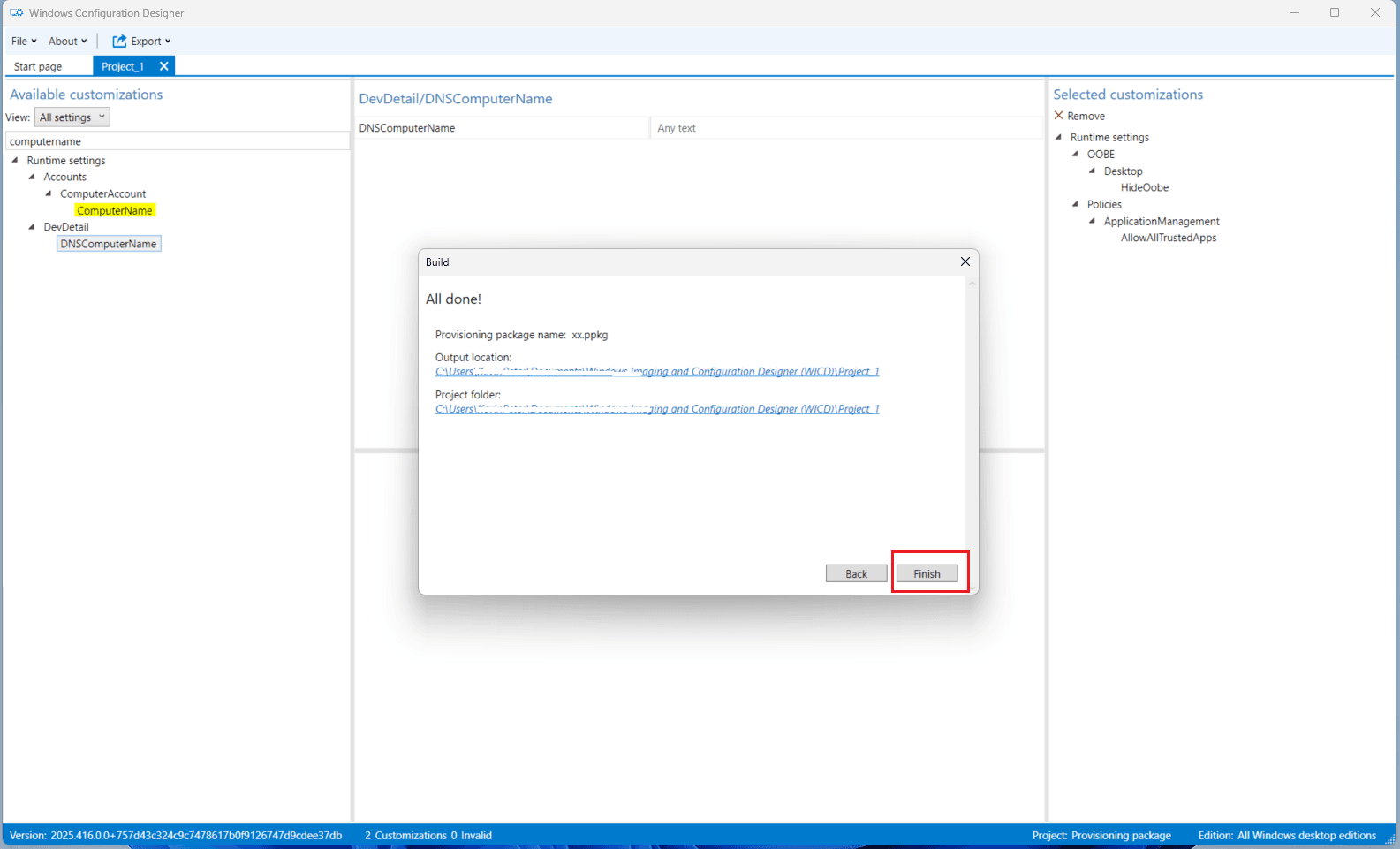
After export, move the .ppkg to approved secure storage. Restrict access to migration administrators only. Do not store the package in a public share, ticket attachment, email, or unmanaged endpoint folder.
Validate the Provisioning Package
Before using the provisioning package in production or uploading it to the Opsole Migrate portal, validate the .ppkg on a test device to confirm that it correctly joins the device to Microsoft Entra ID.
This validation confirms that the provisioning package configuration is correct and helps prevent avoidable failures during production migration waves.
Bulk enrollment creates a service account in Entra ID named package_[guid]. Before validation, ensure this account is excluded from any Conditional Access policies that require MFA or block device registration, as bulk enrollment does not support interactive MFA during provisioning.
Step 1 - Prepare a Test Device
- Build or use a non-production test device.
- Ensure the test device is standalone and not joined to Microsoft Entra ID or an Active Directory domain.
- Confirm the device has network access to Microsoft Entra ID and Intune endpoints.
Step 2 - Verify Current Join Status
On the test device, open Command Prompt or PowerShell and run:
dsregcmd /statusConfirm the device is not already joined:
AzureAdJoined : NO
DomainJoined  : NO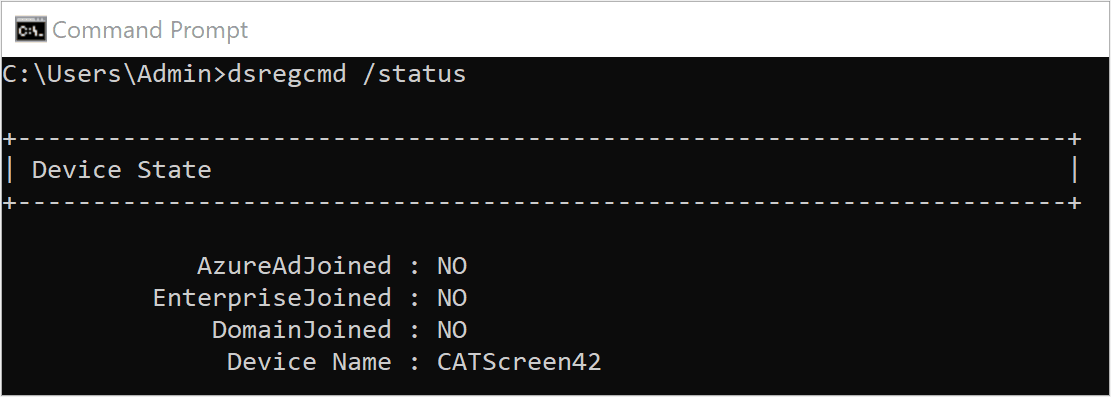
Step 3 - Apply the Provisioning Package
- Copy the generated
.ppkgfile to a dedicated folder on the test device. - Right-click the
.ppkgfile and select Run as administrator, or double-click the file if prompted for elevation. - When prompted, select Yes, add it.
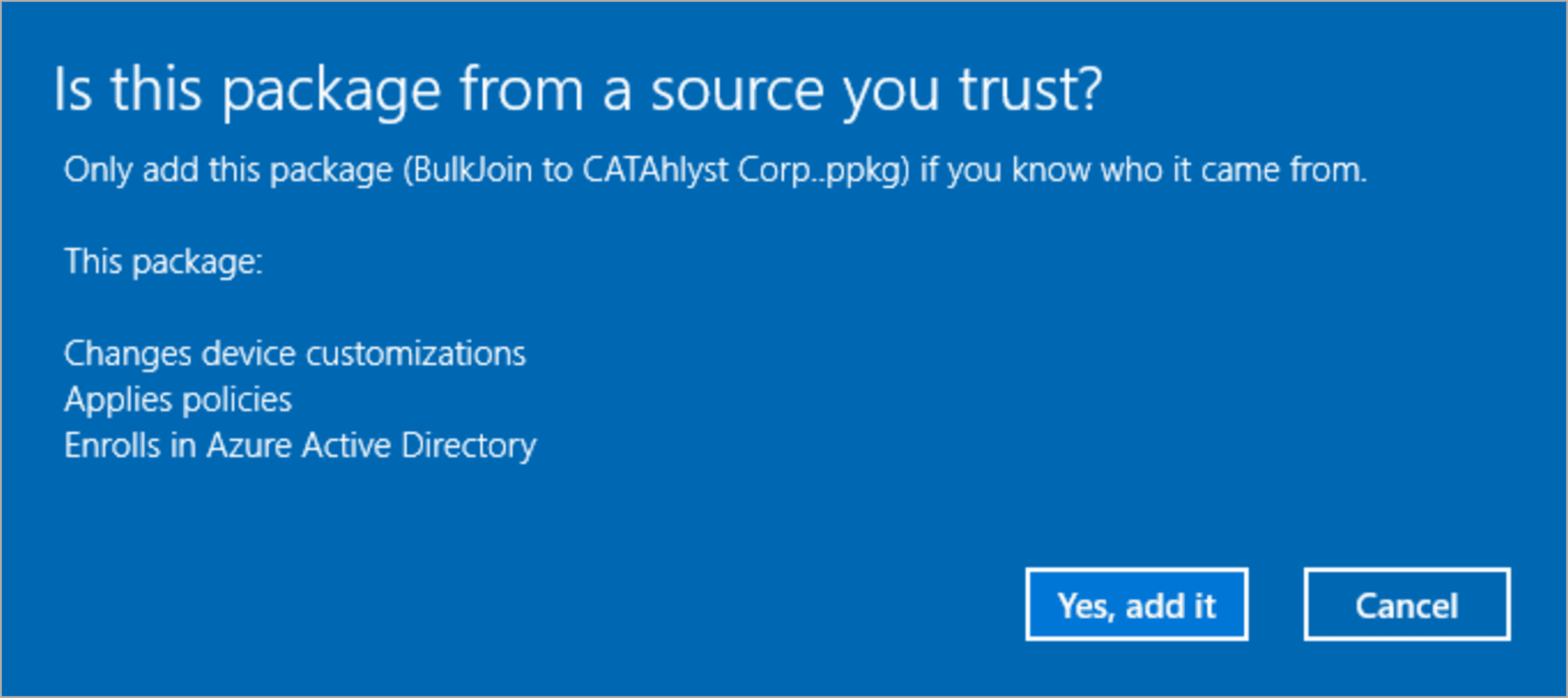
This applies the provisioning configuration to the device.
Step 4 - Verify Microsoft Entra Join Status
After the provisioning package completes:
-
Open Command Prompt or PowerShell and run:
dsregcmd /status -
Confirm the device is Microsoft Entra joined:
AzureAdJoined : YES -
Sign in to the Microsoft Entra admin center and confirm the device appears under Devices > All devices.
-
Verify that the device shows as Microsoft Entra joined.
-
If Intune automatic enrollment is expected, confirm the device also appears in the Intune admin center as an enrolled Windows device.
Successful validation confirms that the provisioning package is correctly configured and ready for use in migration activities.
After validation, remove or reset the test device according to your lab process so the test object does not remain in production Microsoft Entra ID or Intune inventory.
Do not upload or use the package in Opsole Migrate until validation succeeds. If validation fails, check tenant selection, token expiry, Conditional Access, MFA/device registration settings, Intune enrollment scope, Windows enrollment restrictions, network connectivity, and EDR/AV controls.
Next Steps
- Continue to AD Disjoin Account Preparation
How is this guide?
Entra Application Registration
Register the Opsole Migrate application in Microsoft Entra ID, grant Microsoft Graph permissions, create a client secret, and validate authentication.
AD Disjoin Account Preparation
Create and delegate the Active Directory account used to disjoin AD-joined or Hybrid-joined devices, validate permissions, and prepare for portal configuration.