
Entra Application Registration
Register the Opsole Migrate application in Microsoft Entra ID, grant Microsoft Graph permissions, create a client secret, and validate authentication.
Overview
Opsole Migrate requires an application registration in Microsoft Entra ID to authenticate and perform Microsoft Graph API operations across device, identity, Intune, recovery, and post-migration assignment workflows.
The application registration can be created using one of two methods:
- Automatic Registration — Create and configure the app registration directly from the Opsole Migrate portal. Recommended for most organizations.
- Manual Registration — Create and configure the app registration through the Microsoft Entra admin center. Recommended for organizations with policies that restrict automated application registration.
Select the method that aligns with your organization's policy and proceed to the corresponding section below.
Option 1 — Automatic Entra Application Registration
The Opsole Migrate portal provides an automatic Entra application registration option that creates and configures the app registration in your tenant without any manual steps in the Microsoft Entra admin center. This is the recommended method for most organizations.
To use automatic registration, sign in with an account that has sufficient privileges to register applications and grant admin consent in your tenant.
Steps:
1. In the Opsole Migrate portal, navigate to Settings > Migration > Set Migration Configuration, Select Migration Option and click Automatic Entra App Registration.
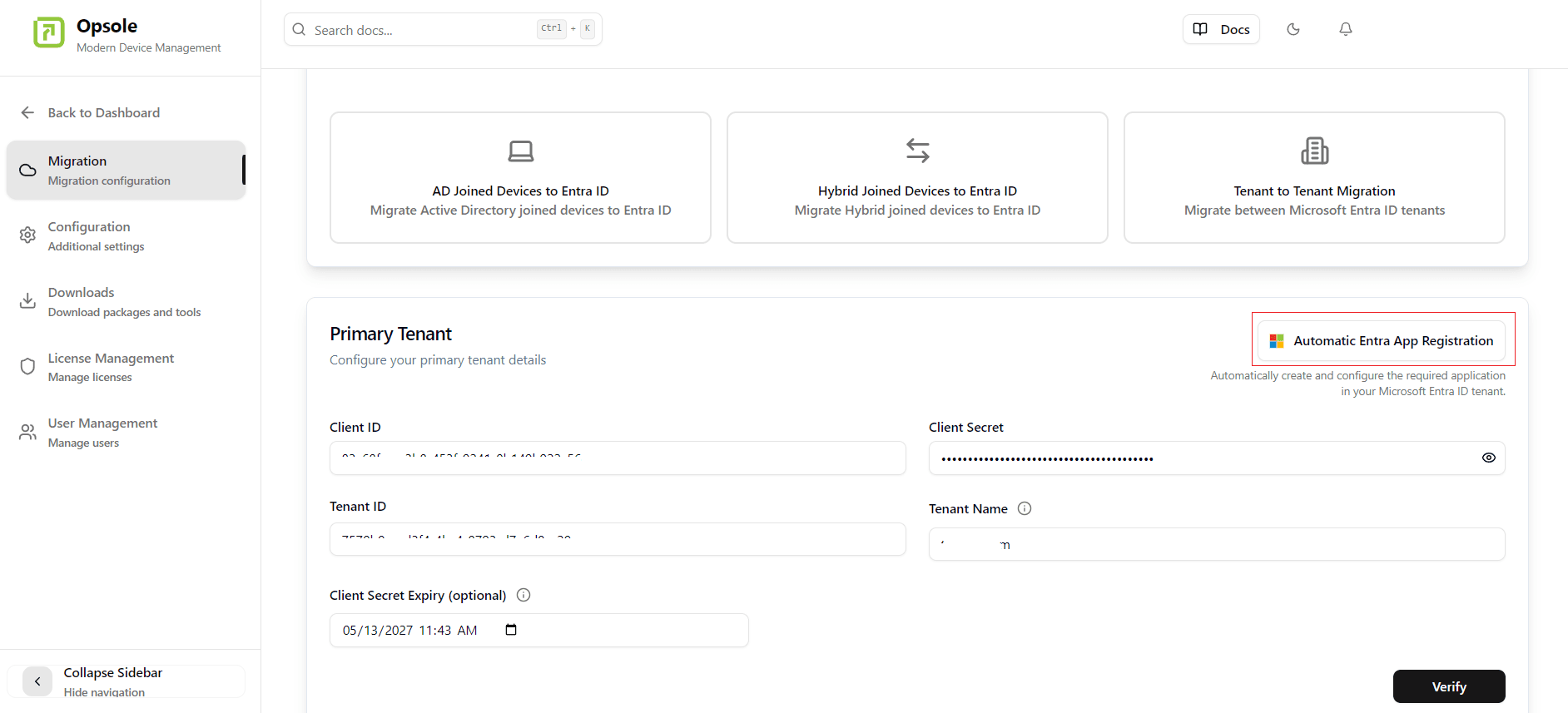
2. A Microsoft authentication window will appear. Sign in with your Entra administrator account.
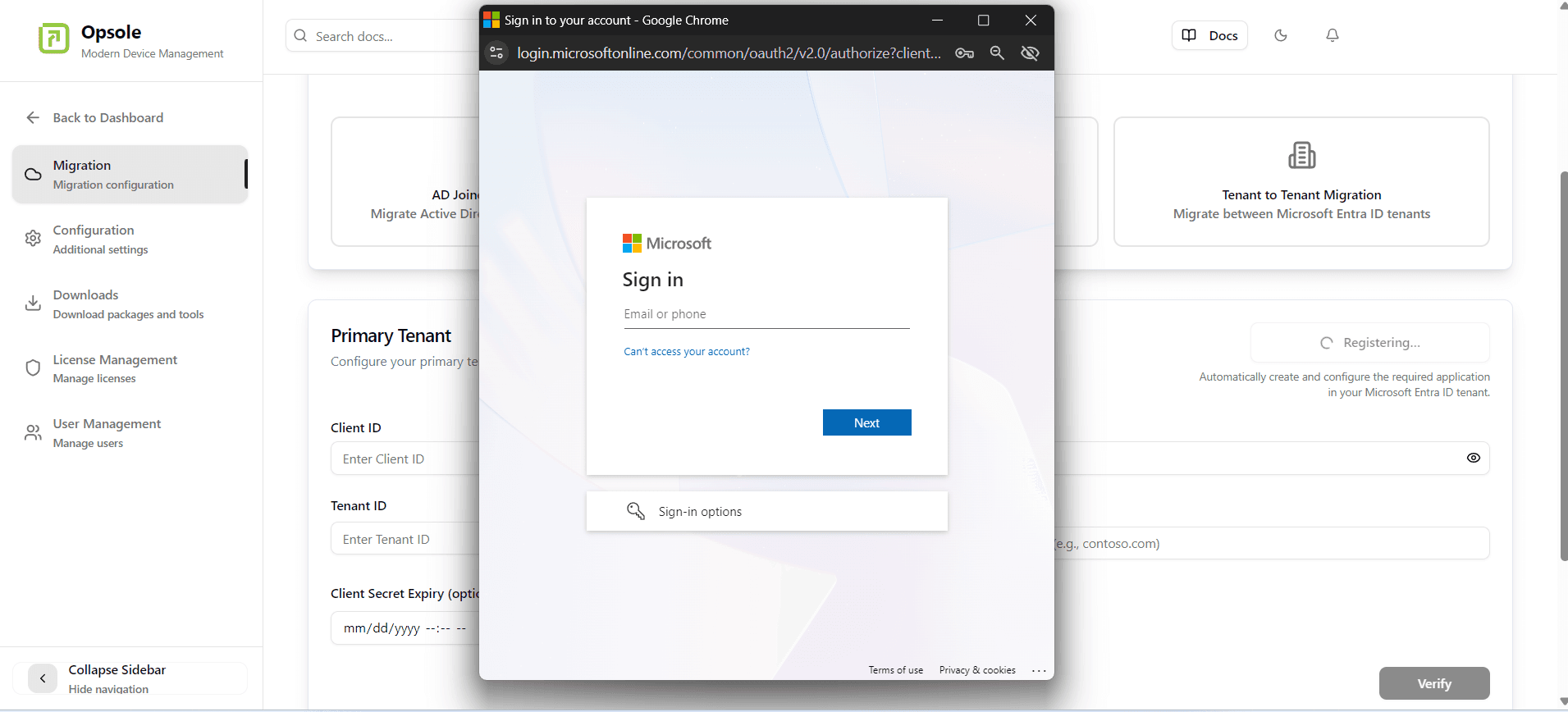
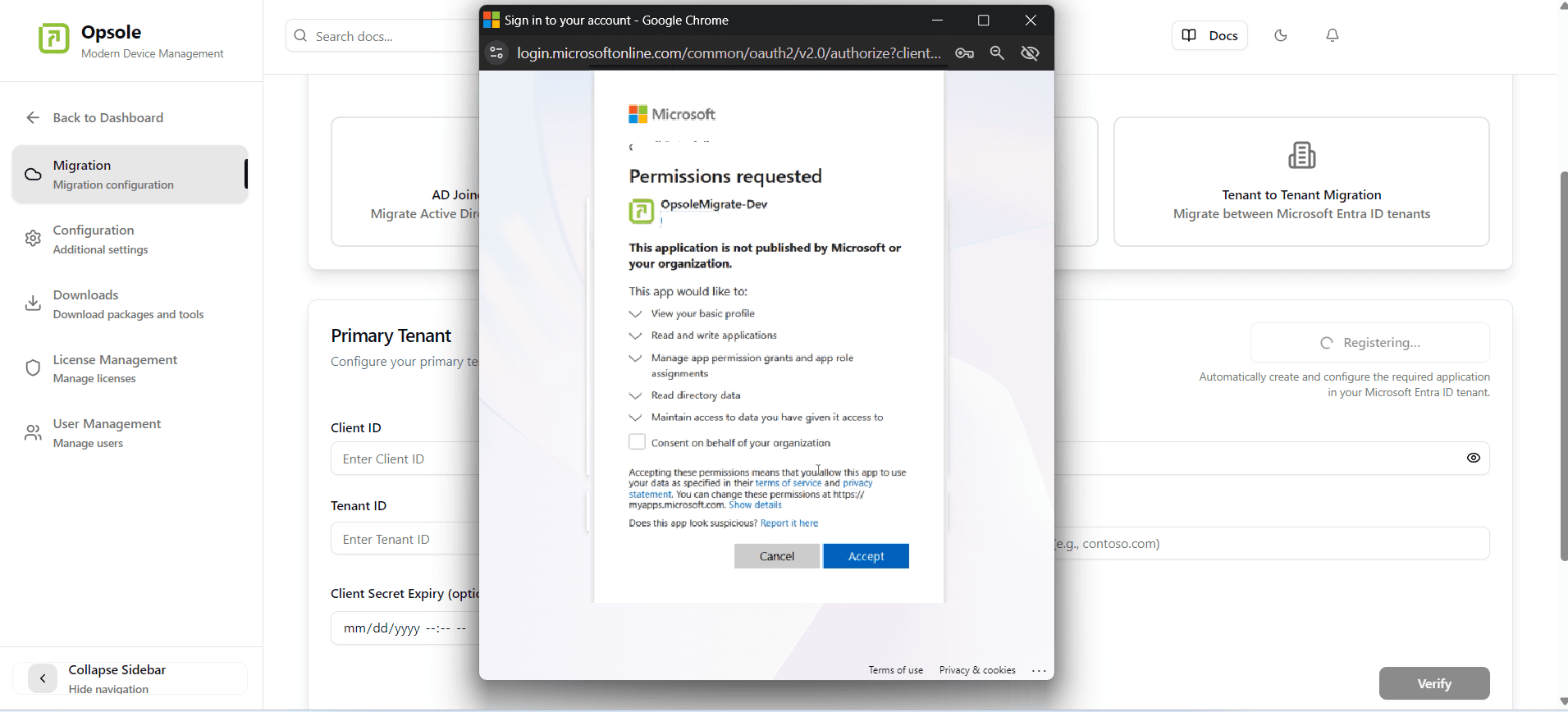
3. Review and accept the permissions consent prompt.
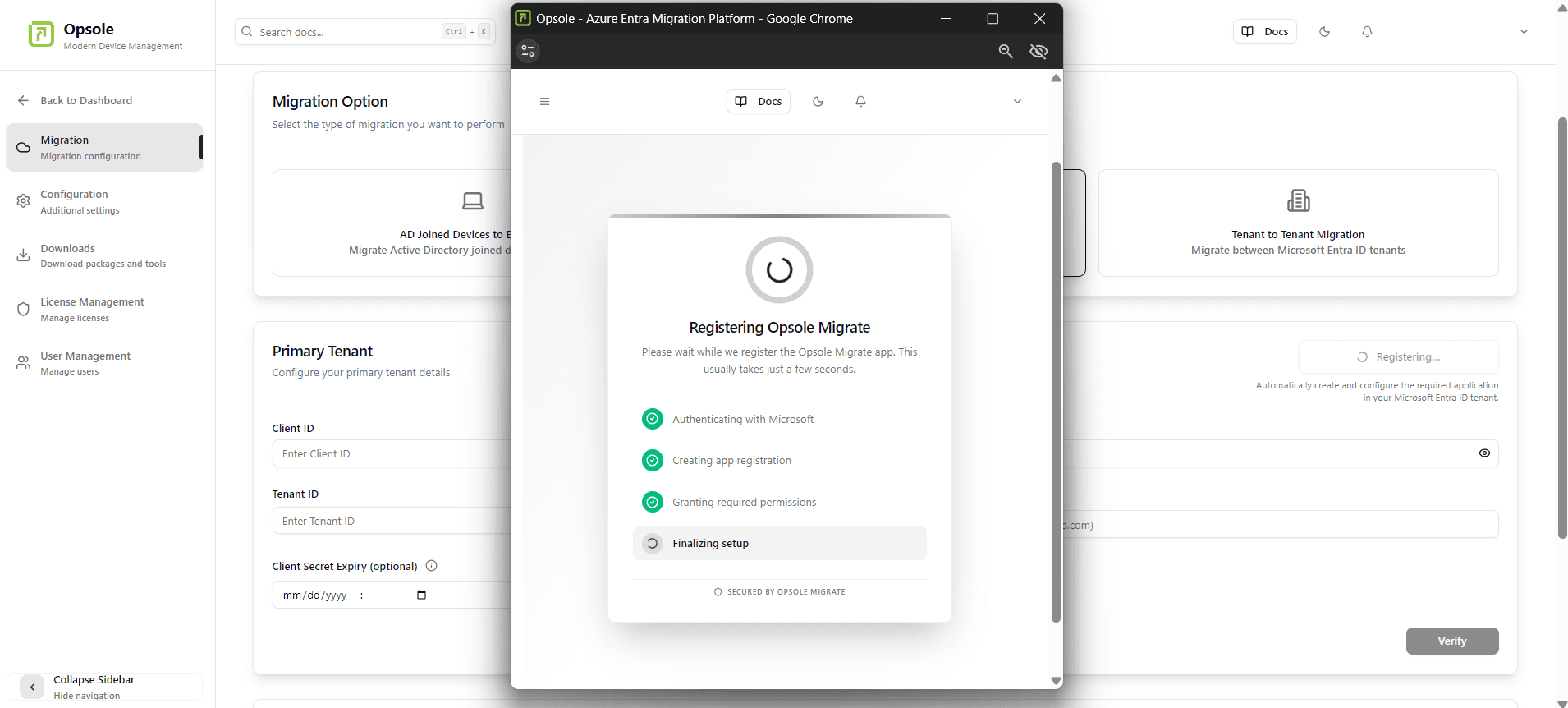
4. The portal will complete the registration and display the status.
5. Once complete, the portal captures and saves the application details automatically.
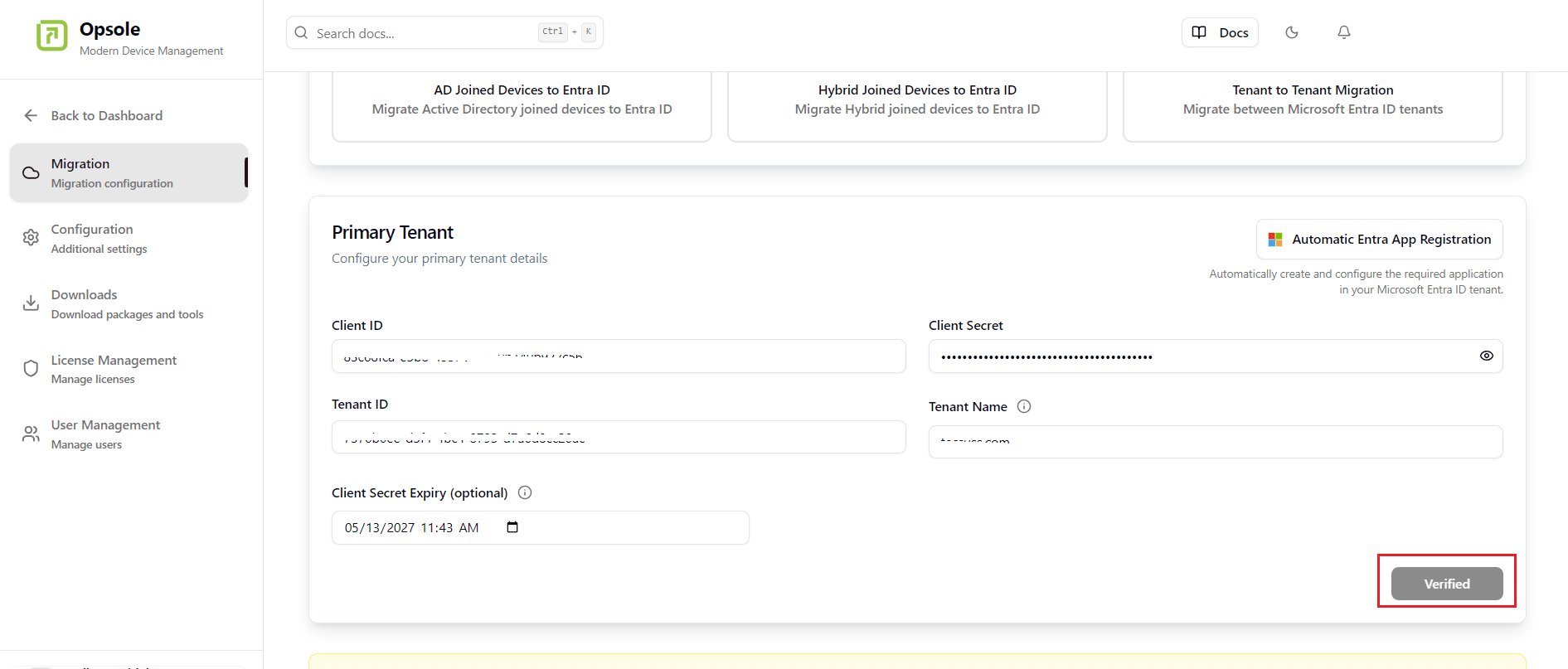
Once automatic registration is complete, proceed to Validate the Entra App Registration.
Security Warning — This client secret grants privileged access to your Microsoft Entra tenant. Treat it like a password — store it securely, restrict access to authorized personnel only, and never share it. If compromised, revoke it immediately in Entra and generate a new secret.
Option 2 — Manual Entra Application Registration
Organizations with policies that restrict automated application registration can complete the registration manually through the Microsoft Entra admin center. Follow the steps below to create and configure the app registration.
Step 1 - Register Application
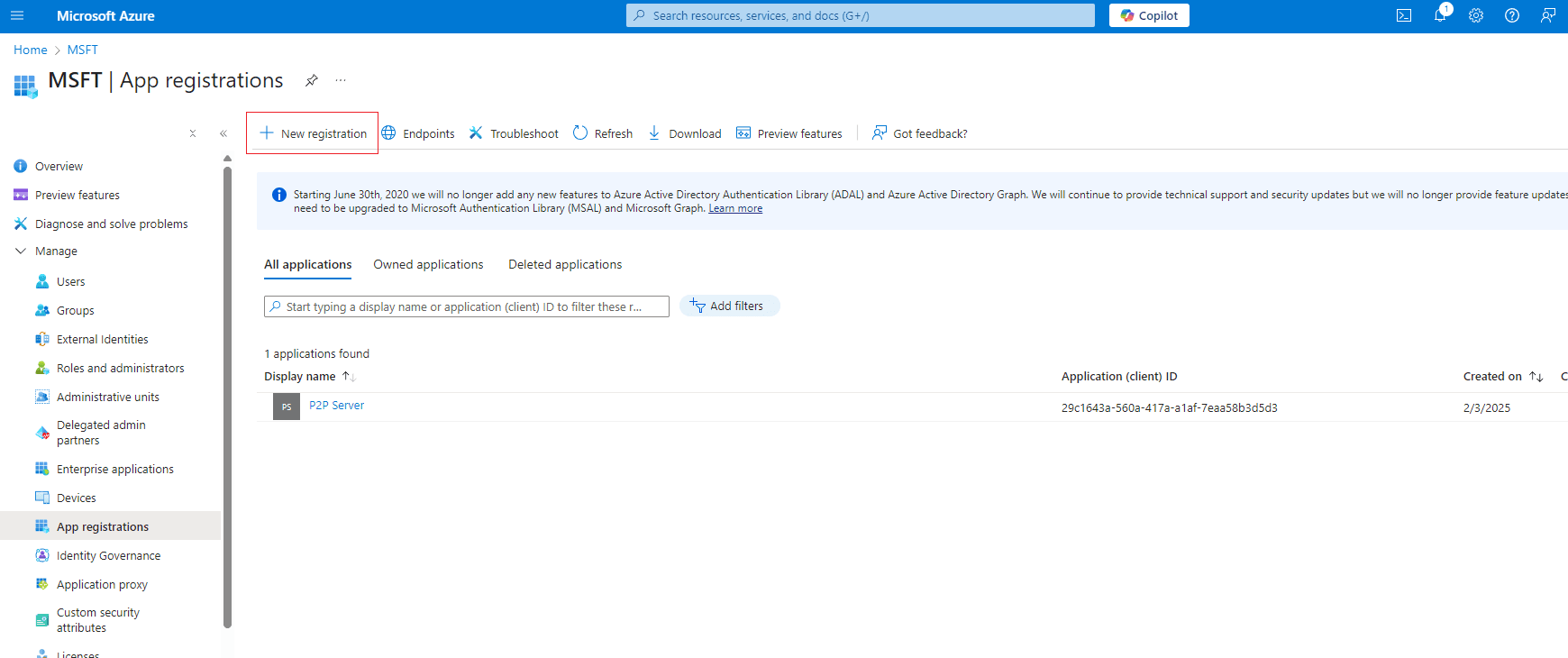
- Go to entra.microsoft.com.
- Navigate to Home > Applications > App registrations.
- Click + New registration.
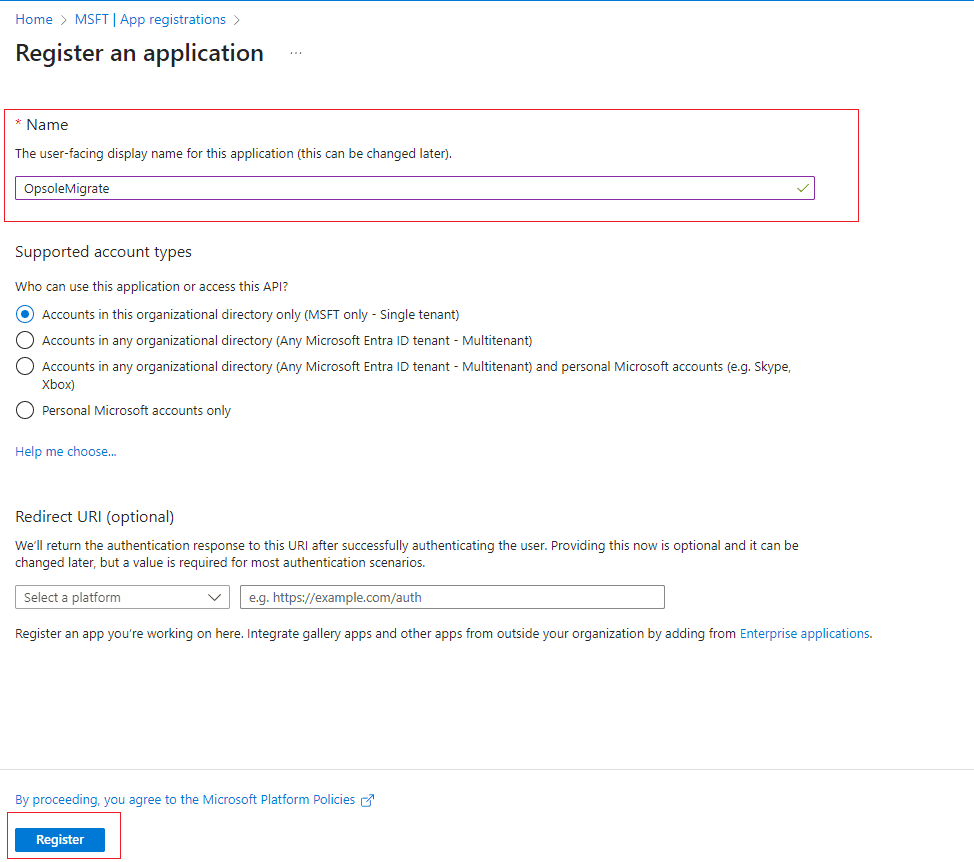
- Enter a name for the application, for example
OpsoleMigrateApp. - Retain all other settings at their default values.
- Click Register.
Step 2 - Save Identifiers
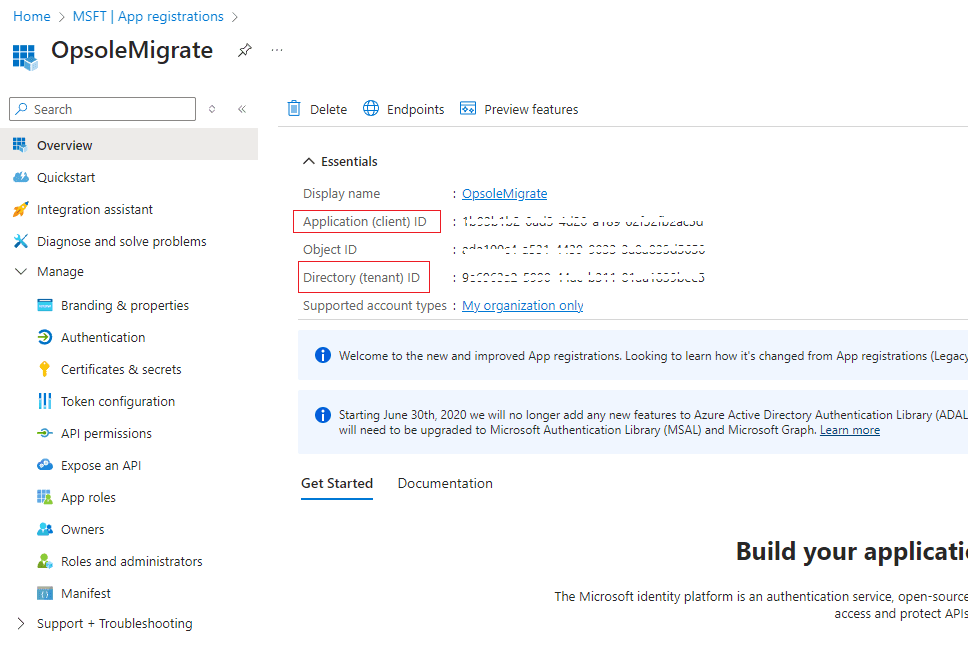
From the application's Overview page, copy and save the following values:
- Application (client) ID
- Directory (tenant) ID
These values are required later when configuring and validating the Opsole Migrate portal connection.
Step 3 - Add API Permissions
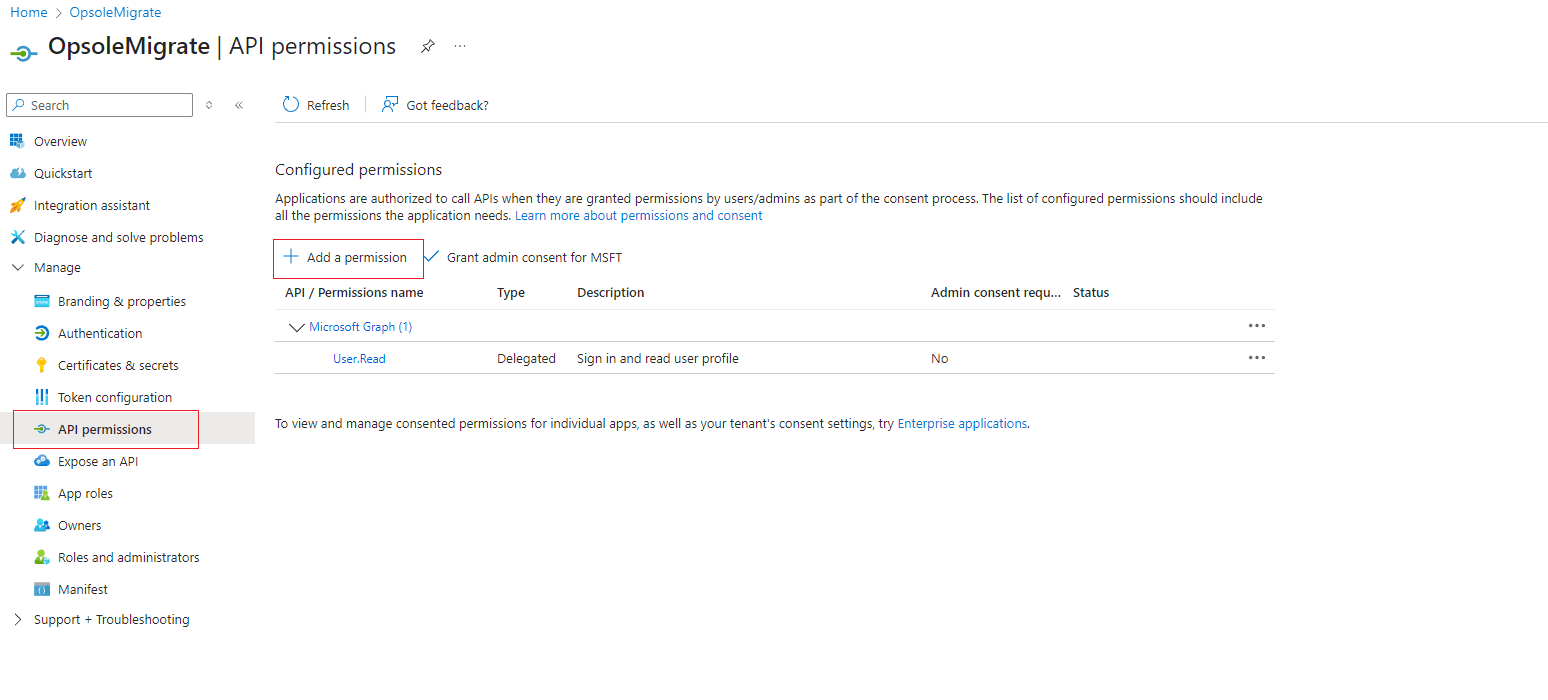
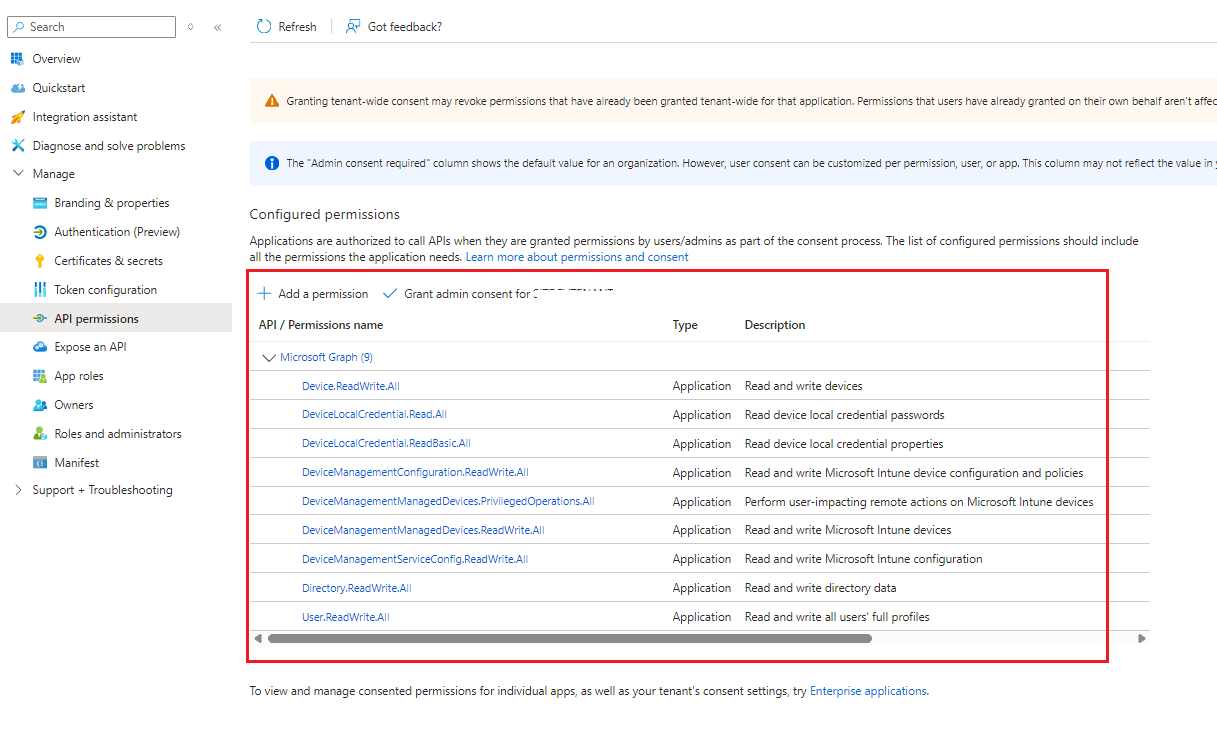
- Go to API permissions.
- Click + Add a permission.
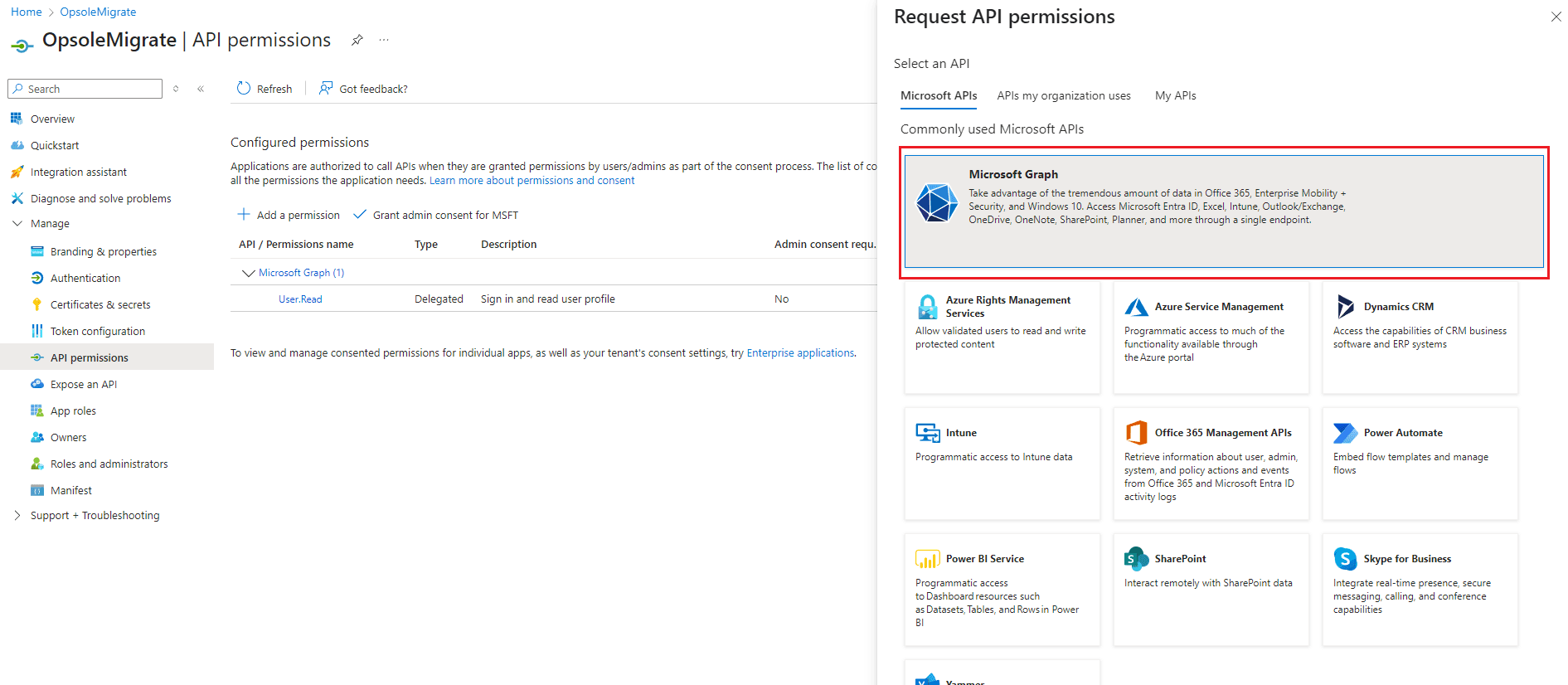
- On the Request API permissions page, select Microsoft Graph.
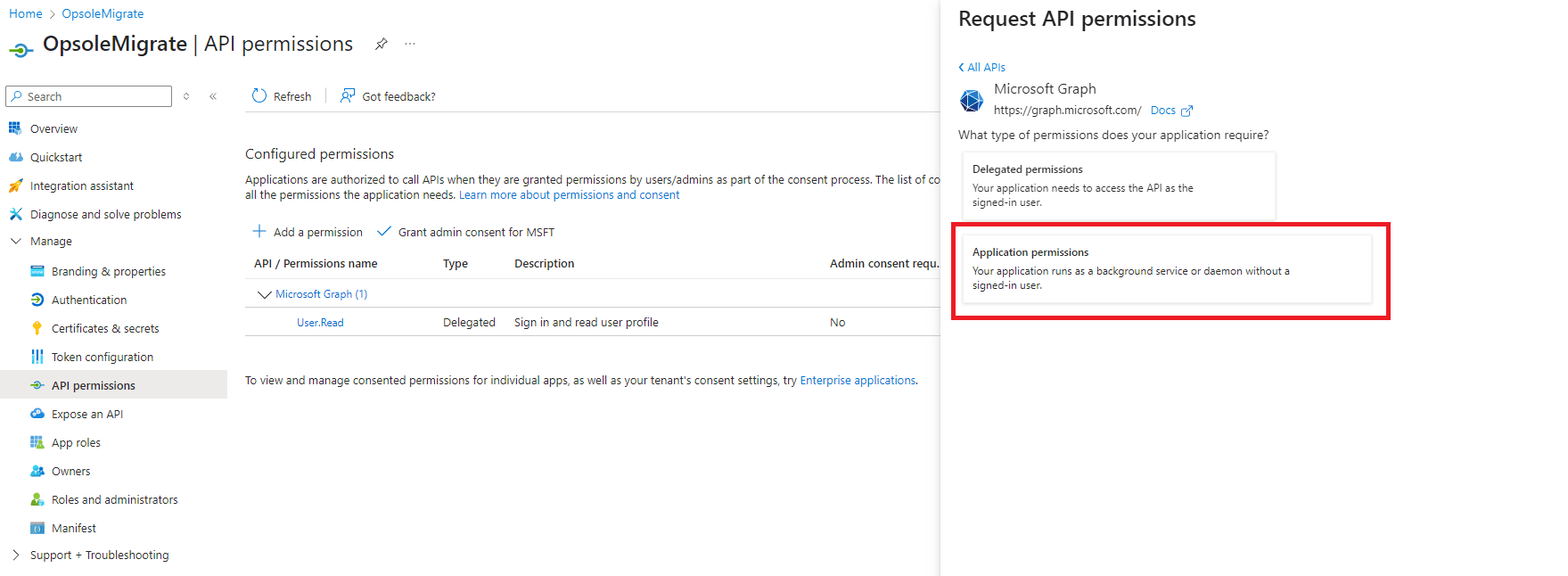
- Select Application permissions.
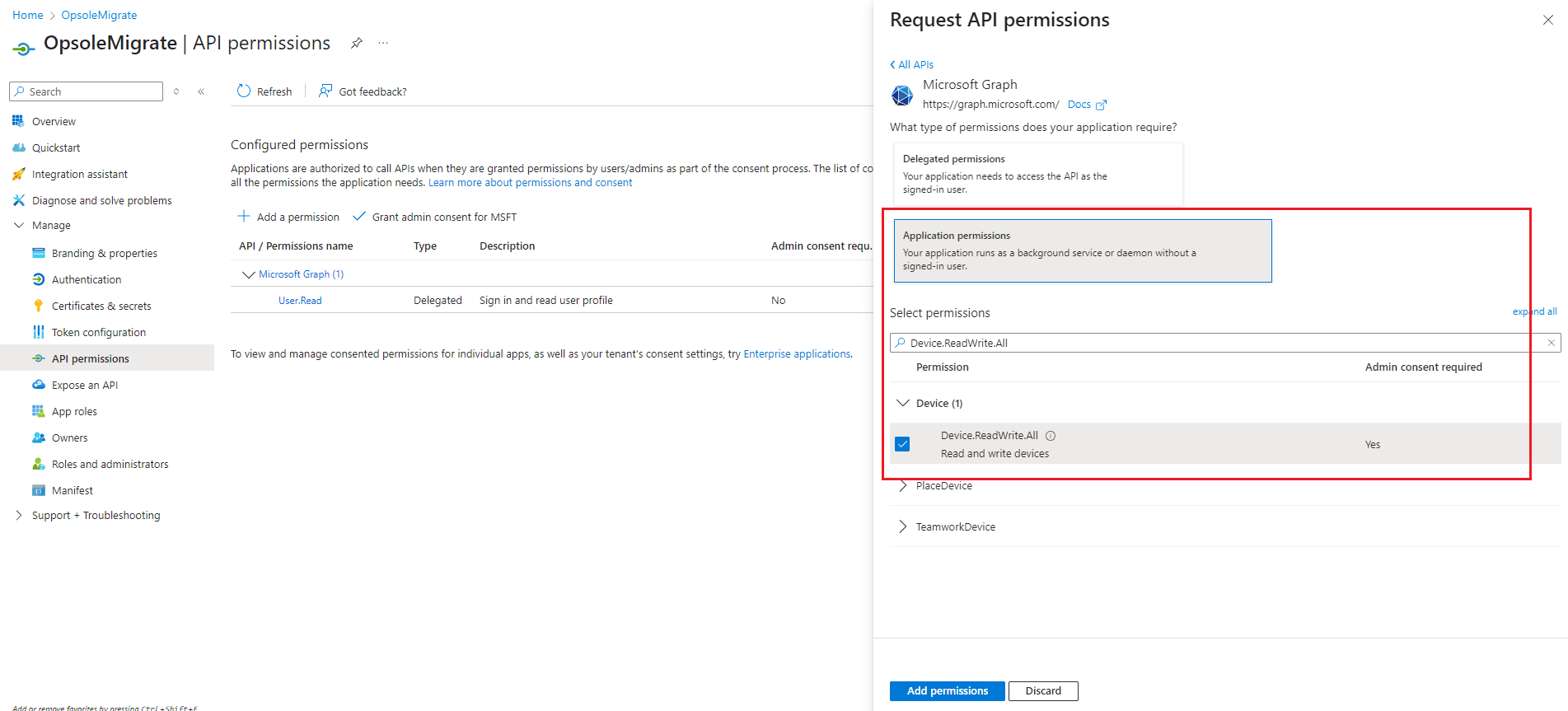
- Use the search bar to add the required Microsoft Graph permissions.
| Permission | Type | Scope |
|---|---|---|
User.Read.All | Application | Required |
Device.ReadWrite.All | Application | Required |
Directory.Read.All | Application | Required |
DeviceManagementManagedDevices.ReadWrite.All | Application | Required |
DeviceManagementServiceConfig.ReadWrite.All | Application | Required |
DeviceManagementConfiguration.ReadWrite.All | Application | Feature-dependent |
GroupMember.ReadWrite.All | Application | Feature-dependent |
DeviceLocalCredential.Read.All | Application | Feature-dependent |
DeviceLocalCredential.ReadBasic.All | Application | Feature-dependent |
Feature-dependent permissions are required only when the corresponding capability is enabled, such as LAPS retrieval, group restoration, or configuration profile handling.
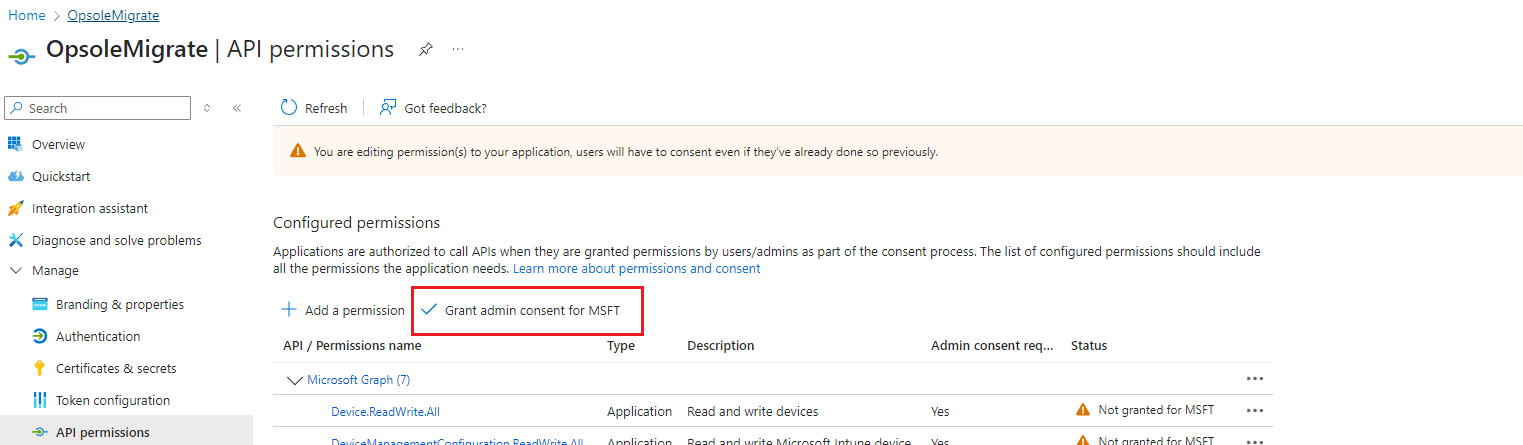
- After adding the permissions, click Grant admin consent for
[TENANT NAME]. - Click Yes at the grant admin consent confirmation prompt.
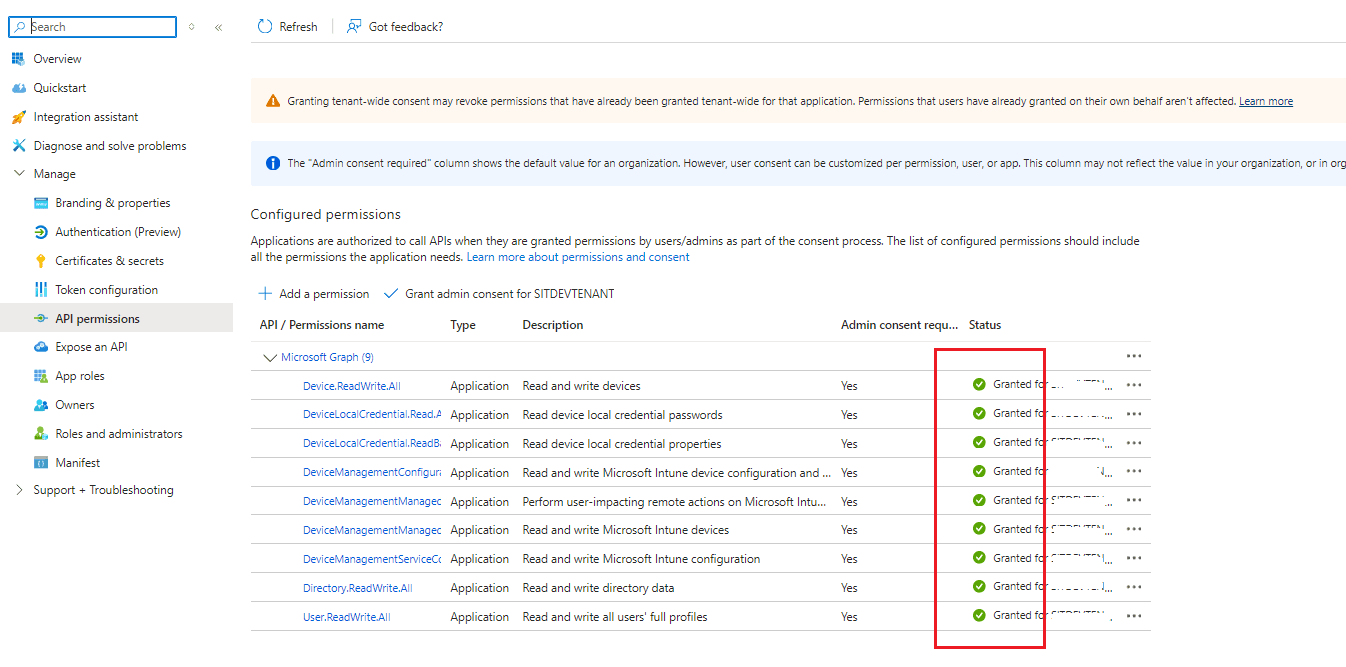
- Confirm that all permissions display Granted for [TENANT NAME].
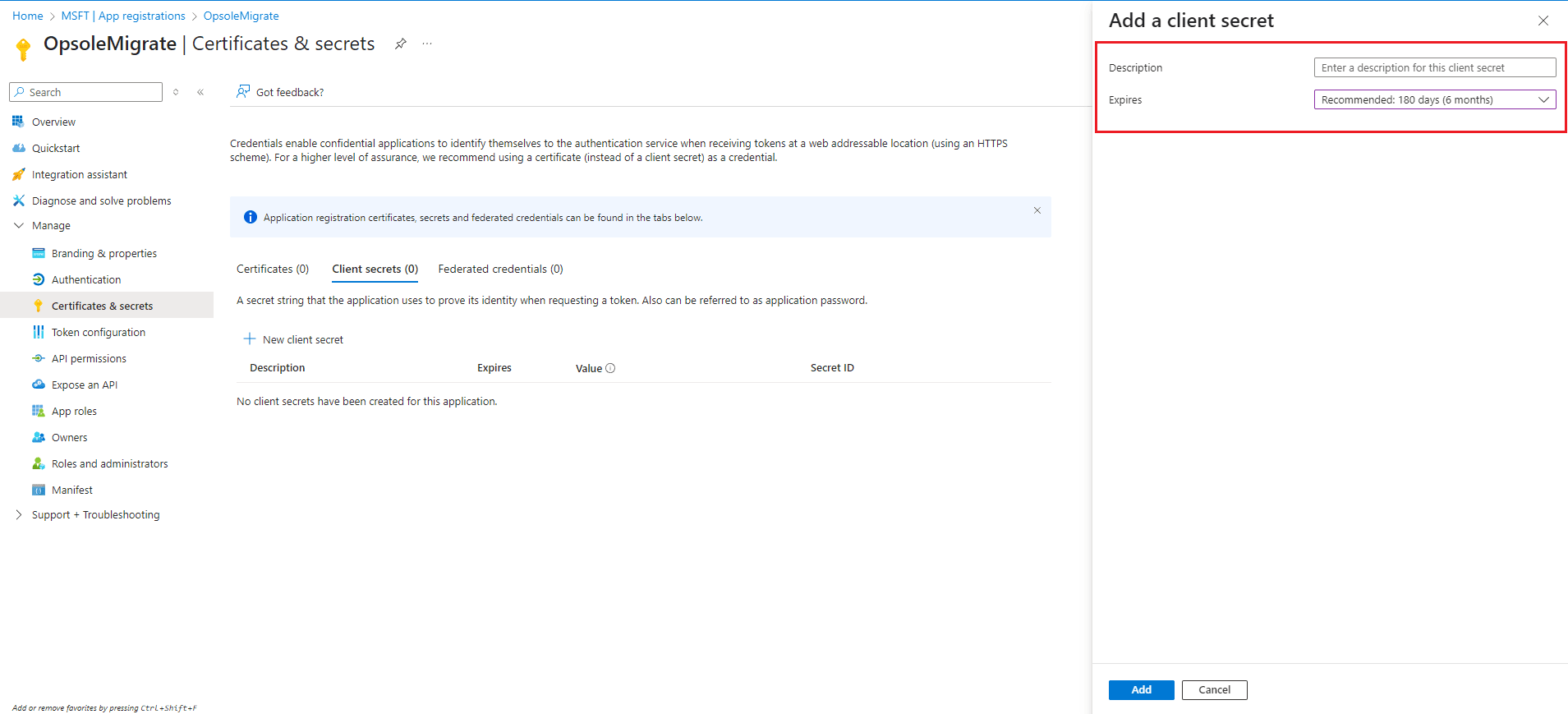
Step 4 - Generate Client Secret
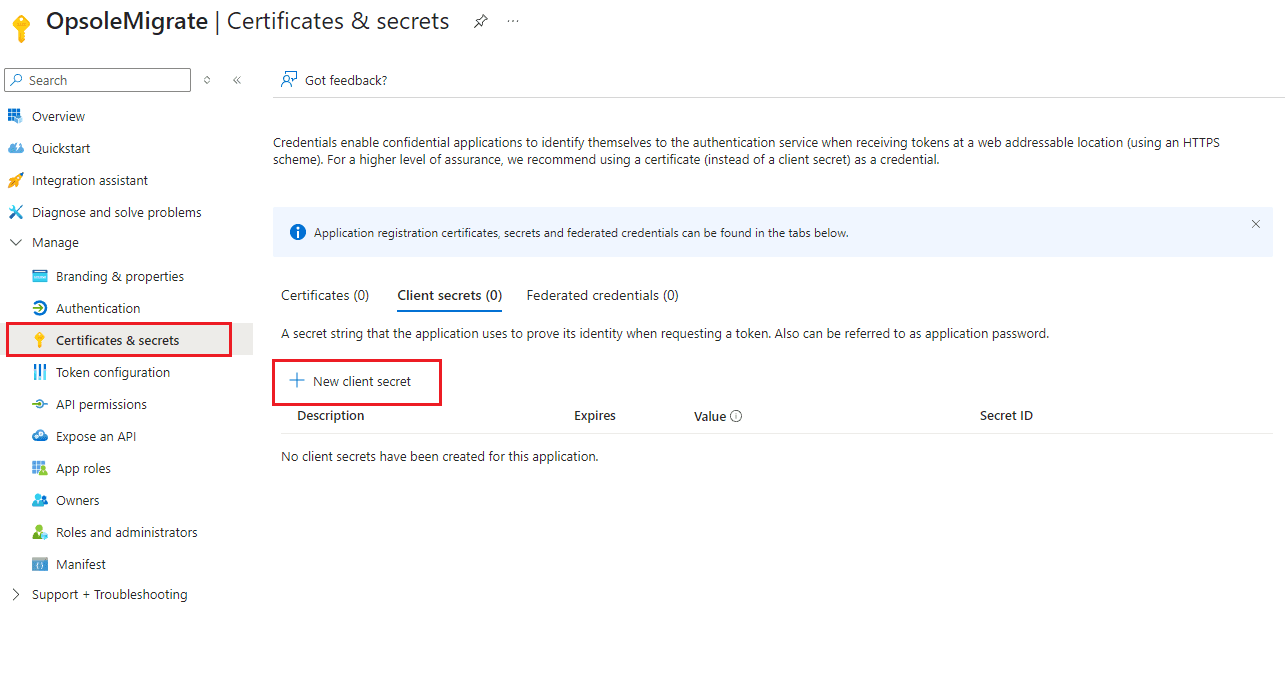
- Go to Certificates & secrets > Client secrets.
- Click + New client secret.
- Fill in the following:
- Description: for example
OpsoleSecretKey - Expires: select a duration aligned with your organization's secret rotation policy, for example 180 days
- Description: for example
- Click Add.
Security Warning — This client secret grants privileged access to your Microsoft Entra tenant. Treat it like a password — store it securely, restrict access to authorized personnel only, and never share it. If compromised, revoke it immediately in Entra and generate a new secret.
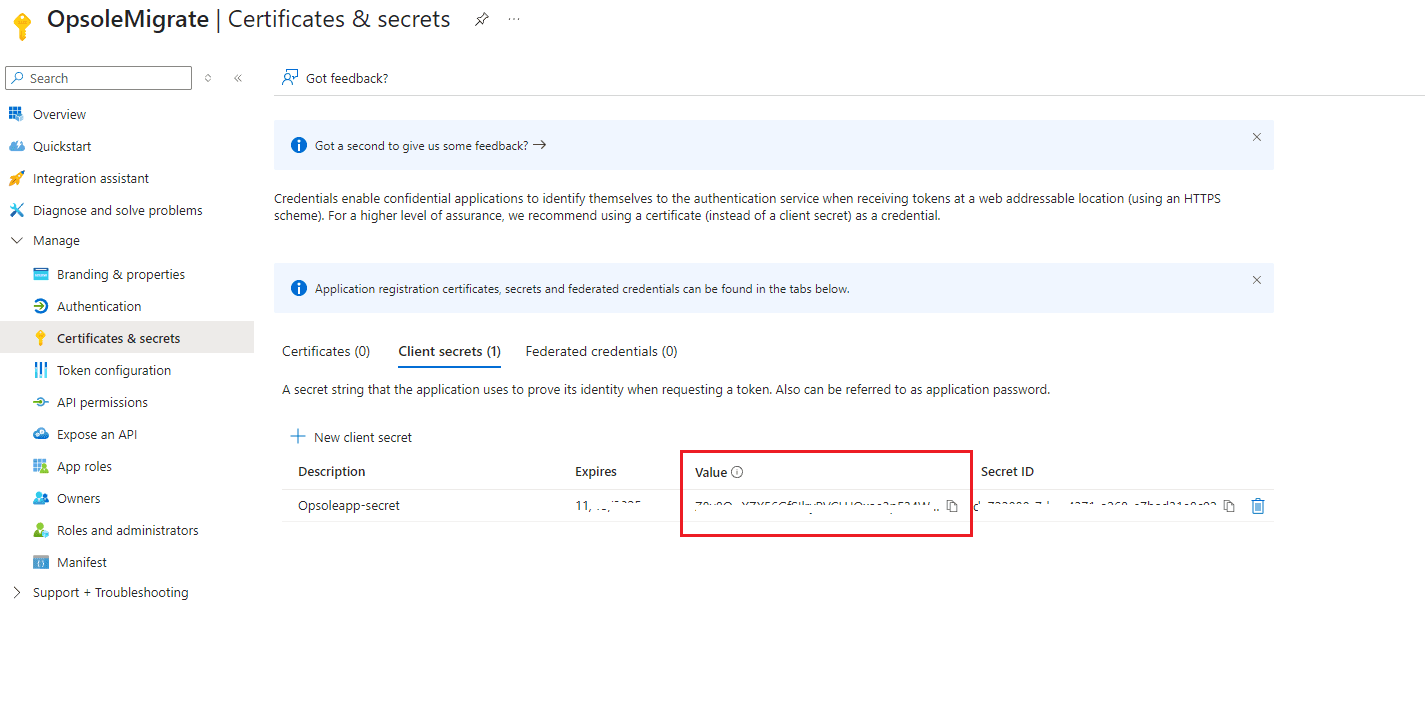
Step 5 - Save the Secret Value
Copy the Value of the new client secret immediately and save it securely.
The client secret value is shown only once. Do not navigate away from the page until the value has been copied and stored.
Store the secret in an approved secrets vault or password management system. Do not email it, store it in scripts, save it in source control, or share it through chat.
Record the secret expiry date and assign an owner for rotation before expiry.
Next Steps
- Continue to Provisioning Package Configuration
How is this guide?
Overview
Everything you need in place before running your first migration - licensing, supported device states, network access, identity configuration, Microsoft Graph permissions, application registration in Microsoft Entra ID, and pilot readiness.
Provisioning Package
Create, secure, and validate the Microsoft bulk enrollment provisioning package using Windows Configuration Designer (WCD) for AD-to-Entra, Hybrid-to-Entra, and Tenant-to-Tenant migration scenarios.