
Provisioning Package Retrieval or Availability Failed
Troubleshooting when the provisioning package cannot be retrieved, downloaded, or found during migration (~60%–70%).
Description
During migration, after domain leave preparation, the application attempts to retrieve and prepare the Microsoft Entra provisioning package.
This error occurs when the application cannot retrieve package details, download the package, or locate the package locally before the Entra join step.
This is a critical stage. The device may already have left the Active Directory domain and may not yet be fully joined to Entra ID.
Quick Reference
| Item | Details |
|---|---|
| Stage | Post-domain-leave provisioning package preparation |
| Progress | Around 60% to 70% |
| Device impact | Device may already be in WORKGROUP state |
| Safe to retry | No |
| Responsibility | Customer IT administrator and Opsole Support |
What You Will See
Application Message
Migration failed in module EntrapackageInfo
Migration failed in module Entrapkgdownload
Migration failed in module Entrajoin
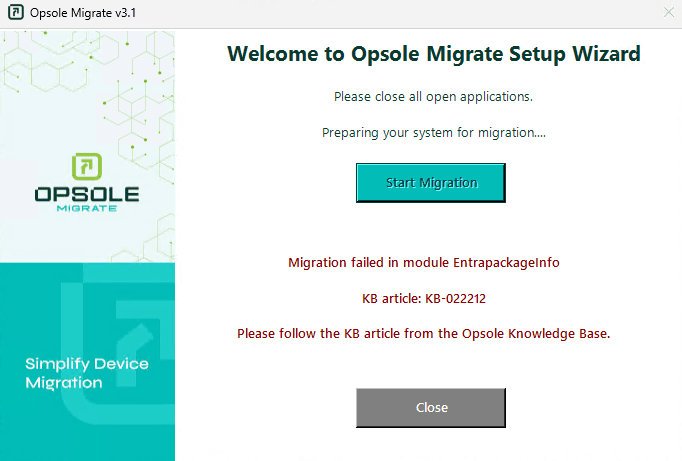
Portal Log
Migration failed in module EntrapackageInfo
Migration failed in module Entrapkgdownload
Migration failed in module Entrajoin
Root Cause
The application is unable to retrieve, download, or access the provisioning package.
Common causes:
- Network, DNS, firewall, proxy, or SSL inspection blocking access
- Provisioning package missing or expired in the portal
- Download interrupted or incomplete
- Endpoint security removing or quarantining the package
- Insufficient disk space
- Device in partial migration state after domain leave
Diagnosis
Run the following checks in PowerShell (Administrator):
Step 1 – Check domain state
(Get-CimInstance Win32_ComputerSystem).PartOfDomain
Step 2 – Check API connectivity
Test-NetConnection -ComputerName "<opsole-api-domain>" -Port 443
Step 3 – Check for provisioning package
Get-ChildItem "C:\ProgramData\OpsoleMigrate" -Filter "*.ppkg" -ErrorAction SilentlyContinue
Step 4 – Check disk space
Get-PSDrive C
| Result | Meaning |
|---|---|
| API connectivity fails | Network, proxy, firewall, DNS, or SSL issue |
No .ppkg file found | Package not downloaded or removed |
.ppkg file size is 0 | Corrupted or incomplete download |
| Low disk space | Download could not complete |
| Domain state is False | Device may already be in WORKGROUP |
Resolution
API or Network Issue
Restore HTTPS connectivity to the Opsole API domain.
Package Missing or Expired
Generate a new Entra bulk join provisioning package and upload it to the Opsole Admin Portal.
Ensure the package is active before retrying.
Security Tool Interference
Check endpoint security quarantine and allow the path:
C:\ProgramData\OpsoleMigrate
Low Disk Space
Free space on the system drive and ensure sufficient capacity for download and processing.
Recovery Steps
This is a partial migration state. Do not retry repeatedly.
Customer IT must confirm:
- Current domain join state
- Presence of valid
.ppkgfile locally - Package availability in the portal
- API connectivity status
After validation, proceed with controlled retry.
When to Contact Support
Contact support@opsole.com before retrying if:
- Failure occurs in EntrapackageInfo, Entrapkgdownload, or Entrajoin
- Device state is partially migrated
- Multiple devices show the same issue
Related Logs
- Event Viewer → Application and Services Logs → OpsoleMigrate
How is this guide?