
Device Not Joined to a Supported Directory
Troubleshooting when the device is not joined to Active Directory, Hybrid Entra ID, or Entra ID during pre-migration validation (~20%).
Description
During pre-migration validation, the application checks whether the device is in a supported source join state.
This error occurs when the device is not joined to Active Directory, Hybrid Entra ID, or Entra ID.
Migration requires a valid source identity. If the device is not joined to any supported directory, migration does not proceed. No device changes are performed.
Quick Reference
| Item | Details |
|---|---|
| Stage | Pre-Migration device join-state validation |
| Progress | Around 20% |
| Device impact | No device migration changes have been made |
| Safe to retry | Yes |
| Responsibility | Customer IT administrator |
What You Will See
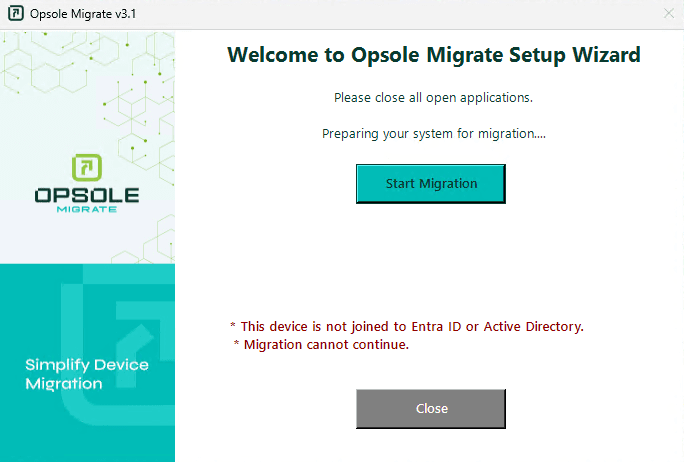
Application Message
This device is not joined to Entra ID or Active Directory.
Migration cannot continue.
Portal Log
Migration failed in module DeviceJoinValidation
Root Cause
The device is not in a supported source join state.
Common causes:
- Device is in WORKGROUP state
- Device was previously removed from Active Directory or Entra ID
- Device was never domain joined or Entra joined
- Windows join state is inconsistent or broken
- Migration deployed to an incorrect device group
Diagnosis
Run the following commands in PowerShell (Administrator):
dsregcmd /status

(Get-CimInstance Win32_ComputerSystem).PartOfDomain
Review dsregcmd /status for:
DomainJoined— should be YES for Active Directory–joined source devicesAzureAdJoined— YES is expected for hybrid-joined devices- If both are NO and the device is in a workgroup, migration cannot proceed from this join state
| Result | Meaning |
|---|---|
DomainJoined : NO and AzureAdJoined : NO | Device is in WORKGROUP or has no supported join |
PartOfDomain : False | Device is not joined to Active Directory |
| Join state inconsistent with portal assignment | Wrong device or stale join state |
Resolution
Device in WORKGROUP (not joined)
Join the device to Active Directory (or confirm hybrid/Entra join state matches your migration scenario), then retry.
Device removed from Active Directory or Entra ID
Restore the required source join state (rejoin the domain or repair hybrid join) before starting migration again.
Migration deployed to the wrong device
Verify the device is in the correct collection or deployment group and matches the user or device record in the Opsole portal.
Stale or inconsistent join state
Restart the device, confirm join state with dsregcmd /status, and resolve any partial/unjoin state with your IT team before retrying.
Recovery Steps
- Close the Opsole Migrate application
- Re-open the application
- Start migration again
When to Contact Support
Contact support@opsole.com if:
- Join state appears correct but validation still fails
- Multiple devices in the same deployment group show the same error
- The device should be hybrid joined but
dsregcmddoes not reflect expected state
Related Logs
- Event Viewer → Application and Services Logs → OpsoleMigrate
How is this guide?