
User Identity Mapping Failed
Troubleshooting when local user profiles cannot be mapped to Microsoft Entra ID during pre-migration (~40%).
Description
During pre-migration, the application maps collected local user profiles to corresponding Microsoft Entra ID identities.
This error occurs when the mapping process fails and the application cannot retrieve or match Entra ID details for one or more users.
No destructive migration changes are performed at this stage.
Quick Reference
| Item | Details |
|---|---|
| Stage | Pre-Migration user identity mapping |
| Progress | Around 40% |
| Device impact | No destructive migration changes have been made |
| Safe to retry | Yes |
| Responsibility | Customer IT administrator |
What You Will See
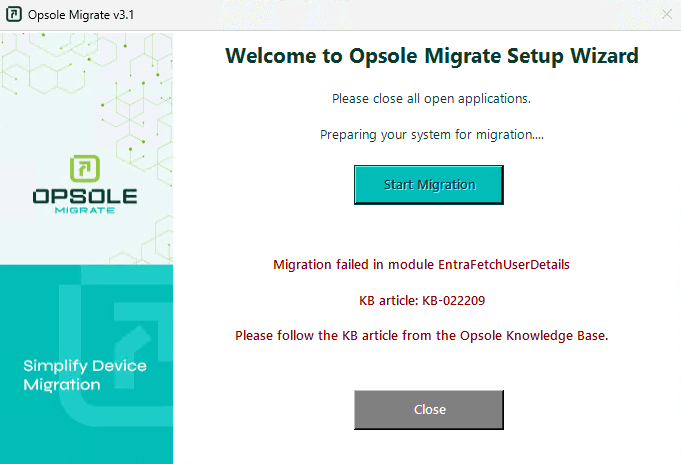
Application Message
Migration failed in module EntraFetchUserDetails
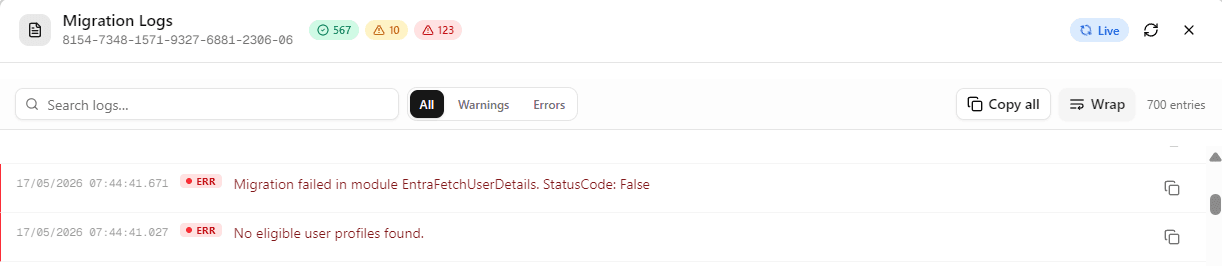
Portal Log
Migration failed in module EntraFetchUserDetails
Root Cause
The application is unable to map local user profiles to Entra ID identities.
Common causes:
- API connectivity interruption during mapping
- Users not synchronized to Entra ID
- Users outside Azure AD Connect or Entra Cloud Sync scope
- Missing required Entra identity attributes
- Configuration mismatch for cross-tenant or cross-forest scenarios
- Incomplete or inaccessible local profile data
Diagnosis
Run the following checks in PowerShell (Administrator):
Step 1 – Confirm profile records were collected
Get-ChildItem "HKLM:\SOFTWARE\OpsoleMigrate\Profiles" -ErrorAction SilentlyContinue
Step 2 – Review mapping status
Get-ChildItem "HKLM:\SOFTWARE\OpsoleMigrate\Profiles" | ForEach-Object { $p = Get-ItemProperty $_.PSPath; [PSCustomObject]@{ SID = $_.PSChildName; OldUser = $p.OLD_userName; Status = $p.Status; LastError = $p.LastError } }
| Status | Meaning |
|---|---|
| ReadyForMigration | User mapped successfully |
| NotEligibleHybridSync | User not synchronized to Entra ID |
| EntraLookupFailed | User lookup failed |
| EntraSidMissing | Required Entra SID attribute missing |
Resolution
User Not Synchronized
Ensure Azure AD Connect or Entra Cloud Sync is operational and the affected users are within sync scope.
Run a delta sync if required:
Start-ADSyncSyncCycle -PolicyType Delta
Allow synchronization to complete before retrying.
Configuration Mismatch
Verify that the migration configuration matches the actual environment:
- Correct tenant selected
- Correct scenario (AD / Hybrid / Tenant-to-Tenant)
- Cross-forest settings aligned
API Connectivity Issue
Validate API connectivity as described in KB-022201.
Recovery Steps
- Close the Opsole Migrate application
- Re-open the application
- Start migration again
When to Contact Support
Contact support@opsole.com if:
- Users are synchronized correctly but mapping still fails
- Mapping status does not update correctly
- Multiple devices show the same issue
Related Logs
- Event Viewer → Application and Services Logs → OpsoleMigrate
How is this guide?