
Migration Process
Step-by-step walkthrough of installing Opsole Migrate on the device, launching the tool, and completing the migration. Applies to AD-to-Entra, Hybrid-to-Entra, and Tenant-to-Tenant scenarios.
Before You Begin
Confirm the following before starting migration on this device:
- Device join state is confirmed via
dsregcmd /status. - Device is powered on and connected to AC power where possible.
- Device has network connectivity and can reach
login.microsoftonline.comand*.opsole.com - User has been notified and is aware of the migration procedure, including automated reboots
- EDR, AppLocker, and application-control exclusions are confirmed applied on this device
- BitLocker recovery key and LAPS credentials are retrievable for this device before migration starts
1. Obtain the Installation Files
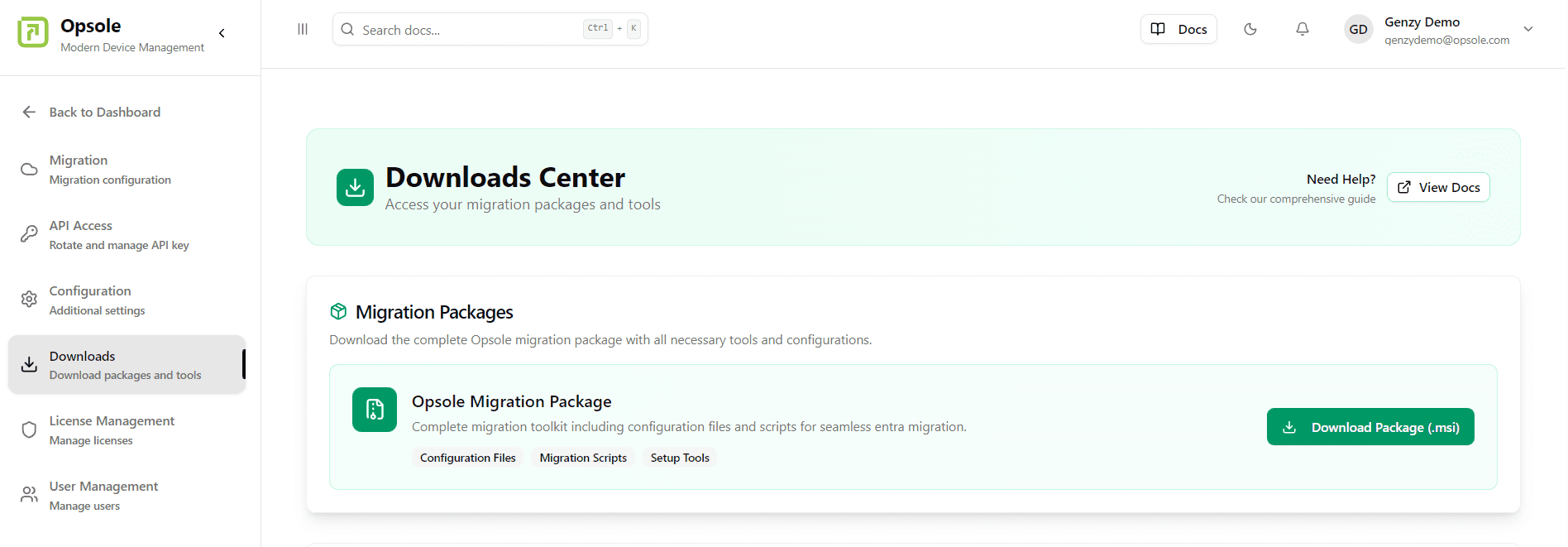
Access the Opsole Migrate portal and navigate to Settings > Downloads.
Download the latest Opsole Migrate setup file (.msi).
Proceed to the next section to deploy or install the application.
2. Deploy or Install the MSI File
Opsole Migrate is distributed as an MSI file that must be deployed to the target device selected for migration.
Deployment options include:
- Microsoft Intune
- Group Policy Object (GPO)
- Third-party MDM or remote installation tooling
- Manual installation
Administrative privileges: MSI deployment or installation requires administrative privileges on the target device.
After MSI deployment, the application downloads the latest migration package at runtime. You do not need to reinstall or update the MSI for each migration package update, provided the device can reach the required Opsole endpoints.
3. Launch Opsole Migrate
After MSI installation is complete on the target device:
- Open the Start menu.
- Type
opsolein the search box.
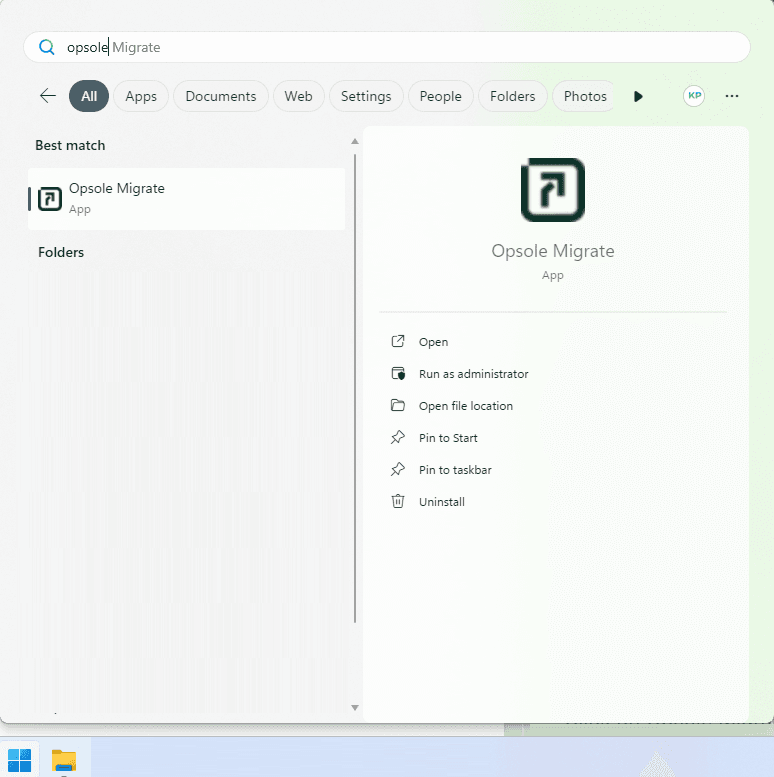
- Click Opsole Migrate from the search results.
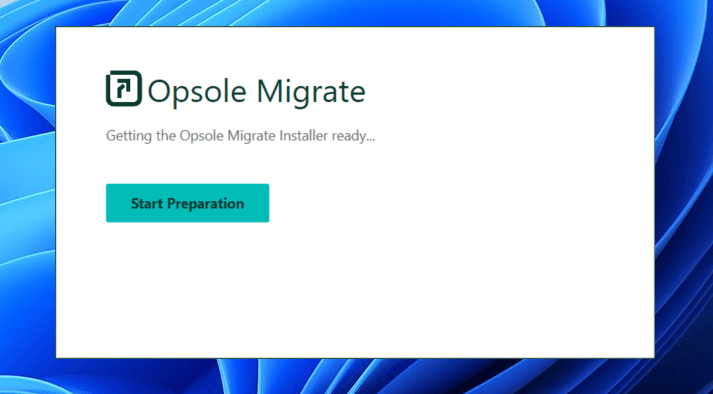
The application opens with the preparation window.
4. Start Preparation
When the Opsole Migrate application opens:
- Click Start Prepare in the preparation window.
- The application begins the preparation phase for device migration.
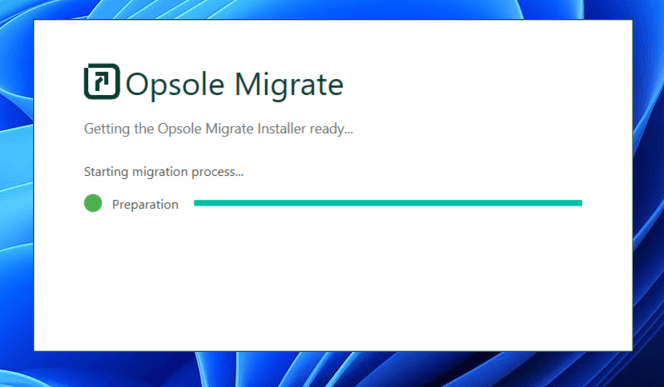
The Opsole Migrate application window opens and displays the migration wizard.
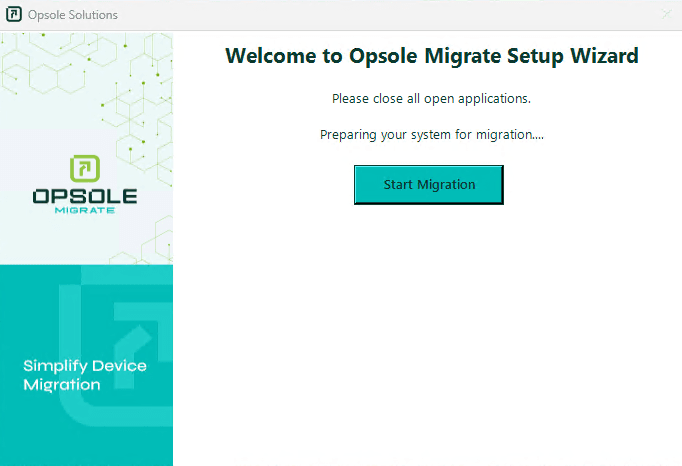
5. Start Migration
Click Start Migration to begin.
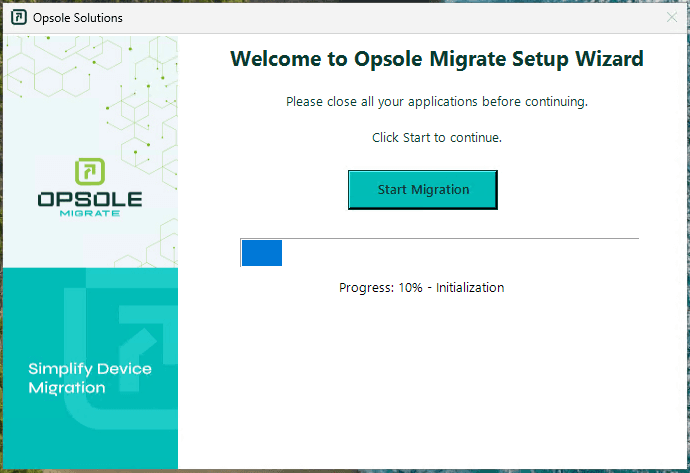
6. Initial Migration Phase
The application executes the initial migration steps. During this phase, Opsole Migrate prepares the device, validates configuration, and begins the migration workflow.
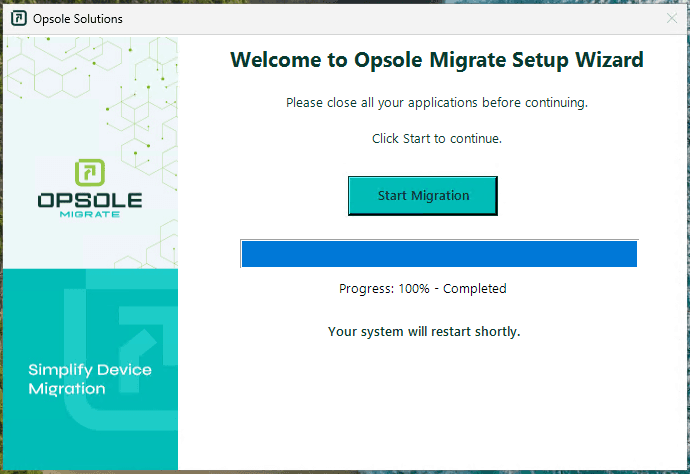
7. Initial Migration Phase Complete
When the initial phase completes, the system automatically reboots to apply migration changes.
This reboot is expected and is part of the migration workflow.
8. Migration Banner
After reboot, a migration banner appears:
CRITICAL WARNING: Migration in progress. Do not log in. Please wait.
If OK is selected, Windows presents the sign-in screen with a background message indicating that login should not be performed.
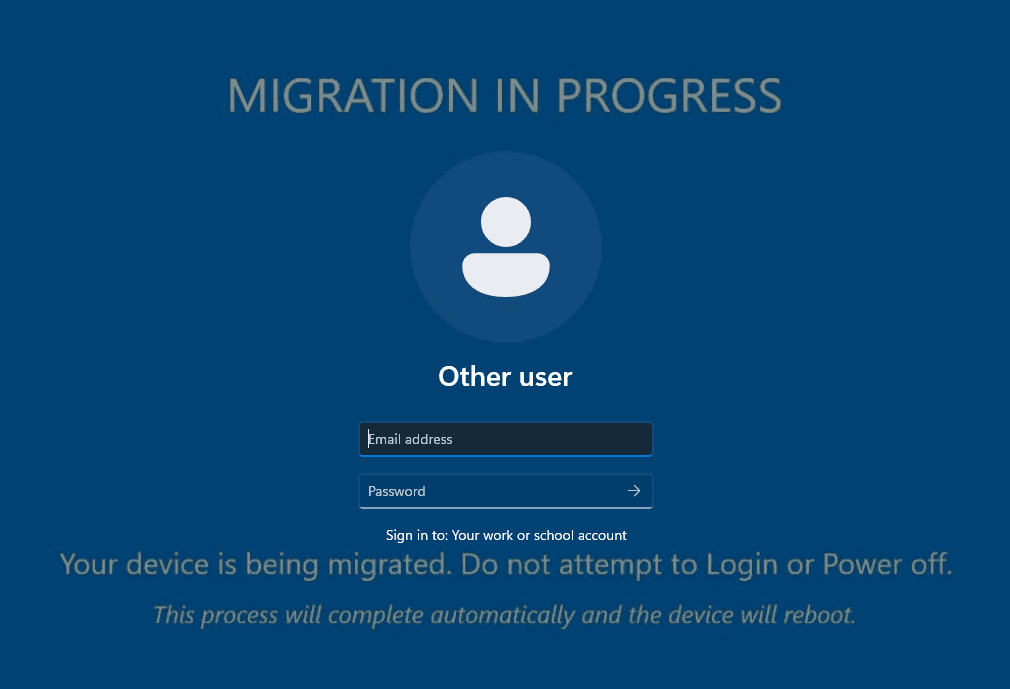
After a short period, the system automatically reboots again to complete background migration steps.
Important: Do not sign in while the migration-in-progress banner or background message is displayed. Signing in during this stage can interrupt the protected migration phase.
9. Entra ID Sign-in Prompt
After the second reboot, the user is prompted to sign in using Microsoft Entra ID credentials.
Sign in using the appropriate Microsoft Entra ID account for the configured migration scenario.

10. Resume Migration
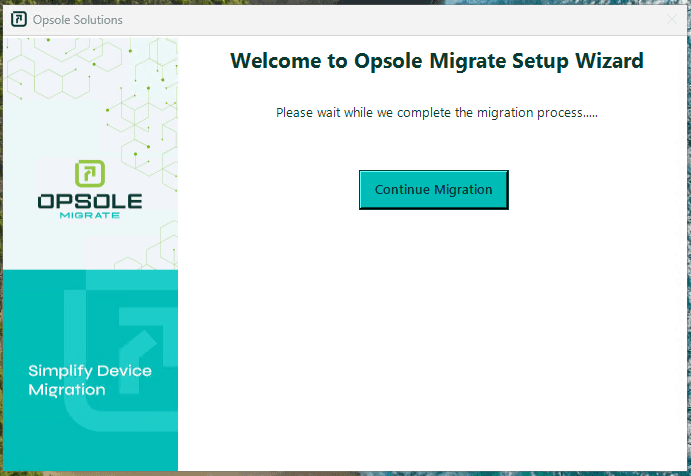
After sign-in, the Continue Migration window appears.
Click Continue Migration to proceed.
If the Continue Migration window does not appear, review the Migration Recovery Guide and the Knowledge Base before taking manual recovery action.
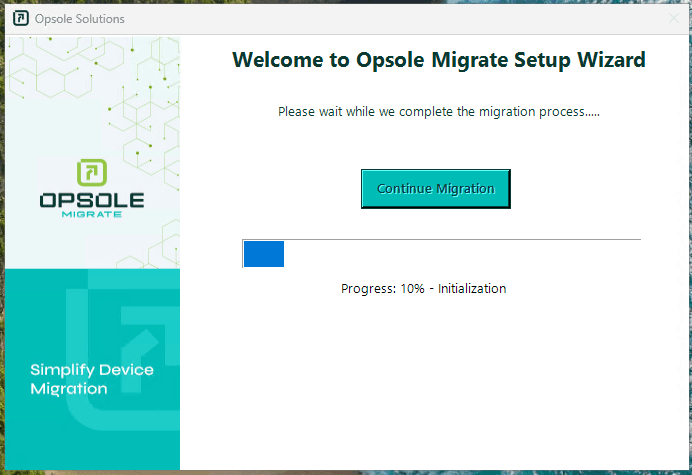
11. Final Migration Phase
The application processes the remaining steps required to finalize migration.
12. Migration Complete
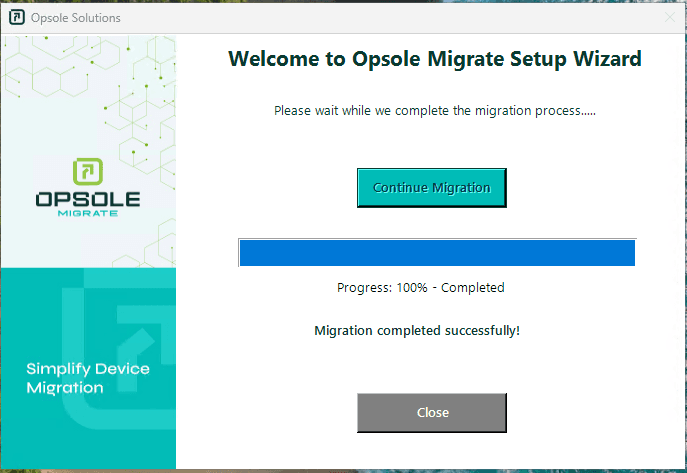
When migration completes, a confirmation message appears:
Migration Completed SuccessfullyClick Close to finish.
13. Post-Migration Validation
After migration completes, validate the device and user experience.
In the Microsoft Entra admin center:
- Confirm the device appears under Devices.
- Confirm the device is listed as Microsoft Entra joined.
In the Microsoft Intune admin center, if Intune enrollment is expected:
- Confirm the device appears as an enrolled Windows device.
- Confirm primary user assignment, compliance, and policy targeting as applicable.
On the device:
- Confirm the user can sign in with Microsoft Entra ID credentials.
- Confirm the existing user profile, files, settings, and application state are available.
- Confirm required business applications open as expected.
In the Opsole Migrate portal:
- Confirm the migration status is marked complete.
- Review logs or status details for warnings that require follow-up.
The migration is complete after device identity, management enrollment, user sign-in, profile continuity, and portal status have been validated.
How is this guide?
Portal Configuration
Configure Opsole Migrate portal settings for device migration, including AD disjoin credentials, recovery options, profile migration behavior, device attributes, group assignment, and validated provisioning package upload.
Migration Recovery Guide
Recovery procedures for IT administrators when Opsole Migrate fails during Pre-Migrate or Inter-Migrate phases. Use the correct recovery option for the failure phase—do not reimage the device.