
Getting Started
Onboard your organization to the Opsole Migrate portal after prerequisite validation, including account registration and initial portal setup.
Overview
This guide explains how to onboard your organization to the Opsole Migrate portal. You will create your user account or accept an invitation, complete sign-in verification, verify credentials, and complete the initial setup to access the dashboard.
Portal onboarding should be completed only after the prerequisite validation process is complete. Once onboarding is complete, continue with Portal Configuration to prepare for migration execution.
Before You Begin
Do not start portal onboarding until the following are complete:
Step-by-Step Onboarding Process
1. Access the Registration Page
You will be provided either:
- An account registration URL, or
- An invitation email to join your organization in the Opsole platform
Open the registration URL or accept the invitation to proceed.
2. Create Your Account
After you accept the invitation or open the registration URL, the Create your account page is displayed.
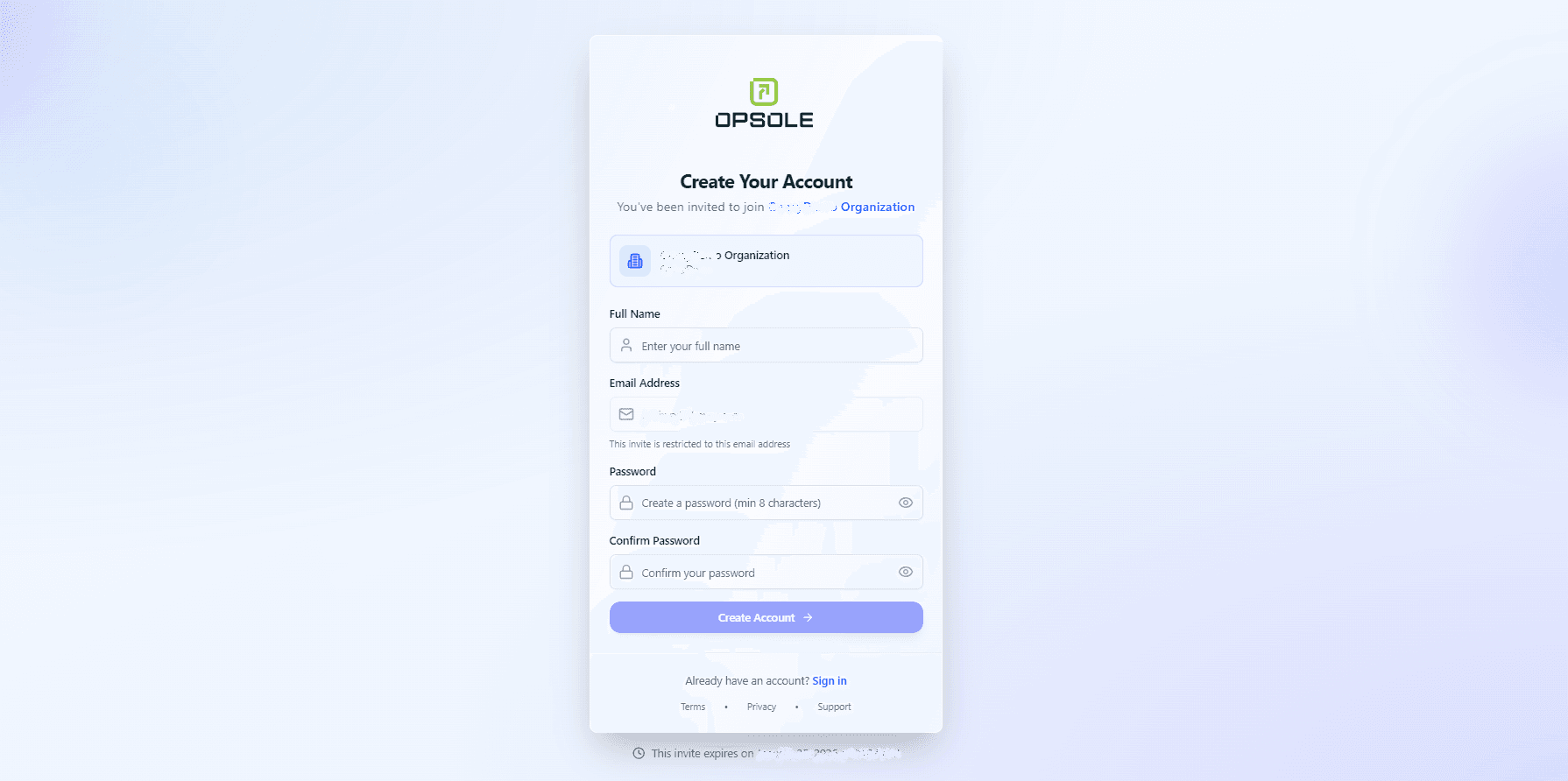
Enter the following details:
- Full Name
- Email Address
- Password
Click Create Account.
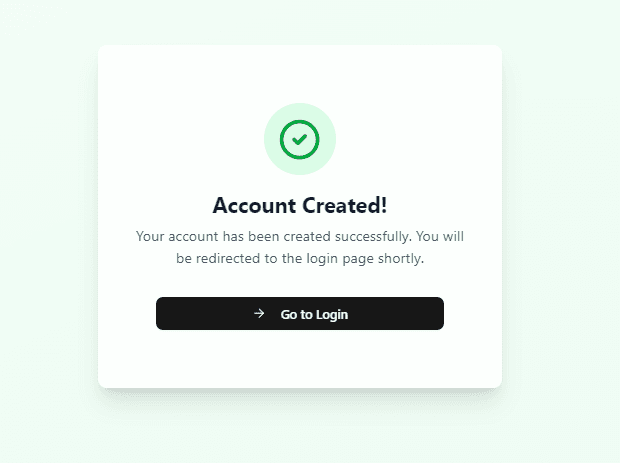
After submitting the account registration form:
- An Account created successfully confirmation screen appears.
- Click Login to proceed to the login page.
3. Sign In to Opsole Migrate
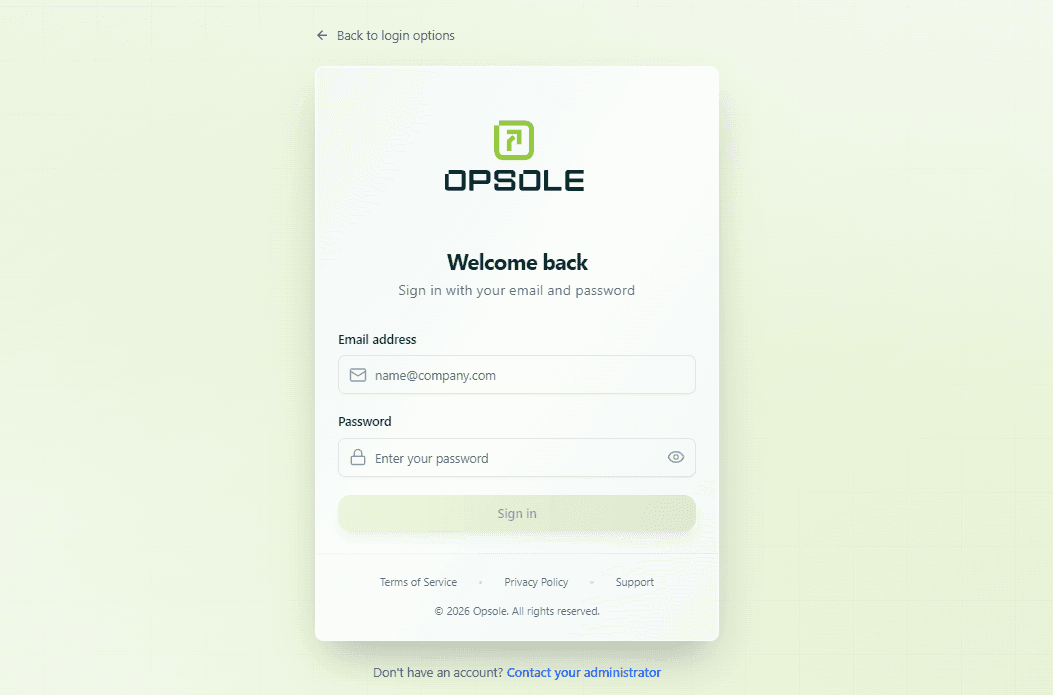
On the login page:
- Enter your email address and password.
- Click Sign in.
4. Complete OTP Verification
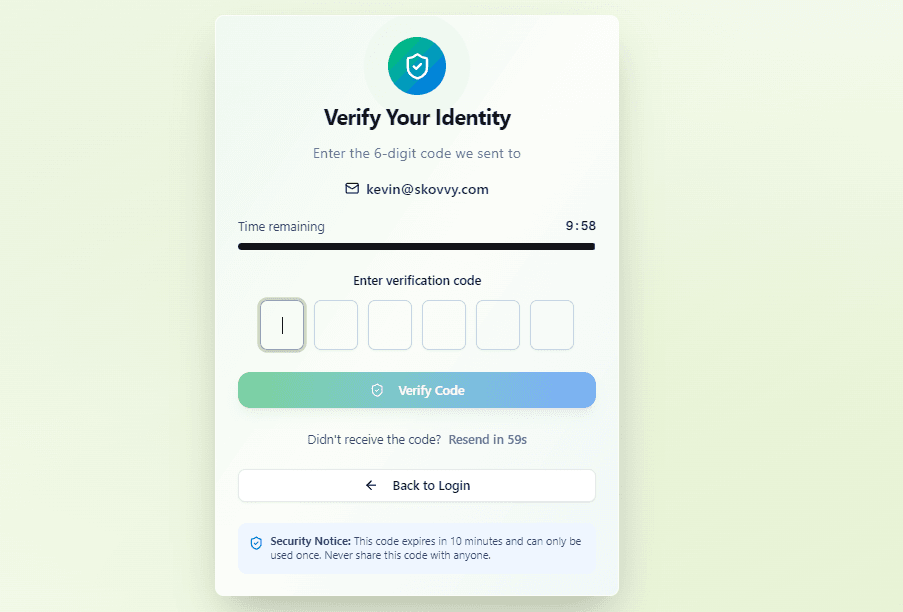
An OTP verification prompt appears.
- Enter the OTP sent to your registered email or configured verification method.
- Complete verification to continue.
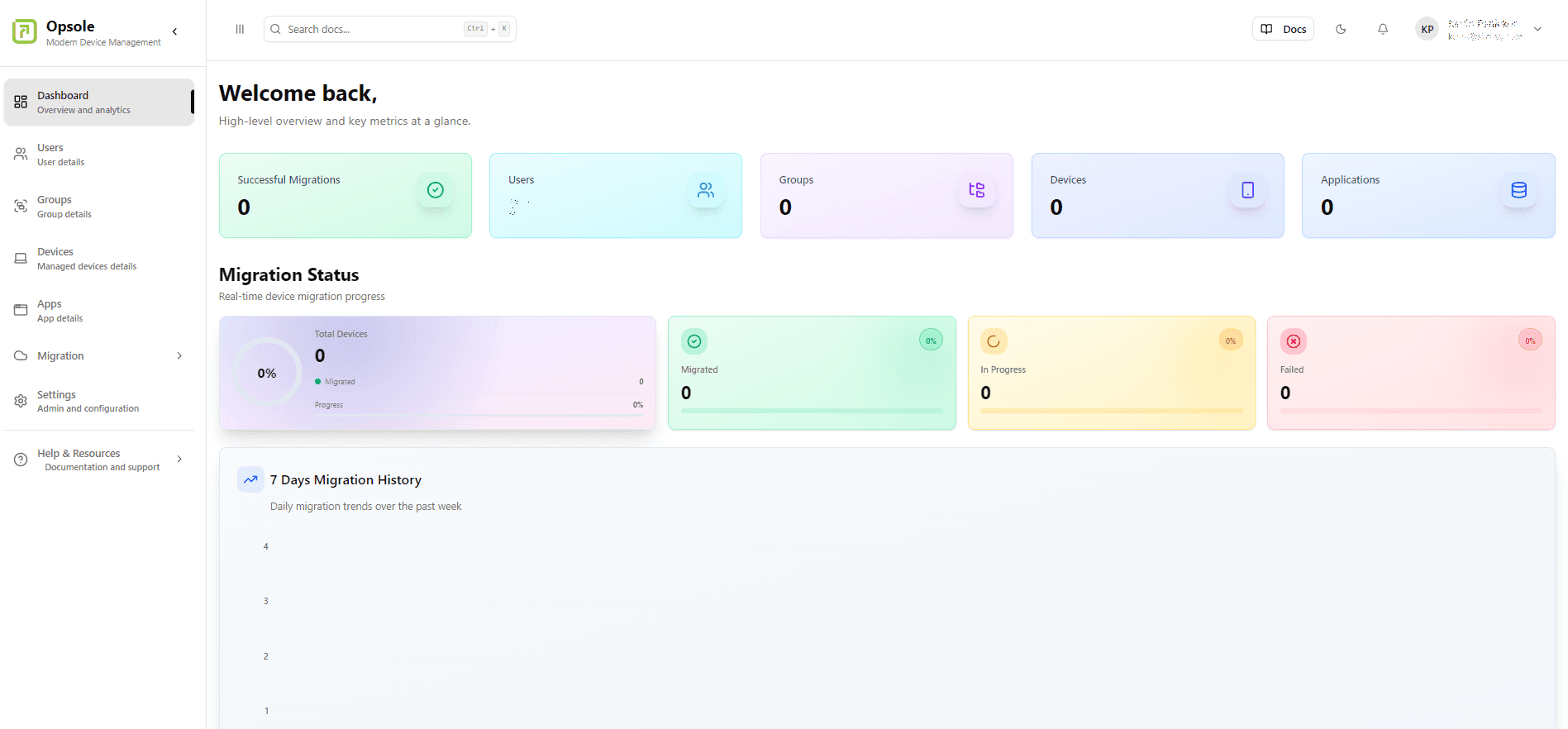
5. Access the Dashboard
After successful login, you are on the dashboard, continue with the portal's configuration settings required before starting migrations.
6. Open Migration Configuration
Navigate to Settings > Migration > Migration Configuration window.
This is where you configure your migration scenario and tenant details.
Choose the migration type that matches your validated rollout plan.
| Migration scenario | Select this type when |
|---|---|
| AD-to-Entra | Devices are Active Directory joined and will be migrated to Microsoft Entra ID joined. |
| Hybrid-to-Entra | Devices are Hybrid Microsoft Entra ID joined and will be migrated to cloud-only Microsoft Entra ID joined. |
| Tenant-to-Tenant | Devices are moving from one Microsoft Entra tenant to another. |
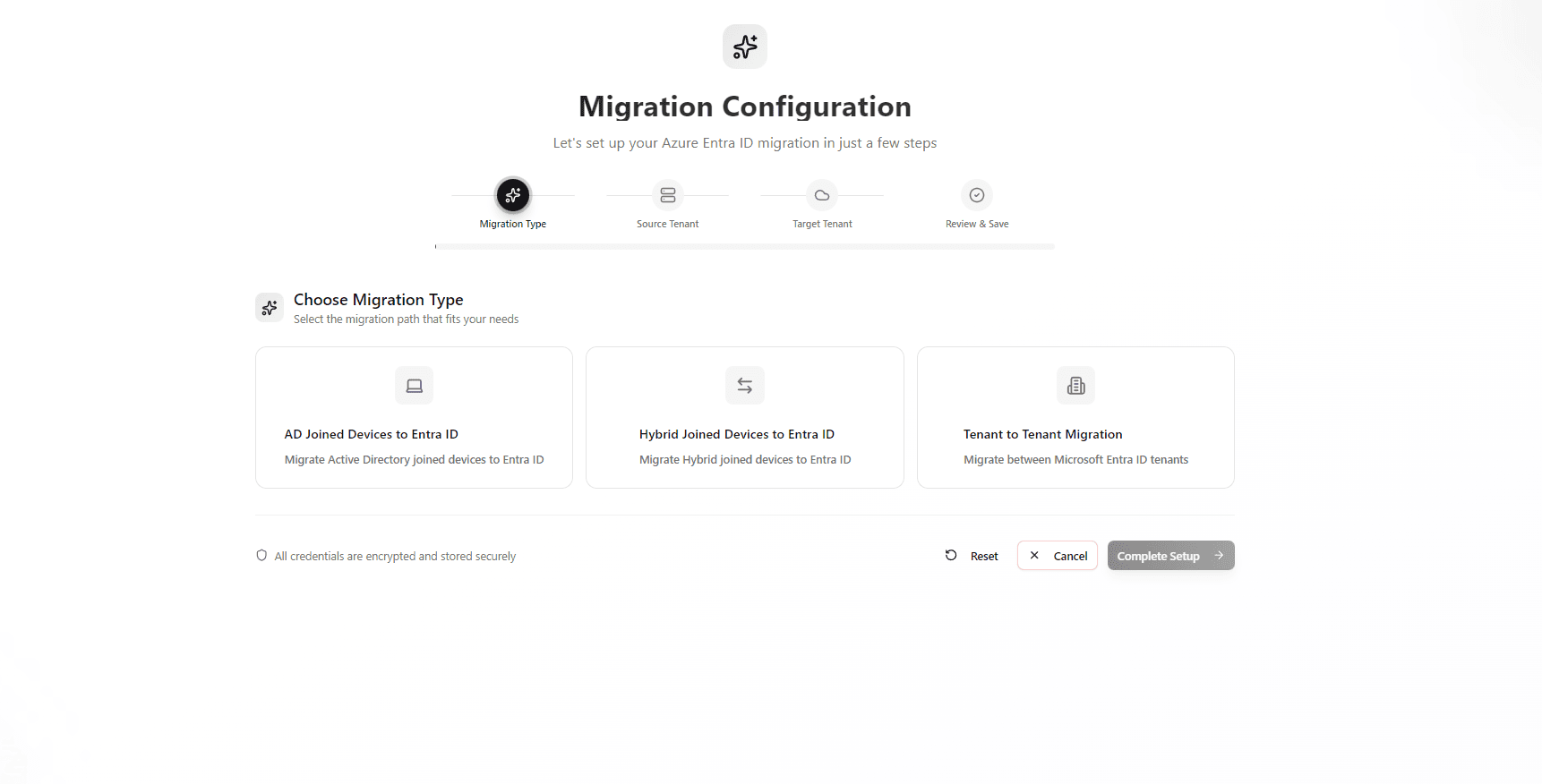
Once you select the migration type, the required configuration fields populate automatically.
6. Tenant Deatils
You can register the Opsole Migrate application in Microsoft Entra ID automatically through the portal, or manually enter the tenant configuration details prepared during prerequisites.
For setup, refer to Entra Application Registration.
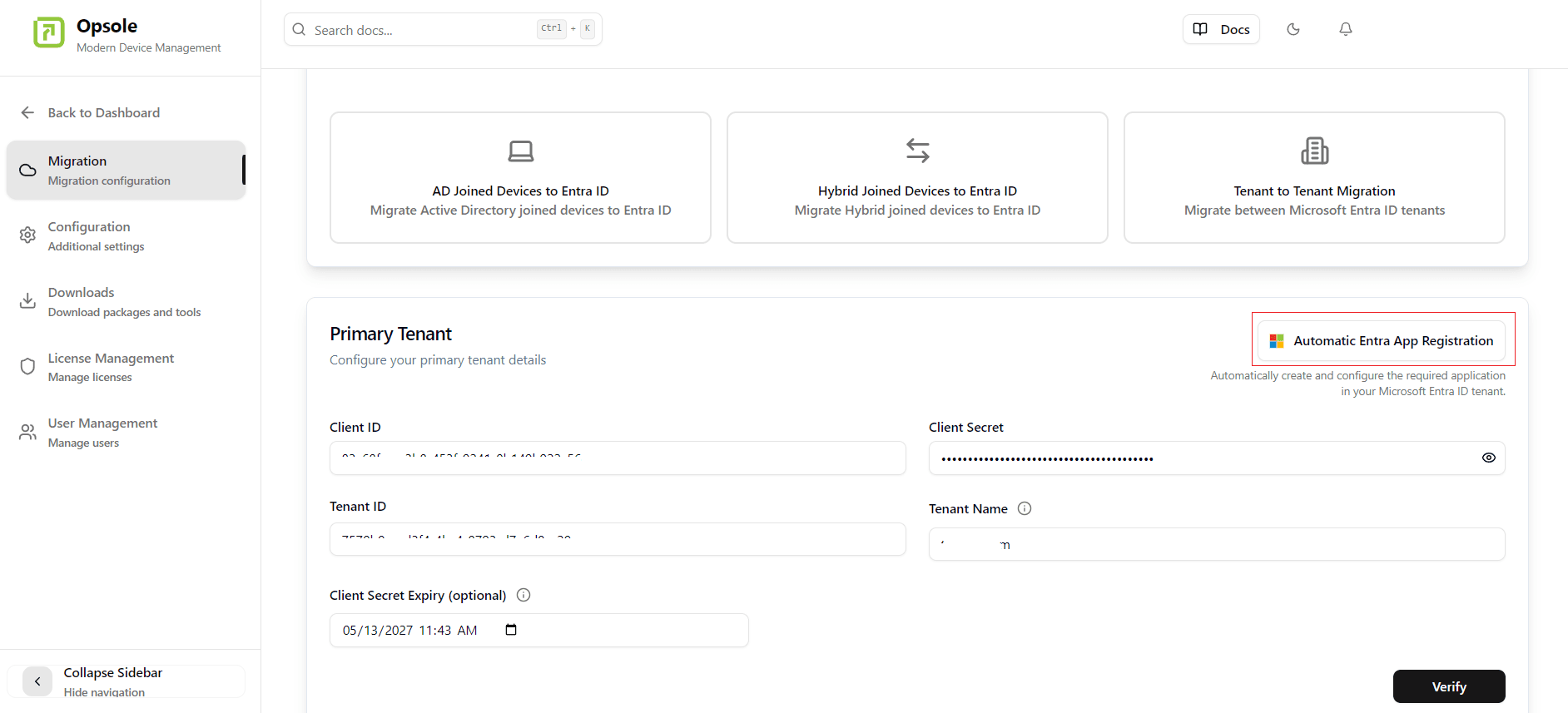
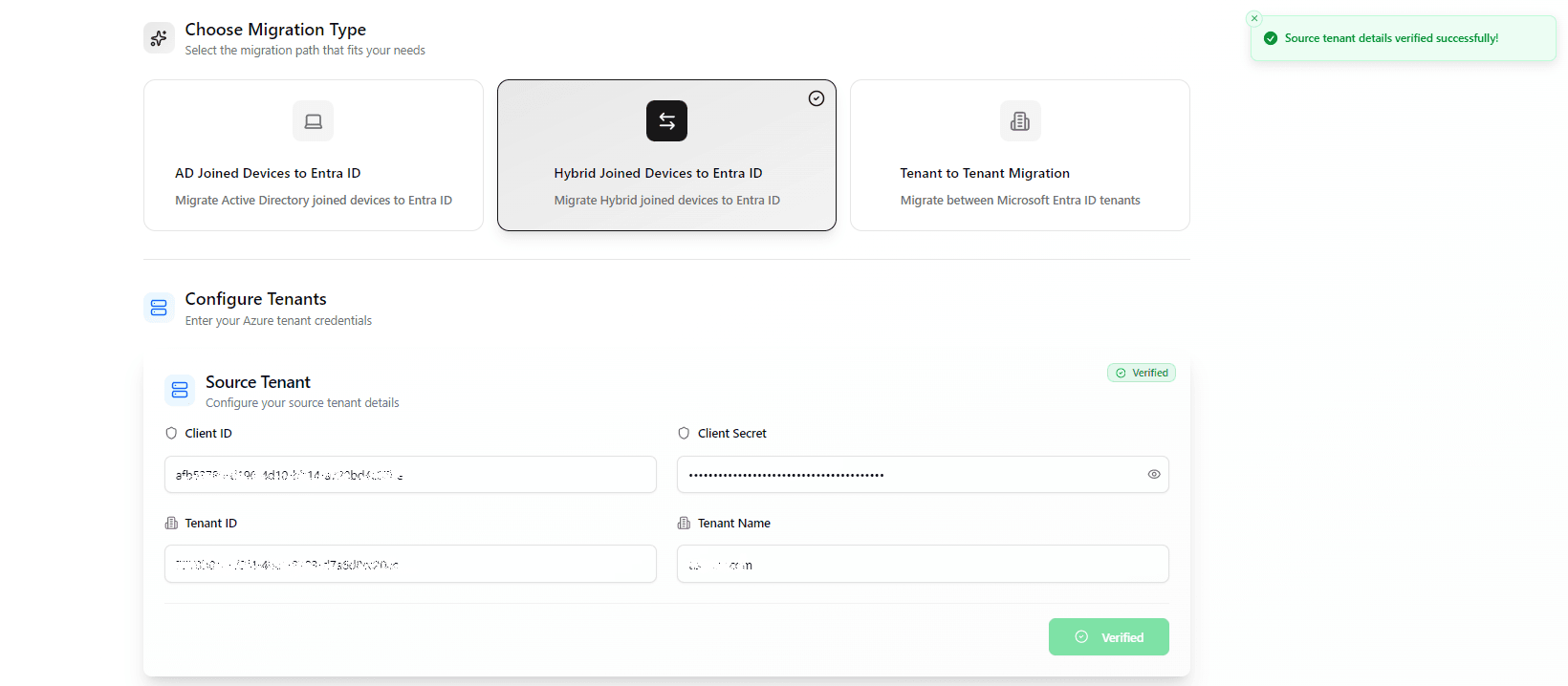
Click Verify to validate the provided tenant configuration values.
Verify Credentials confirms that the portal can authenticate with the provided tenant and app registration values and that the required access is available.
Click Complete Setup only after credential verification succeeds.
7. Tenant to Tenant Migration
When Tenant to Tenant migration is enabled, user mapping between the source and target tenant must be configured after onboarding through user import and validated before scheduling device migrations.
- Source AD
SAMAccountNameand SID to target AD / Microsoft EntraSAMAccountNameand SID - Mapping must be validated before scheduling device migrations
Next Steps
- Continue to Portal Configuration
Support
If you face any issues during onboarding, including account creation, OTP verification, credential validation, or setup completion, contact Opsole Support for assistance.
How is this guide?
Validation Checklist
Checklist before portal onboarding and migration scheduling
Portal Configuration
Configure Opsole Migrate portal settings for device migration, including AD disjoin credentials, recovery options, profile migration behavior, device attributes, group assignment, and validated provisioning package upload.