Troubleshooting Guide
This document covers the Troubleshoot Section of OpsoleMigrateApp.
OpsoleMigrate — Troubleshooting Guide
Issue 1: Migration Window Stuck at "Migration in Process" After Phase 1 Reboot

Root Cause
Phase 2 of the migration did not start because the Task Scheduler failed to launch the InterMigrate activity. This typically occurs when the scheduled task or the executable required for Phase 2 is missing or blocked.
Common Causes
- EDR blocked the creation or execution of the scheduled task
- EDR deleted the scheduled task after creation
- EDR quarantined or removed the InterMigrate executable
When Phase 2 does not run, the device remains stuck on the “Migration in Process” screen after reboot, preventing the user from logging in. A recovery procedure will be required to restore normal access.
Recovery Procedure
-
Boot the device into Windows Recovery Mode.
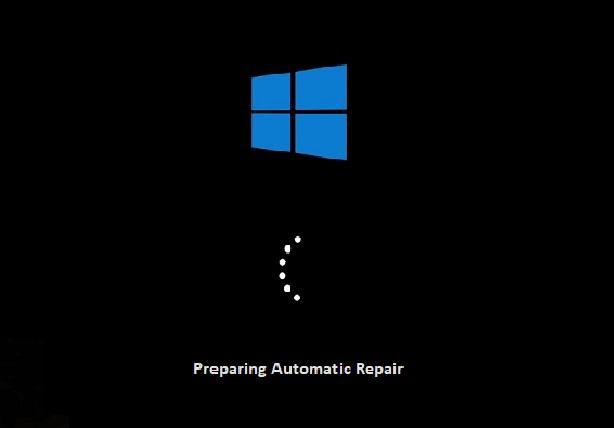
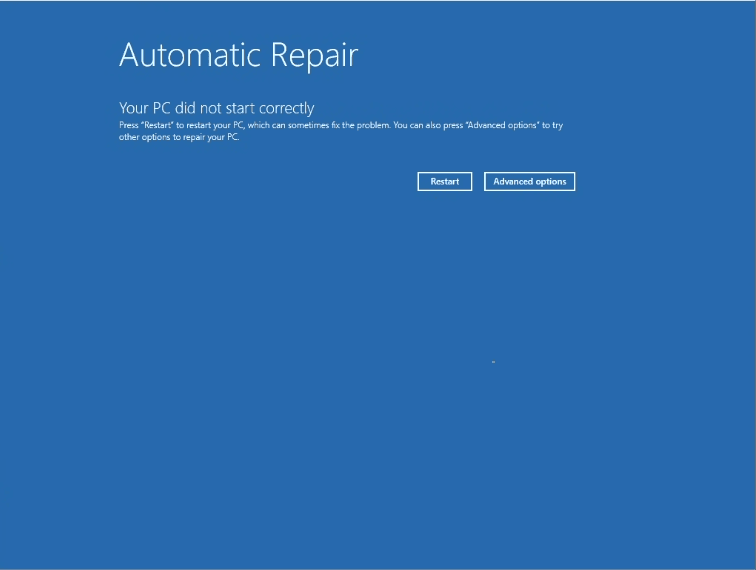
-
Choose Advance Option
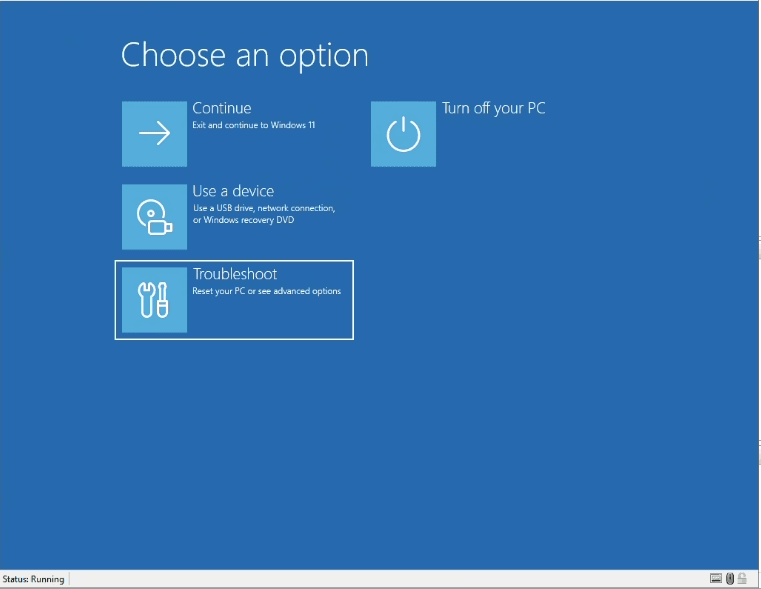
-
Choose Troubleshoot
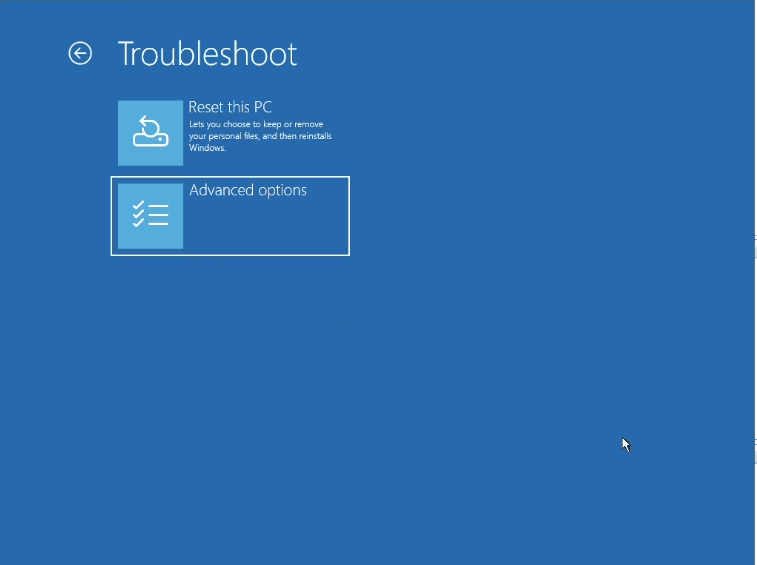
-
Choose Advance Option
-
Choose Command Prompt
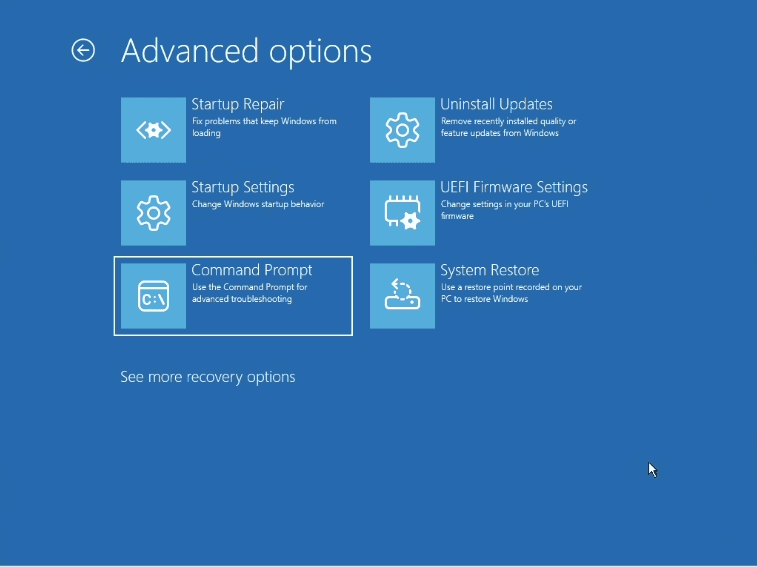
-
The Command Prompt window will appear.
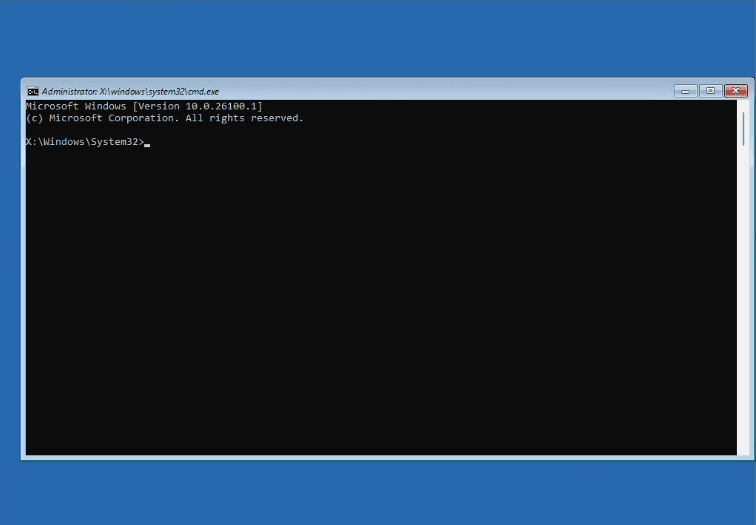
-
Run bcdedit to identify the system drive and confirm the device partition.
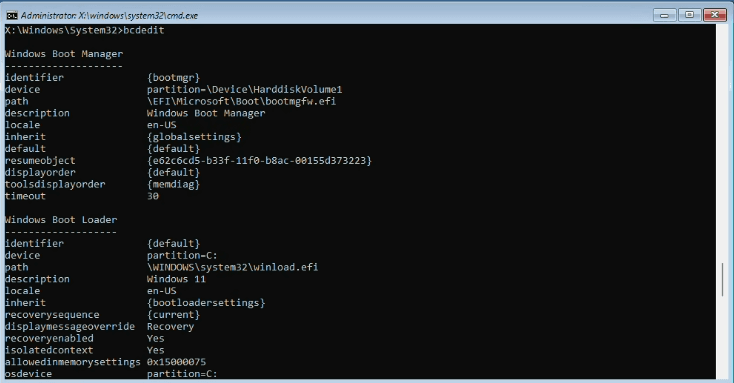
-
Navigate to the system partition (example: C:).
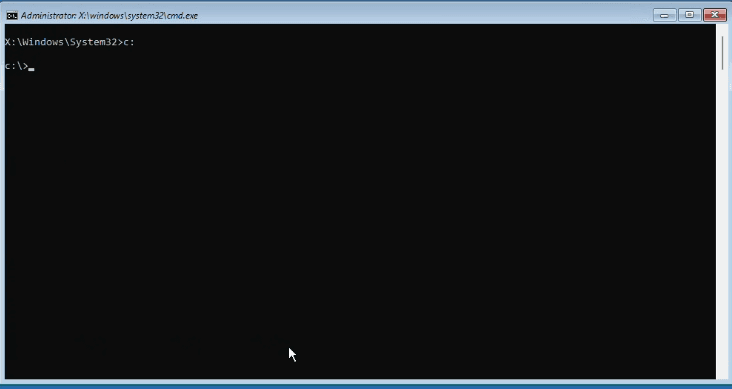
-
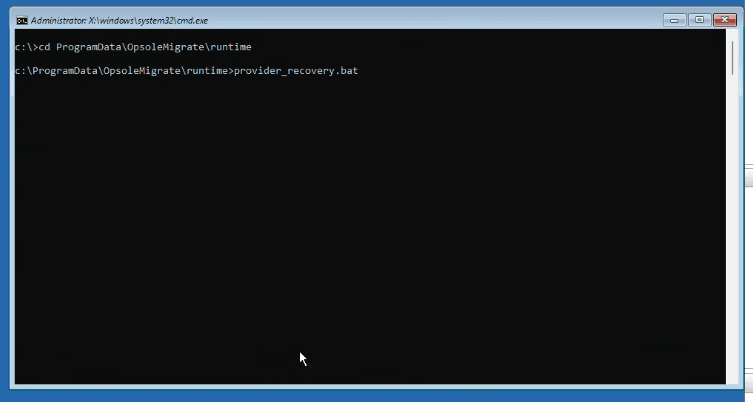
Browse to ProgramData\OpsoleMigrate\runtime and run provider_recovery.bat
-
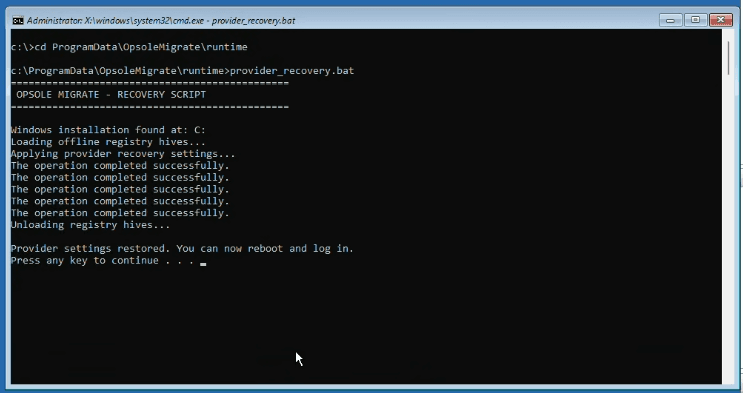
Press any key to complete and exit the command prompt
-
Close the command promot and reboot the machine
12 . Log in using a local administrator account and perform the verification steps below.
Verification Steps
- Open Task Scheduler and confirm whether the InterMigrate task exists under the Migration folder.
- Verify that InterMigrate.exe is present in: InterMigrateTask exists
If anything is missing:
- It is likely that your EDR or security software blocked, removed, or quarantined the OpsoleMigrate runtime files or scheduled tasks.
- Review EDR/Antivirus logs to confirm the blocked actions and update your exclusions accordingly.
After confirming that OpsoleMigrate components are properly excluded from EDR/Antivirus scans:
- Uninstall OpsoleMigrate from Control Panel → Programs and Features
- Reinstall using OpsoleMigrate.msi
- Navigate to C:\ProgramData\OpsoleMigrate\runtime
- Run Patch.exe
- Once patching is complete, close the application
- Reboot the device to continue the migration workflow
After reboot, the migration will resume and proceed normally from the point of failure.
Issue 2: Entra Join Failed

Root Cause
This issue typically occurs when the provisioning package (PPKG) used during the migration is invalid, expired, or configured with incorrect Microsoft Entra credentials. If the bulk enrollment token is expired or the package is not associated correctly with the target tenant, the Entra Join step will fail.
Common Causes
- The provisioning package (PPKG) token has expired
- Incorrect or outdated Entra account credentials were used when generating the PPKG
- PPKG was removed or corrupted by EDR/security software
- Intune/MDM auto-enrollment settings misconfigured
- Token validation failure
Recovery Procedure
- Log in using a local administrator account.
- Verify the Provisioning Package, Open Settings > Accounts > Access work or school > Add or remove a package.
- f the provisioning package is listed, select it and Remove it.
- Manually Apply the Provisioning Package
- Copy the correct Entra provisioning package (PPKG) to the local device.
- Double-click the PPKG file to begin installation.
- Select Yes, add it when prompted.
- The device will apply the provisioning profile and automatically restart.
- Open command prompt and run shutdown -a, to stop the automatically restart
- Validate Entra Join Status
- Run the following command to check join status: dsregcmd /status
- Confirm the device appears in the Microsoft Entra Admin Portal > Devices and is listed as Entra Joined.
- Once Entra Join is confirmed, Navigate to: C:\ProgramData\OpsoleMigrate\runtime
- Run Patch.exe to realign migration state.
- After patch execution is complete, close the application.
- Reboot the device.
After reboot, login with the entra user ID,not local admin, The Opsole Migrate workflow will automatically resume from the point of failure and continue the migration normally.
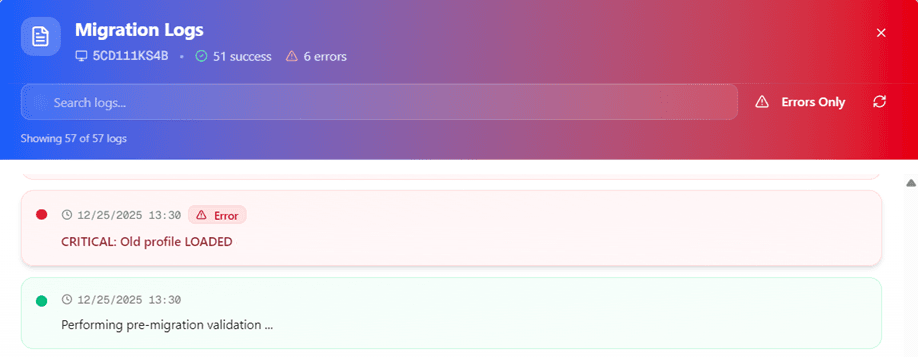
Issue 3: Error : Old profile is loaded..
Root Cause
The migration process cannot proceed because the user profile being migrated is still loaded or in use after a system reboot. When a profile remains active, Windows prevents Opsole Migrate to executing the profile migration sequence.
This condition is typically caused by background services, scheduled tasks, or applications that continue to run under the affected user’s security context.
Important Note
Thorough pre-migration testing is strongly recommended on representative devices. This helps identify any background processes, services, or applications that automatically start using the user account.
Troubleshooting Steps
1. Get Old SID From Opsole Portal → Migration → Devices → expand device → Old SID
2. Verify If Old Profile Is Loaded
- Login as local Administrator Run the following in PowerShell (Admin mode):
$oldProfile = Get-CimInstance -ClassName Win32_UserProfile | Where-Object { $_.SID -eq <Insert OLD_SID> }
$oldProfile.Loaded
If result = True, the profile is loading automatically at startup.
Recommended Investigation Identify what is pre‑loading the profile:
- Windows Services running under that user
- Scheduled Tasks set to run as that user (especially At Startup)
- GPO settings that auto-load profiles
- Third-party tools (backup, monitoring, security agents)
- Remote agents caching login sessions
- Check Event Viewer → User Profile Service logs
After identifying the cause , fix the issue. Once the profile is no longer loaded and the system is verified from a local administrator session, the migration can safely resume.
Fix and Resume Migration
- Log in using a local administrator account
- Navigate to C:\ProgramData\OpsoleMigrate\runtime
- Run Patch.exe
- Once patching is complete, close the application
- Reboot the device to continue the migration workflow
After reboot, the migration will resume and proceed normally from the point of failure.
Issue 4: Failed to Unjoin Computer — NTLM Authentication Disabled
Error
authentication failed because NTLM authentication has been disabledRoot Cause
- Wrong or expired password for Domain Leave User
- Incorrect username format in portal configuration
Fix Steps
- Verify domain leave user credentials
- Test manual domain unjoin with same credentials
- Verify domain leave user format in Opsole portal
Issue 5: After Phase 2 Login with Entra ID — Migration Continue Window Does Not Appear
Root Cause
- EDR blocked task
- Application EXE blocked or deleted
Solution
- Navigate to:
C:\ProgramData\OpsoleMigrate\runtime - Run postmigration.exe with Admin privileges.
- If file missing → EDR removed it.
- Fix EDR issue.
- Reinstall:
opsolemigrate.msi - Rerun postmigration:
C:\ProgramData\OpsoleMigrate\runtime\postmigration.exe
End of Troubleshooting Guide
How is this guide?
Start Your Migration
This document provides a step-by-step walkthrough of running the Opsole Migrate application on the device, from launching the tool to completing the migration process. It applies to both Hybrid-to-Entra and Tenant-to-Tenant migration scenarios.
Known Issues and Limitations
This document covers the Known Issues and Limitations of OpsoleMigrateApp.