OpsoleMigrate Prerequisites
This document outlines all requirements needed before starting a device migration. It includes licensing, supported device states, hardware and network prerequisites, Graph API permissions, and the steps to register the Opsole Migrate application in Microsoft Entra ID.
Getting Started with Opsole Migrate -Prerequisites
Welcome to Opsole Migrate — your comprehensive solution for modern device migration. Whether you’re preparing for a cloud-first future or managing complex merger and acquisition scenarios, Opsole Migrate is purpose-built to simplify and secure the transition process.
This guide will introduce the key features of Opsole Migrate, help you prepare the required environment, and walk you through the steps to execute secure, seamless device migrations with confidence.
With Opsole Migrate, you can:
- ✅ Migrate devices from Local Active Directory Join to Microsoft Entra Join
- ✅ Convert Hybrid Entra Joined devices to Cloud-Only Entra Join
- ✅ Perform Tenant-to-Tenant device migrations — ideal for Mergers, Acquisitions, and Divestitures
All without:
- Reimaging or wiping devices
- Losing user profiles, configurations, or local data
- Interrupting users — even with BitLocker enabled
1. Prerequisites for Using Opsole Migrate
Before deploying Opsole Migrate, ensure that the following prerequisites are met for all migration scenarios. This includes Hybrid-to-Entra migrations and Tenant-to-Tenant migrations. These requirements must be satisfied in the appropriate source and destination tenants to guarantee a secure and reliable migration experience.
1.1 Microsoft Licensing Requirements
Each user and device involved in the migration process must have the required Microsoft licenses assigned. For Tenant-to-Tenant migrations, ensure the necessary licenses exist in both the source and target tenants
Required Licenses:
-
Microsoft Intune
- Standalone license OR included in Microsoft 365 E3/E5
-
Microsoft Entra ID P1 or P2
- Standalone license OR included in Microsoft 365 E3/E5
Note: Licenses must be active and assigned before migration.
1.2 Supported Device Management States
Devices targeted for migration must be in one of the following states:
- Microsoft Entra ID Joined
- Hybrid Entra ID Joined
- Active Directory Domain Joined
- MECM/SCCM Managed or Co-managed
- Fully Intune Managed
1.3 Client Device Technical Requirements
To ensure compatibility and optimal performance during the migration process, all client devices must meet the following minimum hardware and software requirements:
| Specification | Minimum Requirement |
|---|---|
| OS Version | Windows 10/11 |
| RAM | 8 GB |
| Storage | 100 GB |
| Processor | 64-bit CPU with 2+ cores (4 recommended) |
| TPM | Version 2.0 or higher |
| Connectivity | Stable internet connection |
Devices not meeting these minimum specifications may experience performance degradation or compatibility issues during migration.
1.4 Network Requirements
To enable a smooth and uninterrupted migration experience, the network used by devices must meet the following requirements:
-
Support HTTPS port 443
-
Does not require user authentication or use a proxy that requires user authentication
-
Allows outbound access to the following Microsoft and Opsole service endpoints:
- https://*.manage.microsoft.com
- https://*.manage.microsoftazure.us
- https://*.msazure.cn
- https://*.microsoftonline.com
- https://*.microsoftonline-p.com
- https://*.microsoftonline.us
- https://*.microsoftonline.de
- https://*.microsoftonline.cn
- https://*.amazonaws.com
- https://*.opsole.com
Ensure that firewall rules, proxy configurations, and DNS filtering policies do not block access to any of the above domains.
1.5 Access and Configuration Requirements
To successfully deploy and manage Hybrid-to-Entra and Tenant-to-Tenant migrations using Opsole Migrate, specific access permissions and configuration settings must be in place across Microsoft Entra ID, Active Directory (for hybrid or AD-joined devices), and Microsoft Intune.
Microsoft Entra ID
Global Administrator privileges are required in both the source and destination tenants to:
- Register applications in Microsoft Entra ID
- Generate client secrets
- Assign and consent to required Microsoft Graph API permissions
Active Directory – Access Requirements
- An account with delegated permissions to disjoin devices from Active Directory is required when migrating Hybrid or AD-joined devices.
Microsoft Entra ID & Intune – Configuration Requirements
The following table lists the Microsoft Entra ID and Intune configuration requirements for device migration using Opsole Migrate.
-
For Hybrid-to-Entra migrations, apply these settings in your current (source) tenant.
-
For Tenant-to-Tenant Migrations, apply these settings in the target (destination) tenant, as the device will join and enroll into that environment.
| Setting | Recommended |
|---|---|
| Automatic Enrollment (User Scope) | All |
| Allow users to join devices to Entra | Enabled |
| Require MFA for join/register devices | NO |
| Conditional Access Policies | Exclude Package_Account (used for bulk provisioning) |
Misconfiguration of these settings may prevent devices from registering to the tenant during Hybrid-to-Entra or Tenant-to-Tenant migrations.
1.6 Required Graph API Permissions
The Opsole Migrate application requires the following Microsoft Graph application permissions. These permissions enable critical operations such as device management, user attribute access, and policy enforcement.
-
For Hybrid-to-Entra migrations, configure these permissions in the current tenant.
-
For Tenant-to-Tenant migrations, configure the permissions in both the source and target tenants.
| Permission | Type | Purpose |
|---|---|---|
| Device.ReadWrite.All | Application | Update Autopilot group tags |
| DeviceManagementManagedDevices.ReadWrite.All | Application | Set primary user / delete Intune object |
| DeviceManagementServicesConfig.ReadWrite.All | Application | Autopilot management |
| User.Read.All | Application | Read user attributes |
| Directory.Read.All | Application | Read directory data |
| DeviceManagementConfiguration.ReadWrite.All | Application | Manage policies |
| DeviceLocalCredential.Read.All | Application | Retrieve local credential passwords |
| DeviceLocalCredential.ReadBasic.All | Application | Retrieve credential metadata |
These permissions require Admin Consent during the application registration process in Microsoft Entra ID.
1.7 Additional Tools Required
The following tools are required to support device preparation, provisioning package creation, and application deployment during the migration process:
-
Windows Configuration Designer (WCD) Used to streamline Windows device provisioning and create provisioning packages for bulk enrollment.
For Tenant-to-Tenant Migrations, ensure the provisioning package is created using the target tenant configuration.
👉 Download from Microsoft Store
-
Microsoft Win32 Content Prep Tool
Prepares Windows application packages in
.intunewinformat for deployment via Microsoft Intune.👉 Download from Microsoft Learn
2. Prerequisites configuration Procedure
Step 1: Validate Prerequisites
Before proceeding, confirm that all requirements have been met:
- Microsoft licensing and tenant access rights
- Supported device states and technical specifications
- Network connectivity and Graph API permissions
- Required tools (e.g., Windows Configuration Designer, Win32 Content Prep Tool)
Refer to Section 1: Prerequisites for complete details.
2.1 Application Registration in Microsoft Entra ID
Opsole Migrate requires an application registration in Microsoft Entra ID to enable Graph API access.
-
For Hybrid-to-Entra or AD-to-Entra migrations, register the application in the current tenant.
-
For Tenant-to-Tenant Migrations, create the application registration in both the source and target tenants.
-
Go to entra.microsoft.com and sign in with Global Administrator credentials.
Step 1 — Register Application
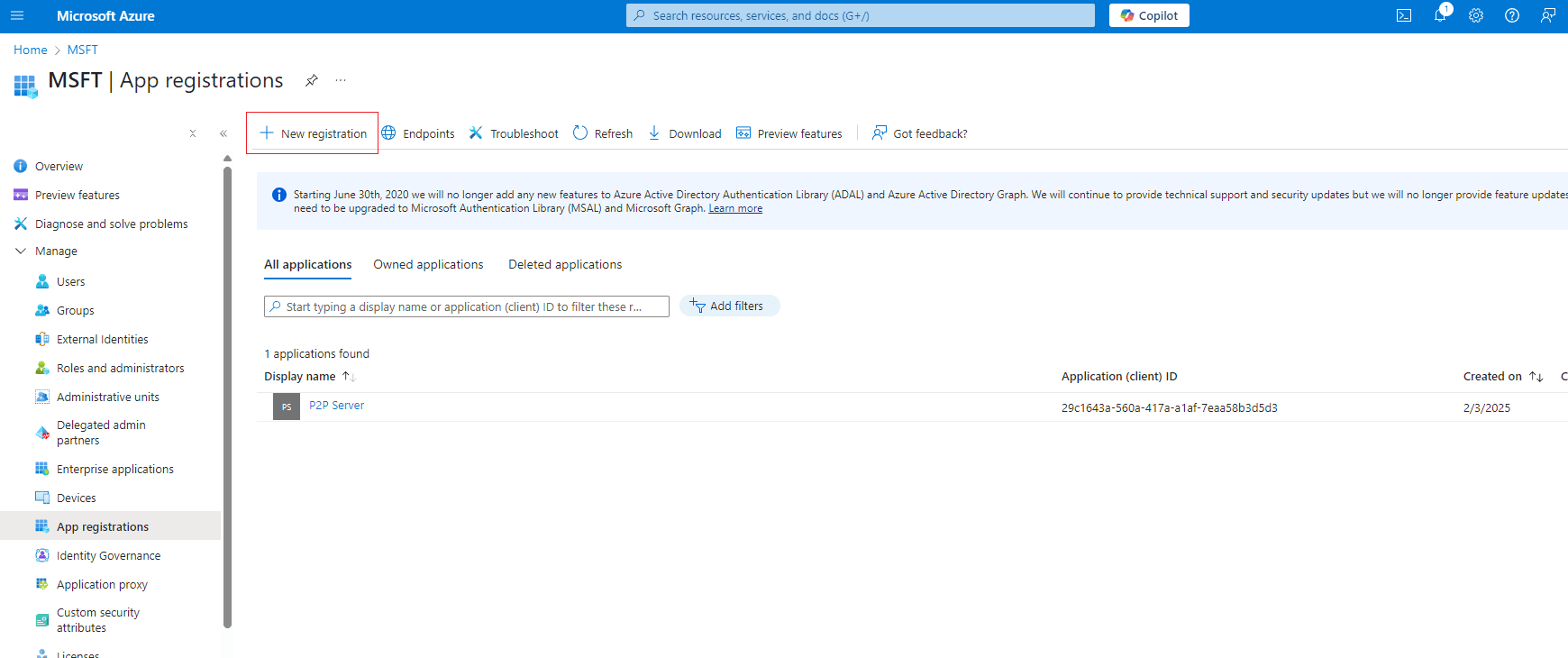
- Go to entra.microsoft.com
- Navigate to: Home → Applications → App registrations
- Click + New registration
- Enter a name for the application (for example,
OpsoleMigrateApp). Retain all other settings at their default values.
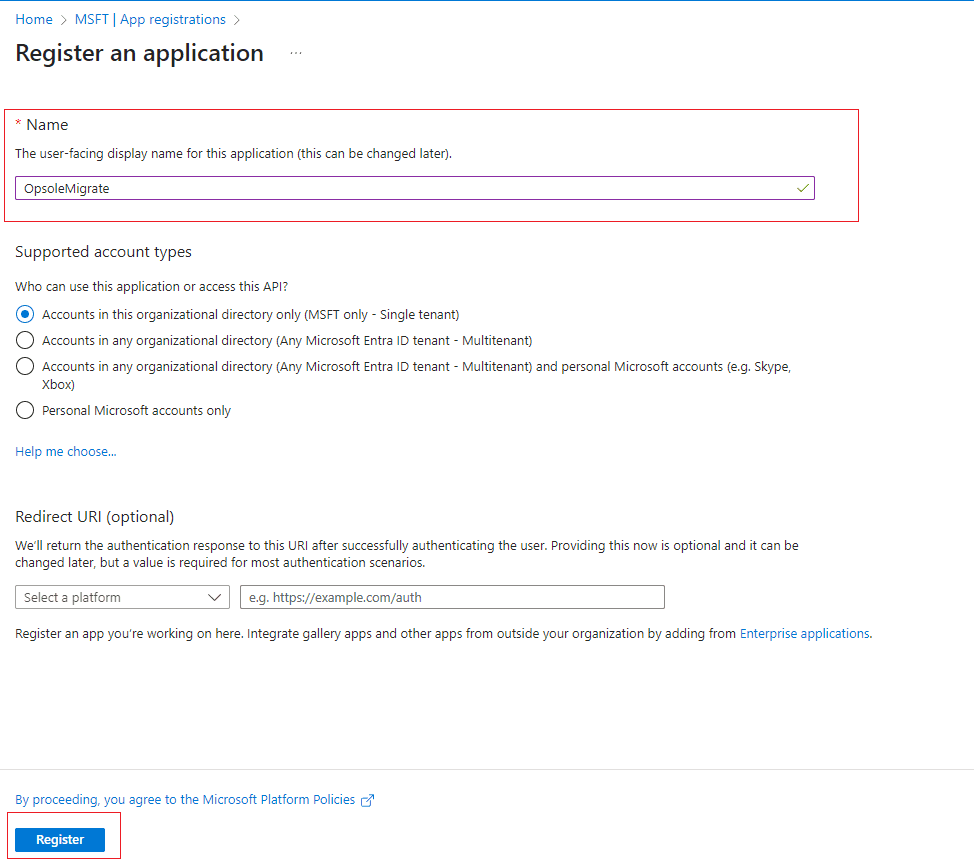
- Click Register
Step 2 — Save Identifiers
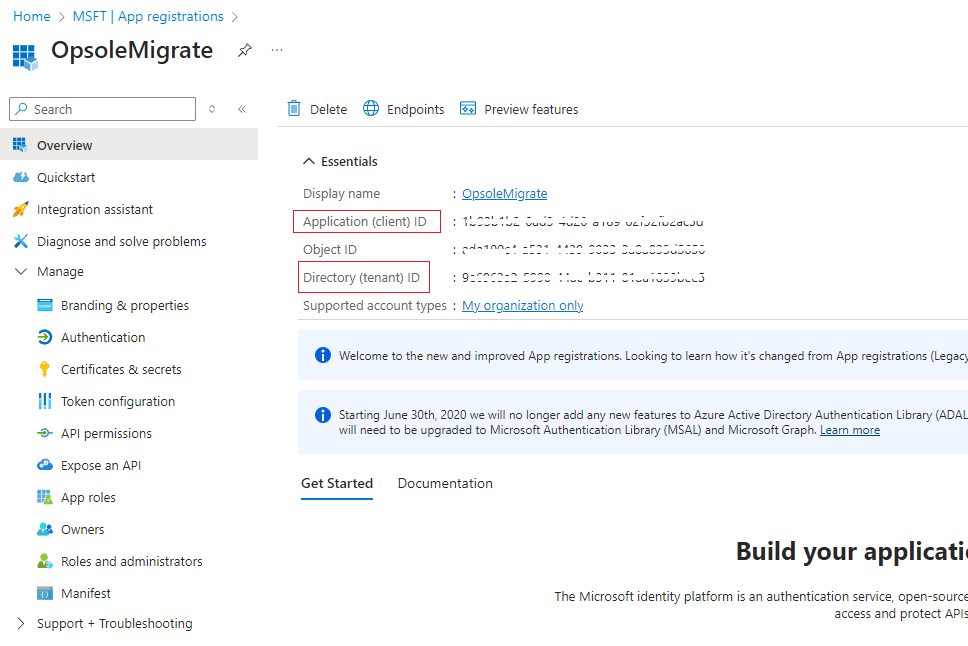
From the application’s Overview page, copy and save the following:
- Application (Client) ID
- Directory (Tenant) ID
Step 3 — Add API Permissions
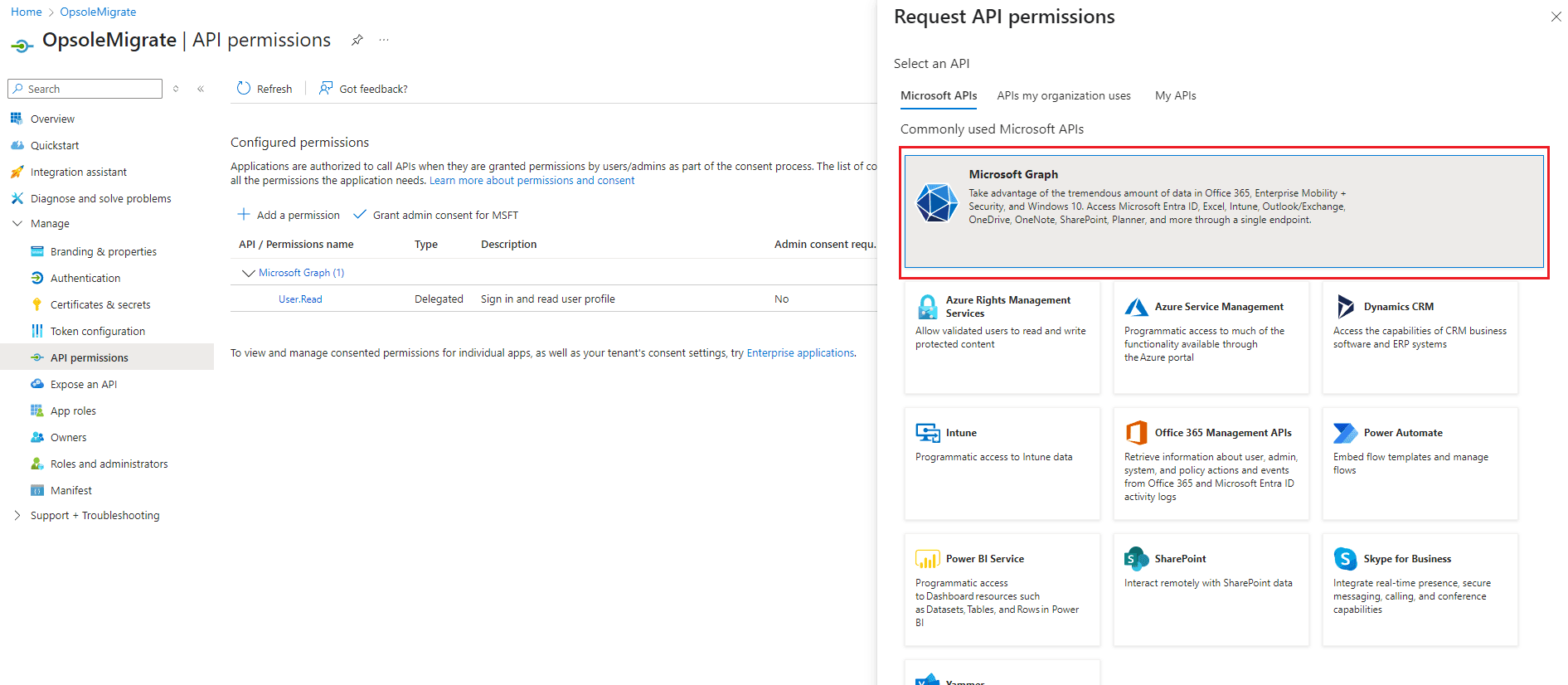
- Go to API permissions > Click + Add a permission
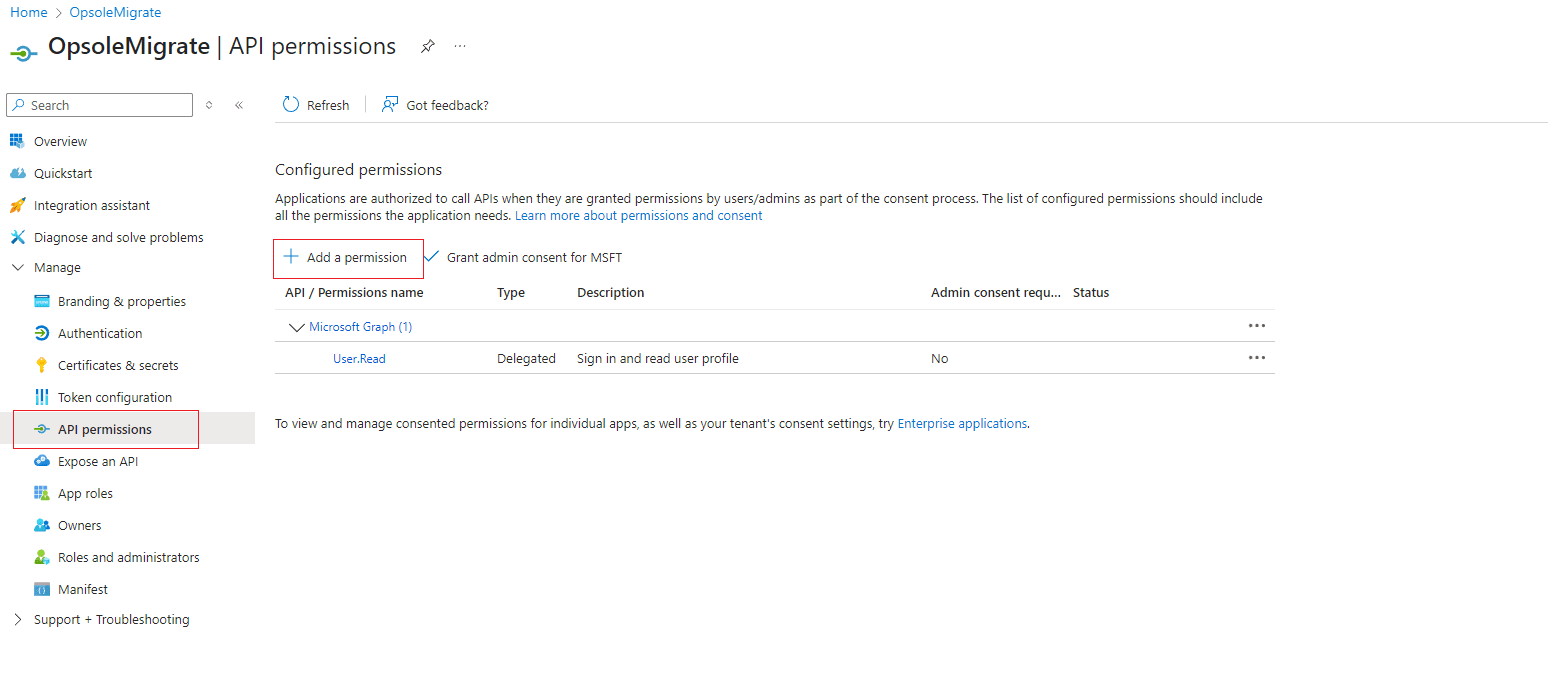
- On the Request API permissions page, select Microsoft Graph
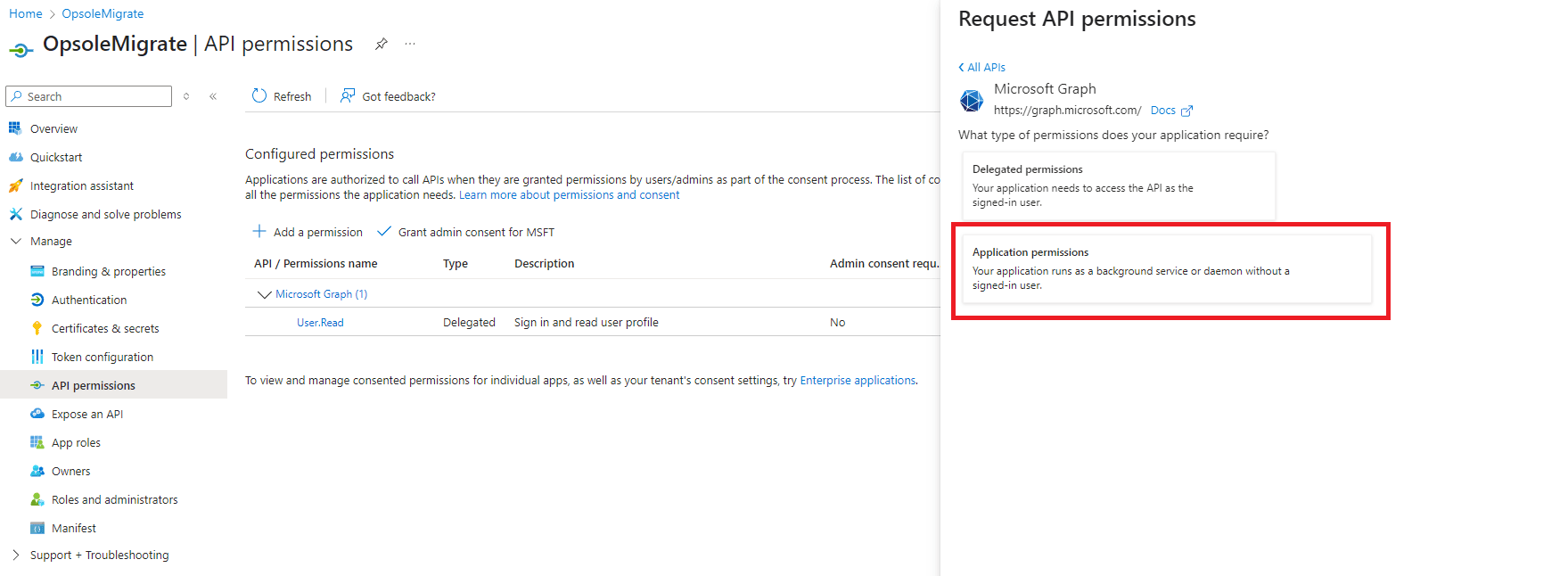
- Select Application permissions
- Use the search bar to add the following permissions:
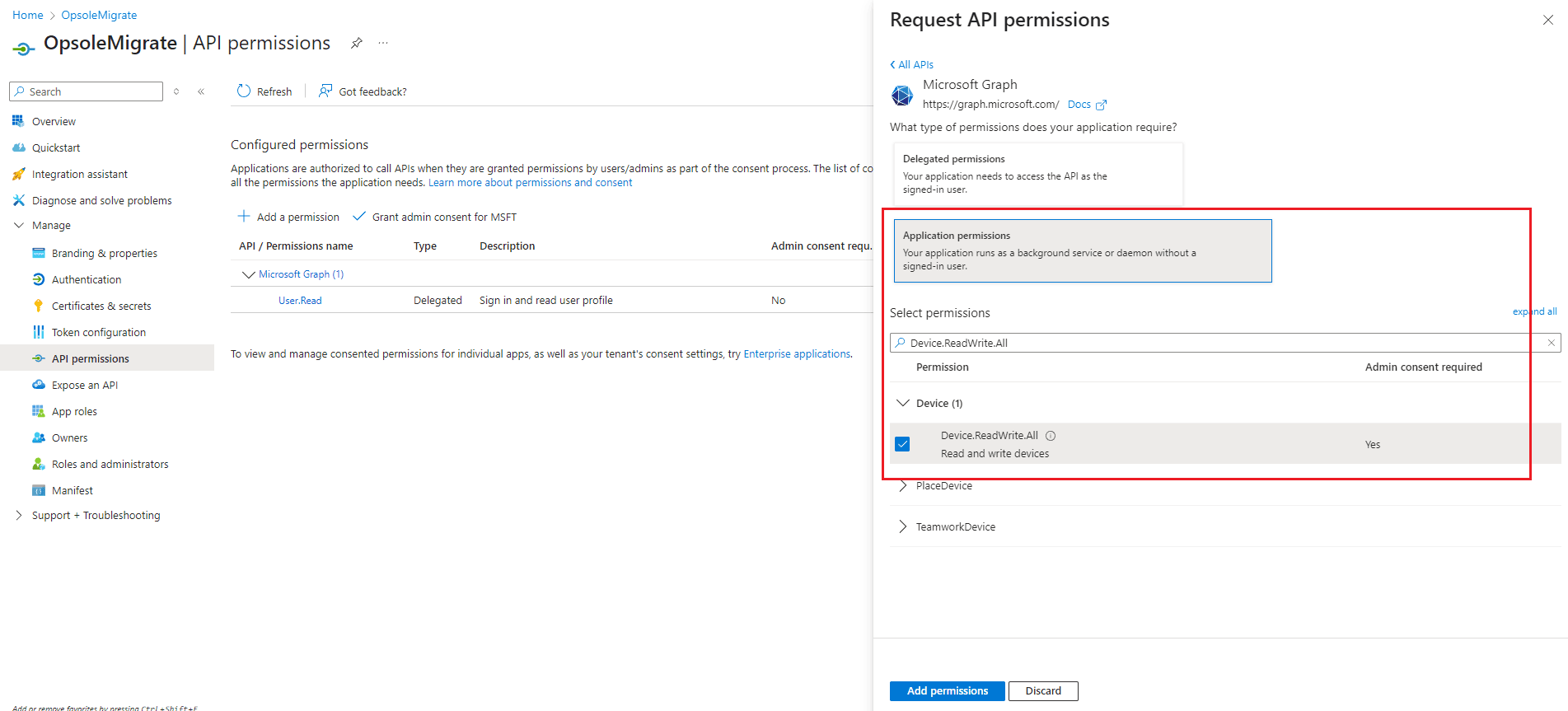
| Permission | Type |
|---|---|
| Device.ReadWrite.All | Application |
| DeviceManagementManagedDevices.ReadWrite.All | Application |
| DeviceManagementServicesConfig.ReadWrite.All | Application |
| User.Read.All | Application |
| Directory.Read.All | Application |
| DeviceManagementConfiguration.ReadWrite.All | Application |
| DeviceLocalCredential.Read.All | Application |
| DeviceLocalCredential.ReadBasic.All | Application |
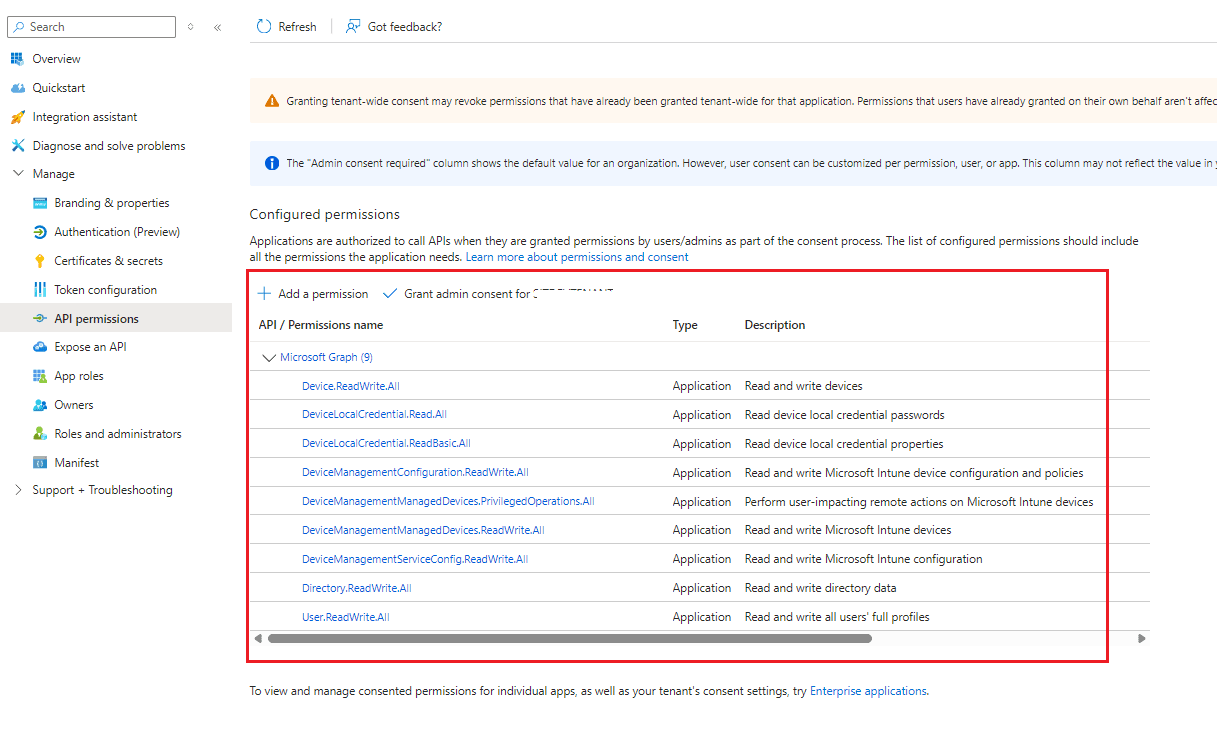
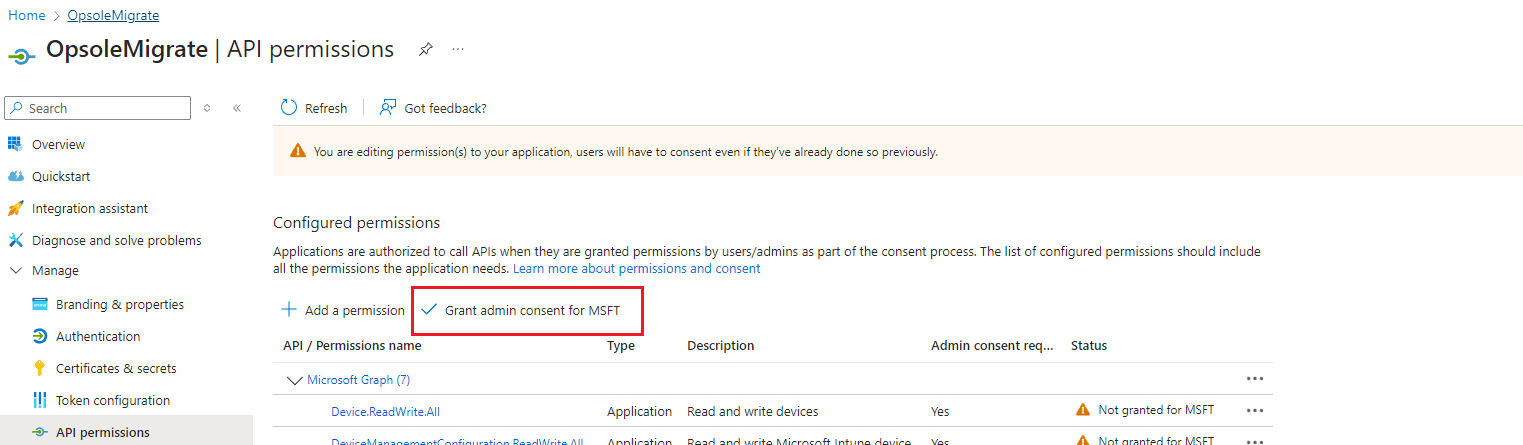
- After adding the permissions, click Grant admin consent for
[TENANT NAME]. Click Yes at the grant admin consent confirmation popup.
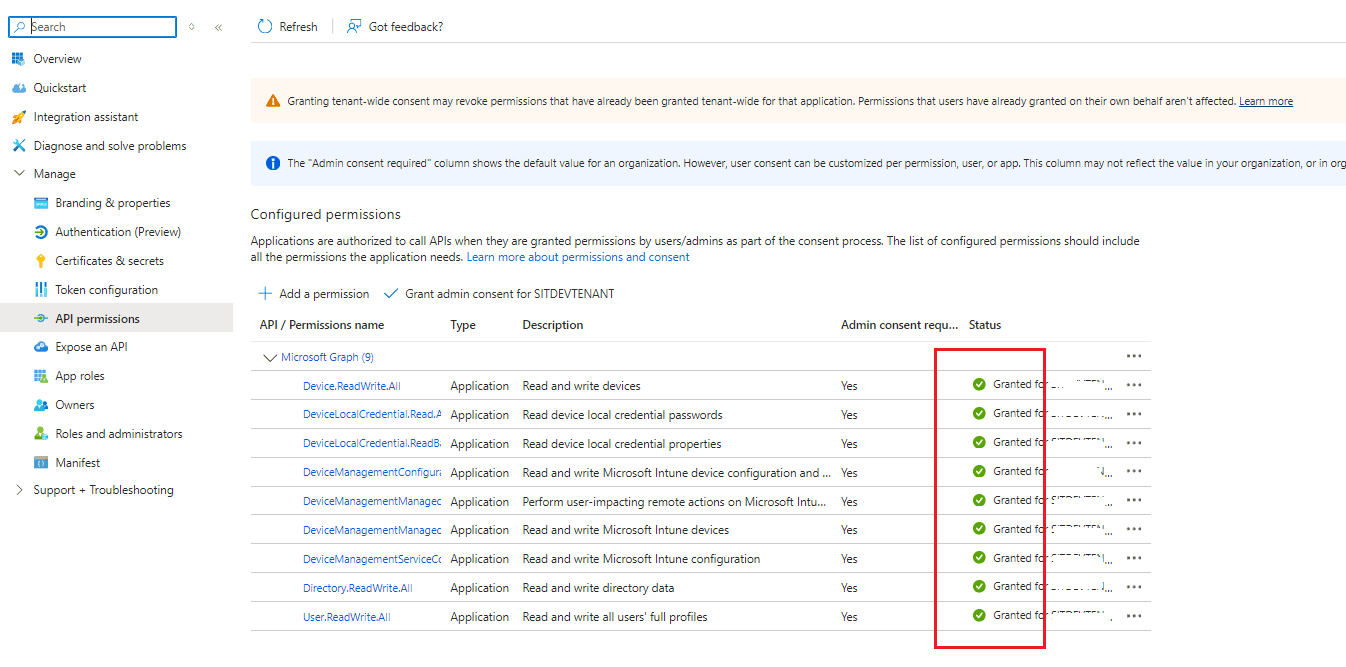
- All permissions should now display a status of Granted for [TENANT NAME].
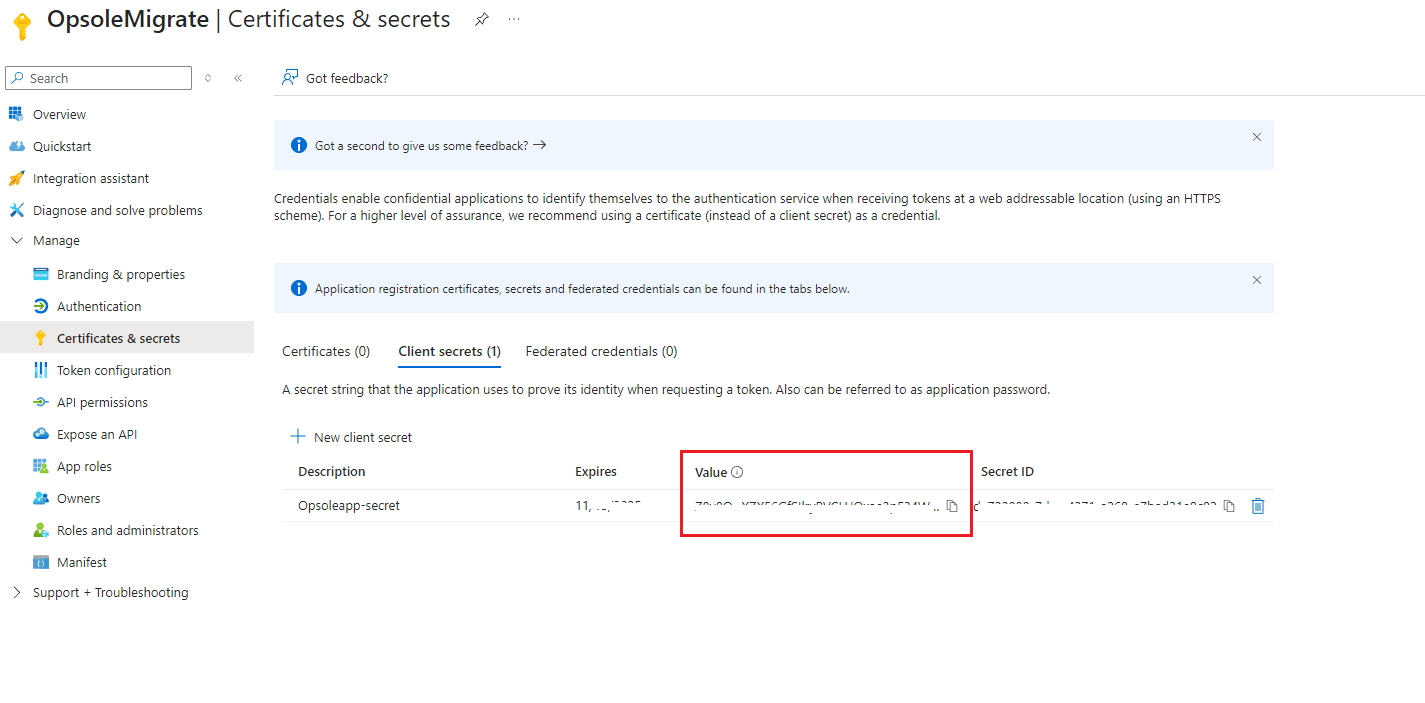
Step 4 — Generate Client Secret
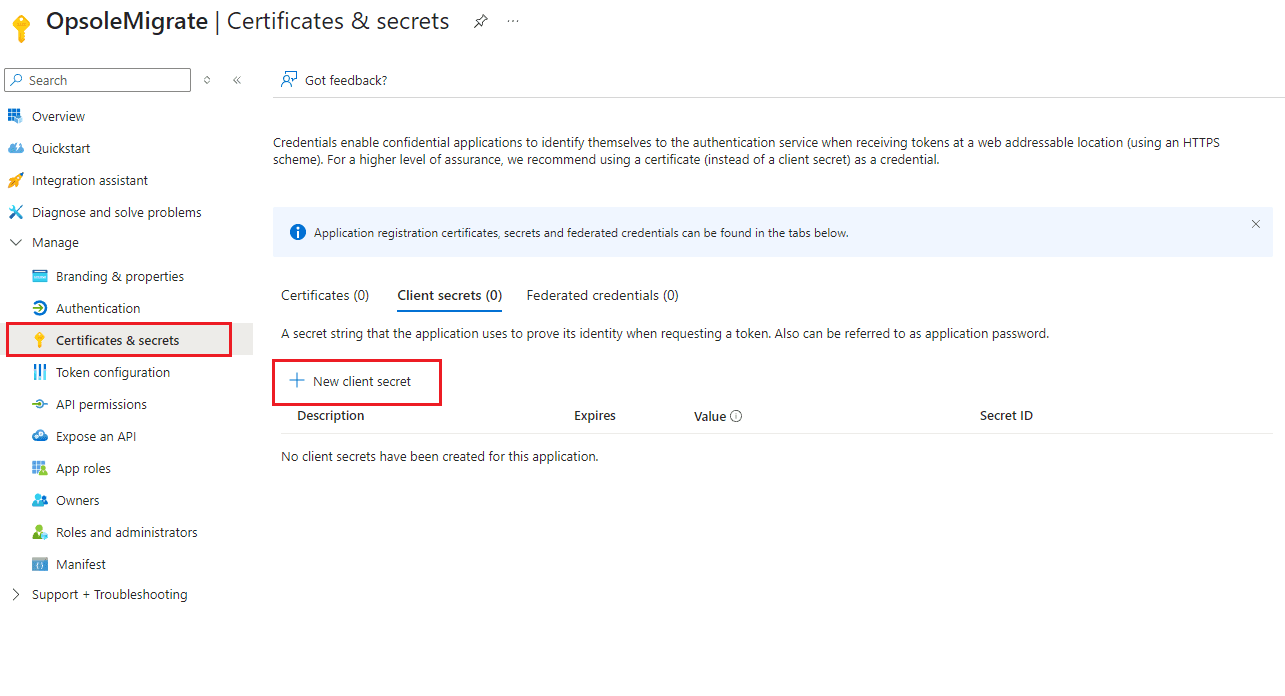
- Go to Certificates & secrets → Client secrets
- Click + New client secret
-
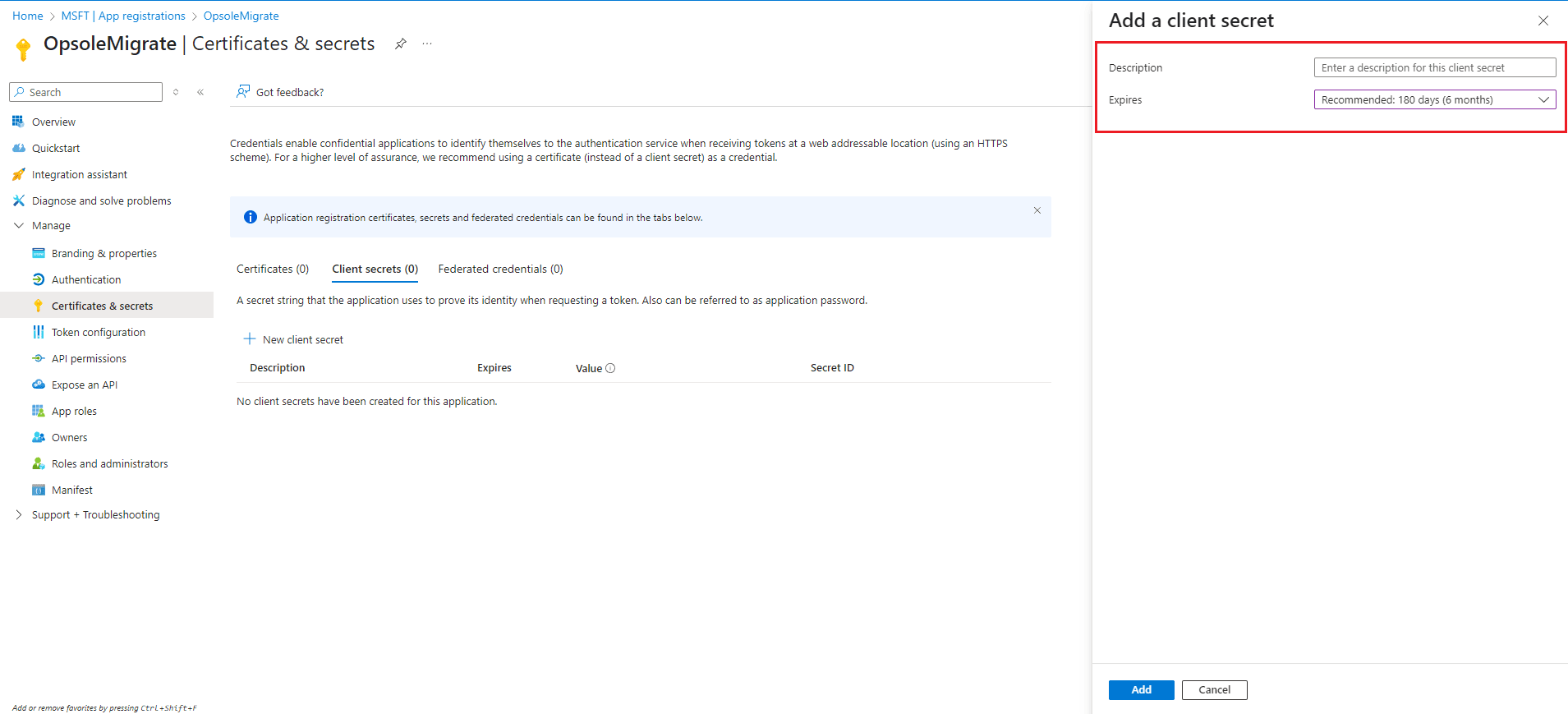
Fill in the following:
- Description: (e.g.,
OpsoleSecretKey) - Expires: Select a duration (e.g., 180 days recommended)
- Description: (e.g.,
-
Click Add
Step 5 — Save the Secret Value
- Copy the Value of the new secret immediately and save it securely.
This is the only time the secret value will be visible. Do not navigate away without saving it.
2.2 Security Software Whitelisting
The Opsole Migrate application must be whitelisted in your Endpoint Detection and Response (EDR) or antivirus platforms to ensure uninterrupted operation. During engagement, the Opsole support team will provide the required code-signing certificate and any additional values needed for accurate whitelisting.
To prevent false positives and ensure smooth execution of all migration phases, configure the following exclusions in your EDR solution:
Certificate-Based Exclusion
- Trust the Opsole code-signing certificate so all signed components can execute without being blocked or quarantined.
Directory-Based Exclusion
- Exclude the Opsole Migrate installation directory from real-time analysis to prevent unintended deletion or interference with application files.
Task & Process Execution Allowance
- Allow the Opsole Migrate processes to create and execute scheduled tasks as part of the migration workflow.
These exclusions ensure the application runs without interference from security controls during Hybrid-to-Entra or Tenant-to-Tenant migrations.
Next steps
- Continue to setup: Provisioning Package & Directory Setup
How is this guide?
How OpsoleMigrate Works
This section covers the **hands-on setup and execution** steps: creating the provisioning package with WCD, preparing the AD disjoin account, and configuring the Opsole Migrate portal (including domain, BitLocker, attributes, and provisioning package upload).
Provisioning Package & Directory Setup
This document covers the hands-on setup steps required before running the migration, including creating the provisioning package with Windows Configuration Designer (WCD) and preparing the Active Directory disjoin account (for Hybrid/AD-joined devices).