How OpsoleMigrate Works
This section covers the **hands-on setup and execution** steps: creating the provisioning package with WCD, preparing the AD disjoin account, and configuring the Opsole Migrate portal (including domain, BitLocker, attributes, and provisioning package upload).
Understand How OpsoleMigrate Works
Introduction
OpsoleMigrate automates the transition of Windows devices from Active Directory Joined or Hybrid Azure AD Joined states into a clean Microsoft Entra ID Joined state, while preserving user profiles, application settings, BitLocker keys, and device registration information.
This section provides a clear, high-level understanding of how the OpsoleMigrate engine works behind the scenes, so administrators can anticipate what to expect during each phase of the migration and understand key requirements for a successful transition.
1. Purpose of Migration Workflow
Modern endpoint environments are moving away from on-premises domain dependency toward cloud-native identity using Microsoft Entra ID. OpsoleMigrate enables this shift by:
- Removing domain membership cleanly
- Performing an automated Entra Join
- Preserving user profiles and data
- Re-registering the device into Intune / Autopilot
- Ensuring a seamless login experience with the user’s Entra ID credentials
Understanding how OpsoleMigrate helps IT teams to:
- Troubleshoot issues quickly
- Identify environmental blockers (EDR, GPO, network)
- Coordinate migration tasks with users
- Prepare for reboots, login restrictions, and background operations
2. Migration Lifecycle at a Glance
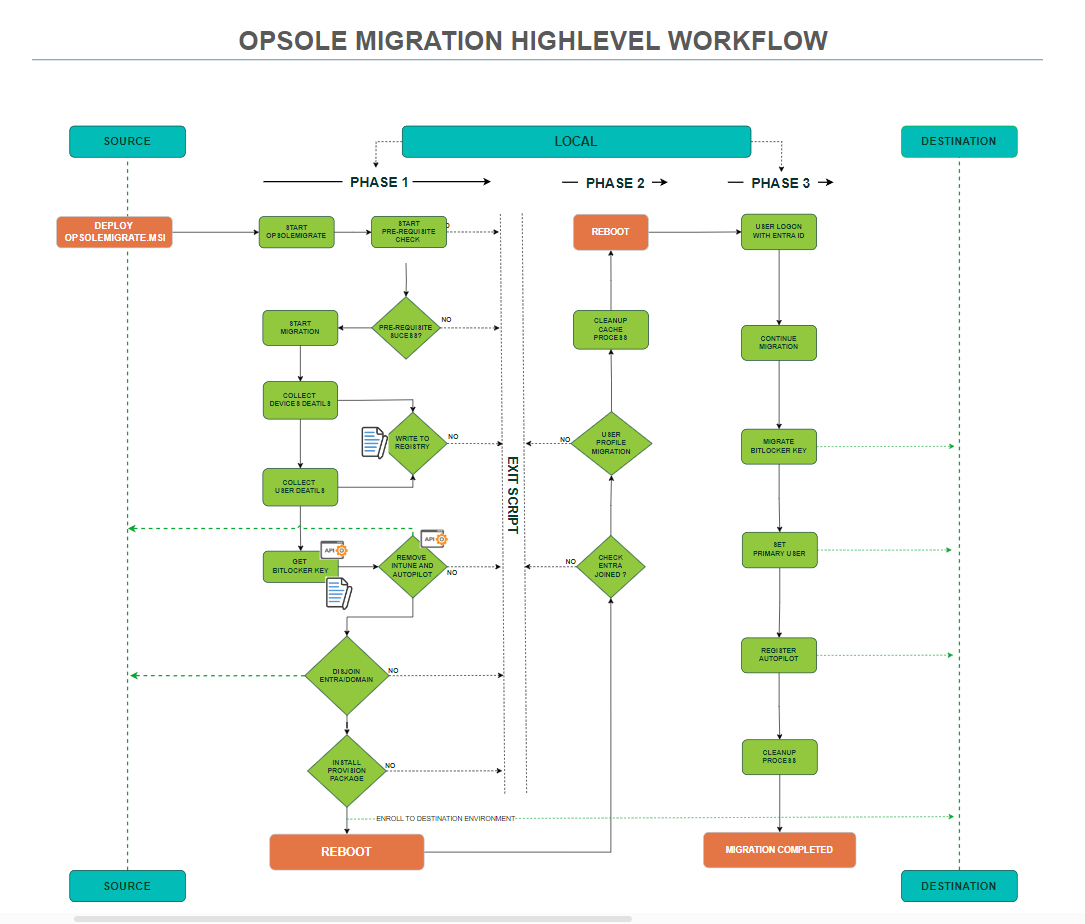
OpsoleMigrate automates the complex process through three intelligent automated phases that work together seamlessly. Each phase has a specific purpose, execution context, and minimal user interaction, orchestrated by controlled reboots and Windows Task Scheduler.
2.1 OpsoleMigrate High-Level Workflow
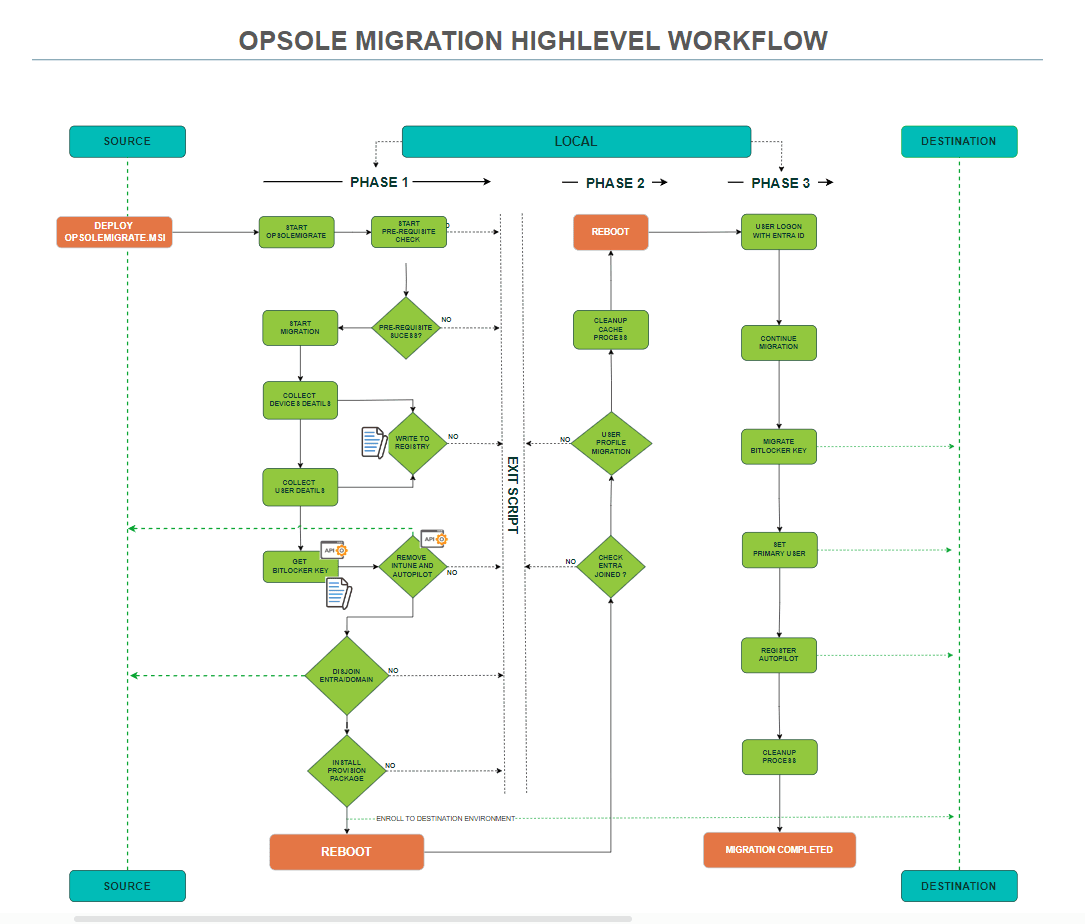
Phase 1 — Initiation (User-triggered)
This phase begins when the user launches OpsoleMigrate and runs the pre-check. After validating readiness, the engine:
- Collects device and user details
- Writes required metadata to registry
- Retrieves BitLocker key information
- Removes stale Intune and Autopilot records
- Unjoins the device from the domain (gracefully if possible)
- Joins the device to Microsoft Entra using a provisioning package
- Creates the Phase 2 task scheduler
- Disables user login
- Initiates a reboot
End result: Device restarts and enters Phase 2 automatically.
Execution Context
- Application should be launched from the migration user account
- Migration process runs under SYSTEM account
- Requires user interaction
- Performs migration operations, Graph API calls, and provisioning package execution
- Creates Phase 2 Task Scheduler to run at startup at next reboot
Environmental Dependencies
- Network connectivity for Graph API and Opsole API endpoints
- Provisioning package exists and is valid
- EDR/AV does not block scheduled task creation or system changes
Failure Conditions & What to Check
| Issue | Likely Cause | What to Check |
|---|---|---|
| Authentication failed because NTLM authentication has been disabled | Domain leave user format issue or password wrong | Verify Domain leave user authentication and permission |
| Entra join fails | PPKG blocked / EDR interference / corrupted PPKG | Check logs & EDR allowlist Test PPKG installation |
| Phase 2 does not start | Scheduled task blocked | Check if OpsoleMigrate-Phase2 exists |
Phase 2 — System Migration (Runs before user login)
This phase is triggered automatically by a scheduled task when the machine restarts.
Before any user signs in, OpsoleMigrate:
- Confirms the device is successfully Entra Joined
- Checks if the user profile is currently loaded
- Migrates the user profile to the new Entra identity
- Creates the Phase 3 task scheduler
- Re-enables user login
- Initiates another reboot
End result: Device restarts and the user can sign in using their Entra ID to complete the final phase.
Execution Context
- Trigger: Task Scheduler job created in Phase 1
- Application runs under SYSTEM
- Performs migration operations, Graph API calls, profile migration
- Creates Phase 3 Task Scheduler to run at next reboot
Environmental Dependencies
- Network connectivity for Graph & Opsole API
- Task Scheduler not blocked by EDR or GPO
- No background services auto-loading the user profile
- EDR must not delete tasks created in Phase 1
Failure Conditions & What to Check
| Issue | Likely Cause | What to Check |
|---|---|---|
| Phase 2 never runs | EDR blocked scheduled task | Check OpsoleMigrate-Phase2 exists |
| Profile did not migrate | Profile loaded during Phase 2 | Check services/agents loading user data |
| Phase 2 exits and reboots | Entra join incomplete | Validate join state |
Phase 3 — Post-Login Finalization (User logs in with Entra ID)
After the reboot from Phase 2, the user signs in with their Entra ID.
OpsoleMigrate then:
- Continues migration through the Phase 3 task
- Migrates BitLocker recovery keys (if applicable)
- Registers the device in Autopilot
- Performs cleanup of temporary tasks and files
- Marks migration as complete
End result: Device fully cloud-joined, profile preserved, and management restored.
Execution Context
- Trigger: Task Scheduler created in Phase 2
- Application runs under SYSTEM
- Performs final operations and cleanup
Environmental Dependencies
- Network connectivity for Graph & Opsole API
- Task Scheduler not blocked by EDR/GPO
- EDR must not delete Phase 2–created tasks
Failure Conditions & What to Check
| Issue | Likely Cause | What to Check |
|---|---|---|
| Phase 3 window never appears | EDR blocked task | Check Task Scheduler |
| User login fails | Incorrect Entra credentials | Verify Entra join & account |
| BitLocker key not visible | Network or rights issue | Check encryption status & Entra portal |
3. Environment Dependencies and Why They Matter
Network/Endpoint Connectivity
Tool requires connectivity to:
- Opsole API for license and configuration retrieval
- Domain controller (for unjoin) in Phase 1
- Microsoft Graph / Entra ID / Intune endpoints
Lack of connectivity or blocked ports may cause join or registration failure.
Device State & Rights
The tool assumes it runs under elevated rights (SYSTEM/local admin) and can unjoin, join and manage device state. If device is locked down (GPO prevents unjoin) or user has insufficient rights, migration may fail.
Application must be allowed/whitelisted in EDR/AV:
Phase 2 and Phase 3 depend on Windows Task Scheduler jobs being created and executed at the correct time. If an EDR or security policy blocks the application or creation or execution of the tasks, the migration will stop after Phase 1 (or silently fail). It is critical that the clients allow task creation and invocation by the migration engine.
User Profile Must Not Load Prematurely
If any background service, auto-login agent, or folder-redirection script causes the user profile to load before Phase 2 executes, the tool will skip the profile migration step (because it detects a loaded profile). That often leads to the user complaining “my profile didn’t migrate” whereas the root cause is an environment agent loading the profile early.
4. Responsibilities: Opsole Migrate vs Customer
| Area / Task | Opsole Migrate Responsibility | Customer Responsibility |
|---|---|---|
| Product Function | Provide migration application | Use tool correctly from migration user account |
| API Connectivity | Provide API endpoints | Ensure outbound network access |
| EDR Compatibility | Provide binaries & instructions | Whitelist OpsoleMigrate and required actions |
| Scheduled Tasks | Creates & runs tasks | Ensure EDR/GPO allow task creation/execution |
| Entra Join | Automate provisioning package execution | Upload correct PPKG |
| Domain Unjoin | Handles unjoin logic | Ensure DC reachable OR credentials correct |
| Profile Migration | Handles SID mapping & ACL updates | Ensure profile not loaded by services |
| Entra Graph | Perform Graph calls | Ensure correct Azure App permissions |
| BitLocker Handling | Extracts and passes keys | Ensure BitLocker status healthy |
| Device Readiness | N/A | Ensure device is stable/healthy |
| Identity Validation | Lookup user in Entra | Ensure correct Entra user exists |
| Device Services | N/A | Remove/disable OLD user services |
| Local Machine State | N/A | Prevent GPO/security restrictions |
| User Experience Continuity | Zero-touch design | Communicate "Do not log in" instruction |
| Monitoring & Reporting | Built-in dashboard & logs | Admin monitors portal/event logs |
Conclusion
OpsoleMigrate is designed to make the transition from Hybrid AD or on-prem Active Directory to Microsoft Entra ID smooth, predictable, and fully automated.
By understanding how each phase works, what actions occur in the background, and why certain environmental dependencies matter, IT administrators can plan migrations with confidence and avoid unexpected interruptions.
This document outlined the complete lifecycle of the OpsoleMigrate engine—how it unjoins a device from the domain, performs Entra Join, migrates the user profile, and restores management through Intune/Autopilot with minimal user impact.
With this knowledge, administrators can:
- Clearly anticipate each phase of the migration
- Quickly identify issues when they arise
- Ensure their environment supports the tool
- Communicate effectively with end users during the process
OpsoleMigrate is a powerful automation engine—but its success depends on a prepared environment. Understanding how it works is the first step toward a seamless, zero-touch device modernization journey.
How is this guide?
Welcome to Opsole Docs
Official documentation for Opsole Migrate - Modern device migration solution
OpsoleMigrate Prerequisites
This document outlines all requirements needed before starting a device migration. It includes licensing, supported device states, hardware and network prerequisites, Graph API permissions, and the steps to register the Opsole Migrate application in Microsoft Entra ID.