Additional Portal Configuration
This document explains how to configure the Opsole Migrate Portal for device migration, including adding tenant details, registering application credentials, uploading provisioning packages, and preparing the environment for Hybrid-to-Entra and Tenant-to-Tenant migration scenarios.
Opsole Migrate Additional Portal Configuration
After completing all prerequisite configurations and Portal Onboarding , you're ready to set up the Additional Configuration.
Step 1 — Additional Configuration
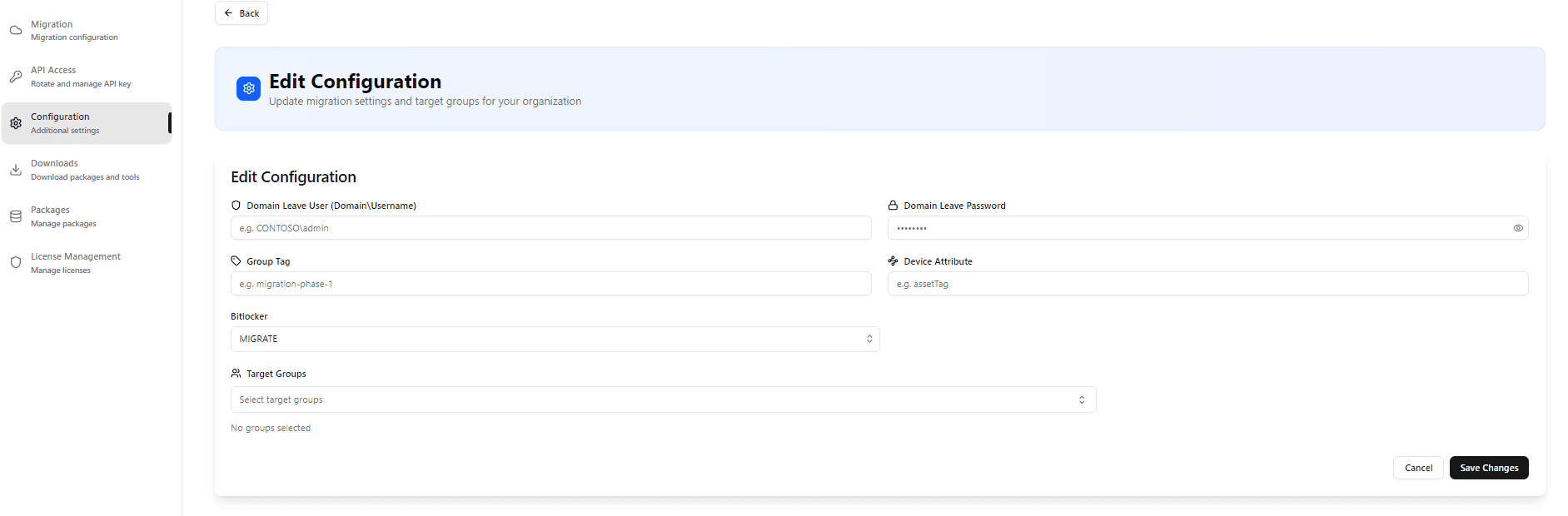
After successfully saving your Entra ID configuration, proceed to complete the Additional Configuration settings:
Fill in the following fields as needed for your migration scenario:
-
Domain leave User / Password:
FQDN\Usernameand password. -
Group (Autopilot Devices): Specify the group, if applicable, to manage devices provisioned through Autopilot.
-
BitLocker Migrate Option:
MIGRATEorDECRYPTbased on whether you want to retain BitLocker encryption during migration. -
Device Attributes: Select device attributes to be retained or modified.
-
Target Group (Optional): Define the destination group to which devices should be assigned after migration.
-
Click Save to apply the settings.
Step 3 — Provisioning Package Upload
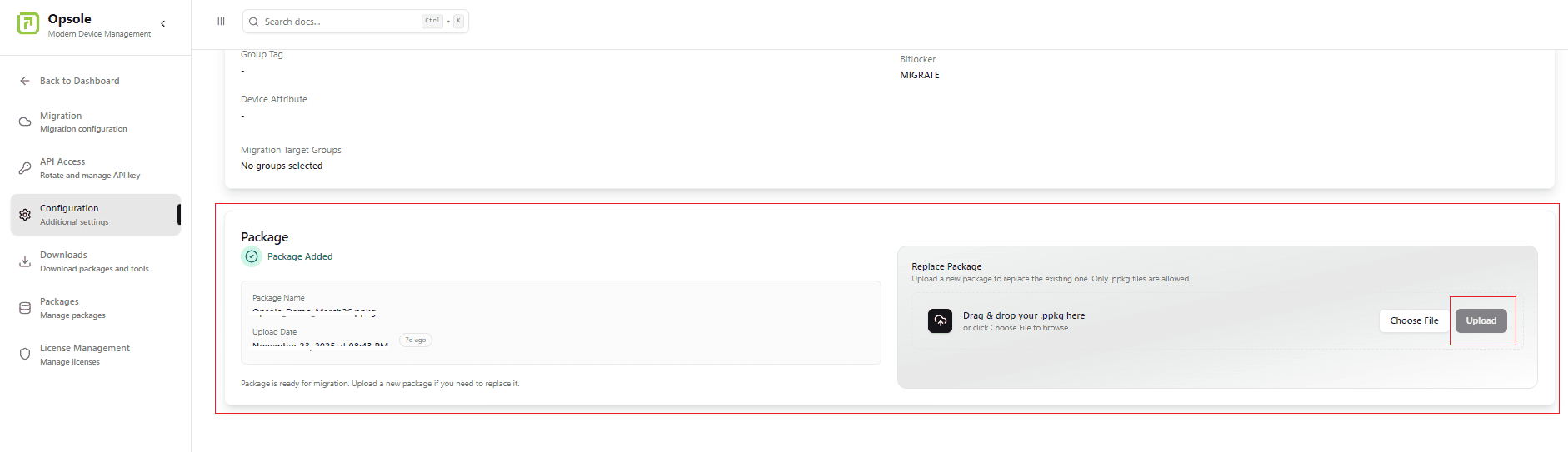
To upload the provisioning package for the migration process, follow these steps:
- Navigate to Settings → Configuration
- Locate the Package section
- Click Upload Package
- Choose Package Expiry Date
- Upload the provisioning package (
.ppkg) generated in WCD
Use the correct provisioning package based on your migration scenario:
For Hybrid-to-Entra migration:
- Upload the provisioning package created using the current (source) tenant credentials.
For Tenant-to-Tenant migration:
- Upload the provisioning package created using the destination (target) tenant credentials.
✅ Your configuration is now complete. You are ready to begin the Opsole Migrate application and start your migration.
- Continue to setup: Start Your Migration
How is this guide?
Provisioning Package & Directory Setup
This document covers the hands-on setup steps required before running the migration, including creating the provisioning package with Windows Configuration Designer (WCD) and preparing the Active Directory disjoin account (for Hybrid/AD-joined devices).
Start Your Migration
This document provides a step-by-step walkthrough of running the Opsole Migrate application on the device, from launching the tool to completing the migration process. It applies to both Hybrid-to-Entra and Tenant-to-Tenant migration scenarios.